
Purpose
Use the Toplist report to rank products by selected performance measures for a selected period. The report can show top or bottom sellers and supports filtering by location, category, vendor and transaction type.
Roles involved
- Store manager
- Category manager
- Retail analyst
Preconditions
- The user needs permission to read Toplist.
- Product, category and sales data must exist.
Navigation path
Reports → Toplist
Step-by-step procedure
- Open Reports → Toplist.
- Select the Date range.
- Optionally filter by one or more Locations.
- Select the Sort by metric. The page supports values such as sales amount, sales quantity, stock on hand and GM.
- Select Top / Bottom to choose top sellers or bottom sellers.
- Select the transaction Type (for example sale or salepos) if needed.
- Optionally Choose the amount of lines shown “Show lines.”
- Optionally filter by Product category and Vendors.
- Click Filter.
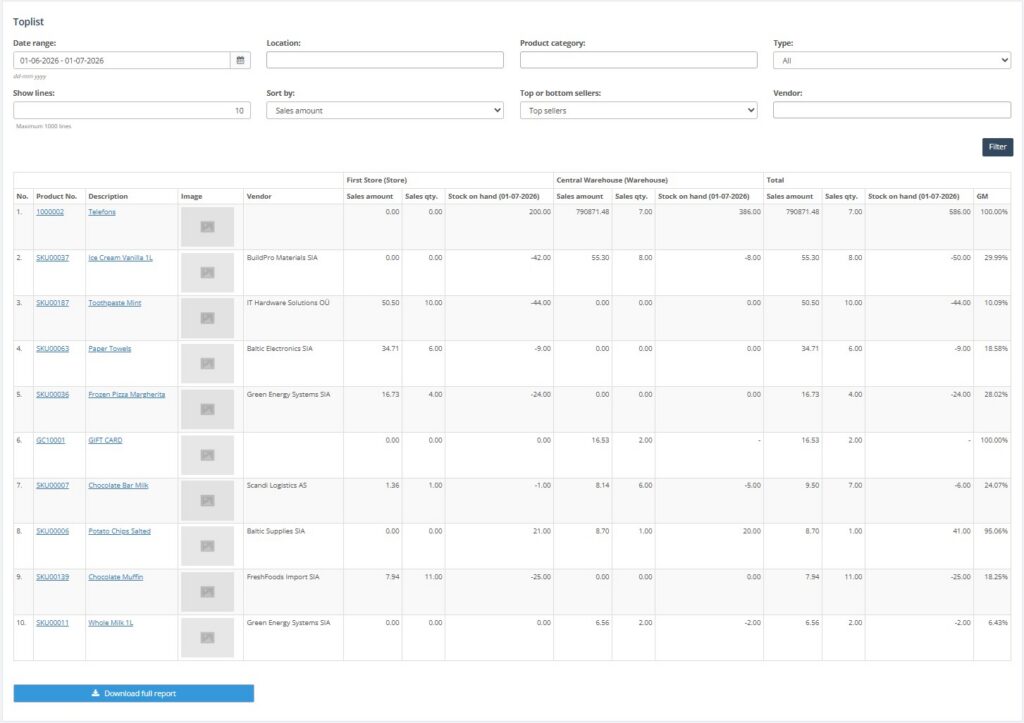
- Review the result table and, if needed, click Download full report.

Required fields
- Date range
- Sort by
- Top / Bottom
Validation rules
- Selected categories and vendors must exist in setup.
- Sort and type values must come from the available report lists.
Exceptions
- The result changes significantly depending on Sort by and Top / Bottom.
- Show lines changes the report output and should be tested by users if they are unsure.
Common errors
- Users read bottom sellers as top sellers because the Top / Bottom option was not checked.
- Users compare different transaction types without noticing the Type filter.
Troubleshooting
- If the result is unexpected, first review Date range, Sort by, Top / Bottom and Type.
- Use narrower vendor or category filters when the result set is too broad.
Questions / Gaps
- The exact effect of Show lines in the final output should be confirmed with a live example if users need step-by-step training.