
Purpose
Use the Orders summary report to review summarized sales receipt / order data in a filterable list with drilldown to document details.
Roles involved
- Store manager
- Retail analyst
- Finance user
Preconditions
- The user needs permission to read the sales report.
- Sales report data must exist.
Navigation path
Reports → Orders summary
Step-by-step procedure
- Open Reports → Orders summary.
- Use the available filters such as receipt / transaction datetime, location, POS, worker, customer, customer group, creation date and type.
- Run or refresh the list.
- Review the result grid. The report includes document number, lines, amount, paid, payments, discount, location, customer, customer group, POS, worker, comment, membership points, transaction time, date and type.
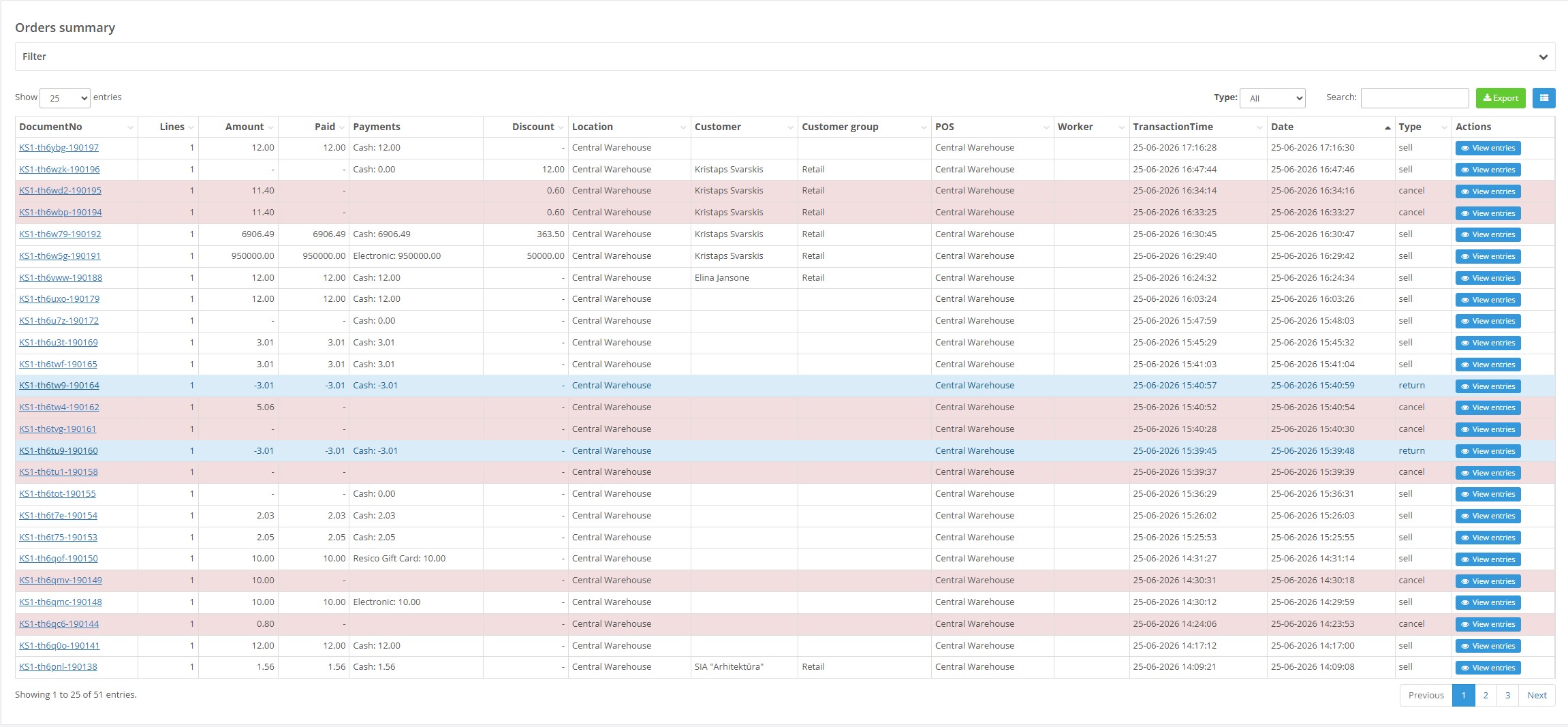
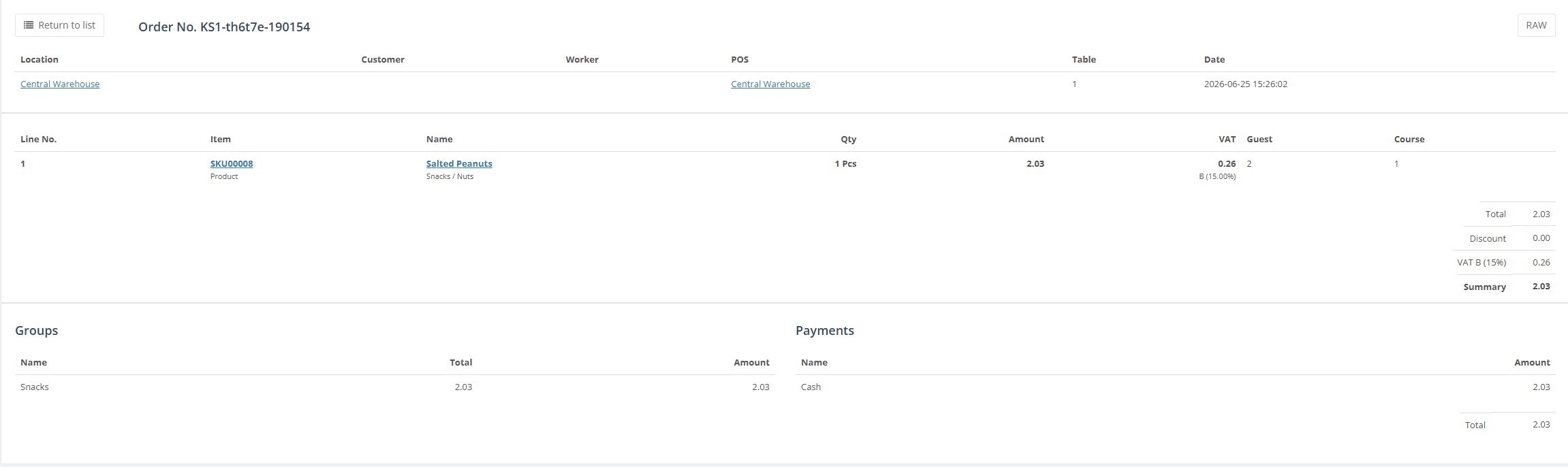
- Open a document number to see the document detail view.
- Use export when you need the data outside the ERP.
Required fields
- No single filter is mandatory, but a date-related filter is recommended for practical use.
Validation rules
- Filter values must come from configured locations, POS, workers, customers and customer groups.
Exceptions
- The report is a list-style report with drilldown, not a single aggregated summary card.
- Document detail is opened from the document number link.
Common errors
- Users expect order lines directly in the list instead of opening the document detail.
- The result set is too large because no date or location filter is used.
Troubleshooting
- Use location, POS and date filters to reduce the result size.
- Open one document from the list when investigating a specific transaction.
Questions / Gaps
- The exact payment breakdown fields shown in the detail view should be confirmed with a live document example if needed.