
Purpose
Use the Visma Horizon page to configure the Horizon integration in Resico ERP. This page is used to manage the API connection, configure product mappings, and link Resico POS terminals and locations to corresponding Horizon values.
Roles involved
- System administrator
- Finance manager
- Integration / support team
Preconditions
- You need permission to edit Client profile.
- The Horizon API URL, username and password must already be available.
- Resico POS terminals, locations and any deposit or gift card products used in accounting should already exist.
- If Horizon customer, EKA, cash register, or location mappings are required, the corresponding Horizon values must already be available.
Navigation path
Client profile → Visma Horizon
Step-by-step procedure
- Open Client profile → Visma Horizon.
- Enable the integration using Enable Horizon.
- In the API settings section, enter:
- Horizon API URL
- Horizon username
- Horizon password
- In the Data mapping section, select the appropriate Horizon EKA code if Horizon customer mappings are required.
- Select the product that should be used for deposit transactions in Horizon.
- Review the gift card product mapping section. The page supports up to five gift card product links:
- Giftcard (1)
- Giftcard (2)
- Giftcard (3)
- Giftcard (4)
- Giftcard (5)
- In the Resico POS → Horizon EKA mapping section, map each active Resico POS terminal to the corresponding Horizon EKA / cash register value.
- In the Resico location → Horizon order parameters section, configure each active Resico location by specifying:
- The Horizon order parameter text field
- The Horizon location code selection
- Click Save to apply the configuration.
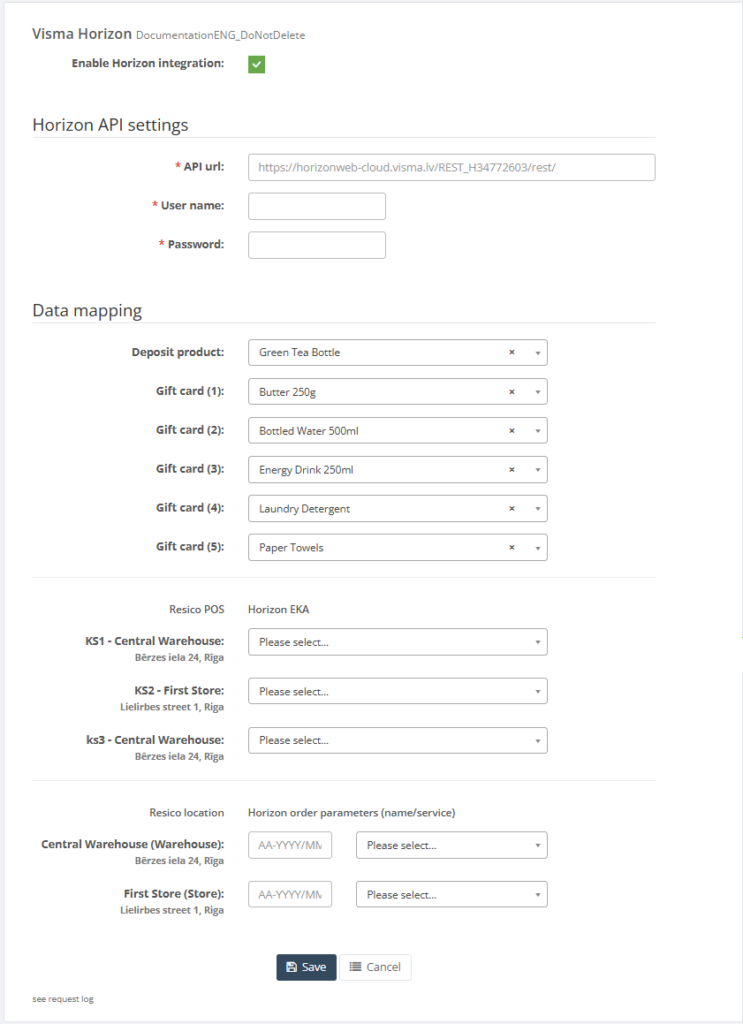
10. Use Cancel to leave the page without saving.
11. If needed, use See request log to review integration-related changes or request history.
Required fields
- Horizon API URL
- Horizon username
- Horizon password
Additional mappings may be required depending on the Horizon integration setup:
- Horizon EKA code
- Deposit product
- Required Giftcard product links
- POS to Horizon EKA mapping for each active POS
- Location order parameter and Horizon location code mapping for each active location
Validation rules
- API URL, username, and password must match the target Horizon environment.
- Deposit and gift card mappings must reference valid Resico products.
- Each POS terminal should be mapped to the correct Horizon EKA value.
- Each location should be mapped to the appropriate Horizon location code.
- Horizon order parameters must follow the format required by the Horizon implementation.
- All dropdown selections must use values available from the loaded Horizon lists.
Exceptions
- Some mapping sections appear only when related Horizon data is available, such as Horizon customers, Horizon cash registers or Horizon locations.
- Fewer than five gift card product mappings may be used if additional mappings are not required.
- The page stores mapping values only; the actual export behavior depends on the broader Horizon integration flow outside this page.
Common errors
- Incorrect API URL, username, or password prevents successful connection to Horizon.
- The wrong deposit product is selected.
- Gift card products are mapped incorrectly.
- POS terminals are linked to incorrect Horizon EKA values.
- Locations are linked to incorrect Horizon location codes.
- Horizon order parameters are missing or entered incorrectly.
- API connection settings are configured, but required mappings are incomplete.
Troubleshooting
- If Horizon integration does not work, first verify the Horizon API URL, username and password.
- If only POS-based exports fail, review the Resico POS → Horizon EKA mapping section.
- If location-based exports fail, review the Resico location → Horizon order params section.
- If gift card or deposit-related exports behave incorrectly, verify the selected product mappings.
- Use See request log when available to review integration activity and troubleshooting history.
Questions / Gaps
- The page clearly stores API values and mappings, but the exact export scenarios that use each mapping should be confirmed in the live tenant.
- It should be confirmed whether all five gift card mapping slots are used by the integration or whether some are reserved for optional configurations.
- The exact structure and use of the free-text Horizon order parameter field should be validated with a real Horizon export example.