
Purpose
Use the Purchase Credit Orders module to record returns to vendors and issue credit notes. When you send goods back to a supplier, a purchase credit order captures the returned items, quantities and values, and adjusts stock levels upon approval. It acts as a formal document for vendor credits and ensures inventory and accounting records remain accurate.
Roles involved
The following roles typically work with purchase credit orders:
- Purchasing managers – authorise returns and approve credit notes.
- Procurement specialists/buyers – create credit note drafts and enter line details.
- Warehouse personnel – select the location from which goods are returned and prepare shipments.
- Accounts payable staff – review and reconcile credit amounts against vendor statements.
- Users must have “view Purchase credit orders” rights to access the list and “edit Purchase credit orders” rights to create, modify or approve documents.
Preconditions
- Vendor records must exist in the Vendors module.
- Products should be defined with valid VAT codes and units of measure.
- Locations, currencies and payment methods must be configured in Retail Setup.
- Users require appropriate permissions to create or edit purchase credit orders.
Navigation path
From the main menu select:
Purchase orders → Purchase credit orders
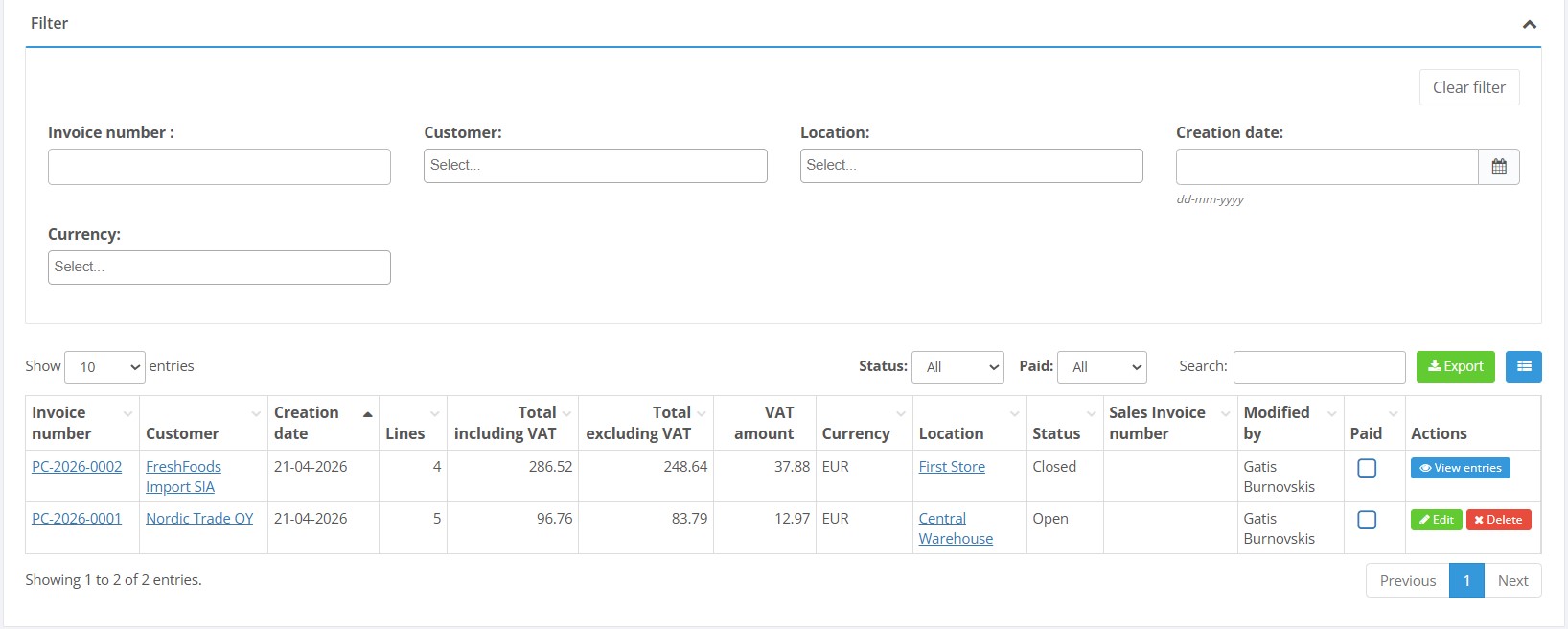
The list page displays existing credit notes with filters for status and paid flags. You can search, configure columns and export the list.
Step‑by‑step procedure
- Open the list – Navigate to Purchase credit orders. Use the search box and filters to find existing credit notes. Click the green Export button if you need a spreadsheet.
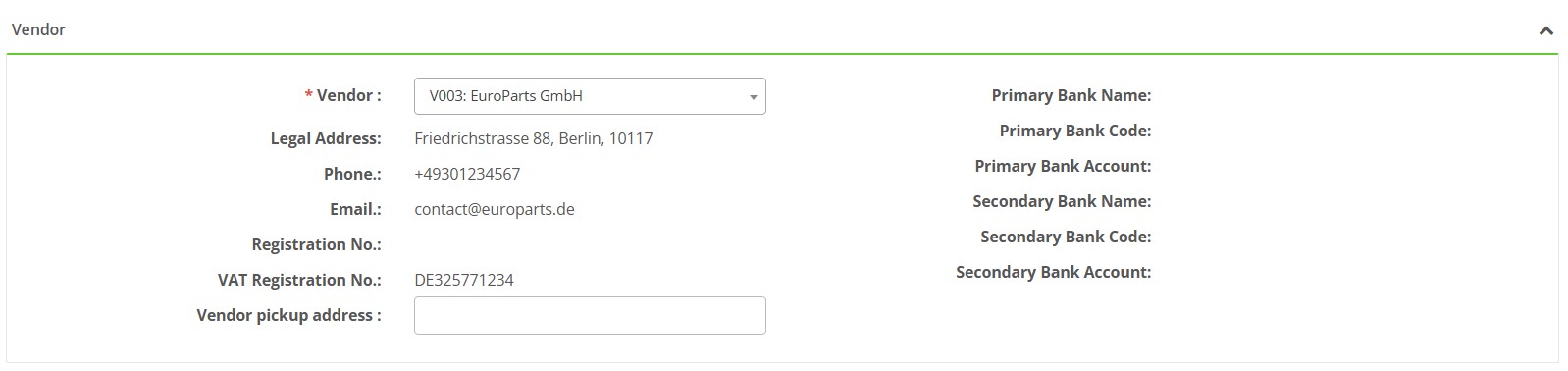
- Create a new credit note – Click Create new Purchase credit order. A form opens with an automatically generated credit note number. Select the Vendor (mandatory); vendor details such as address and bank information populate for reference:
-
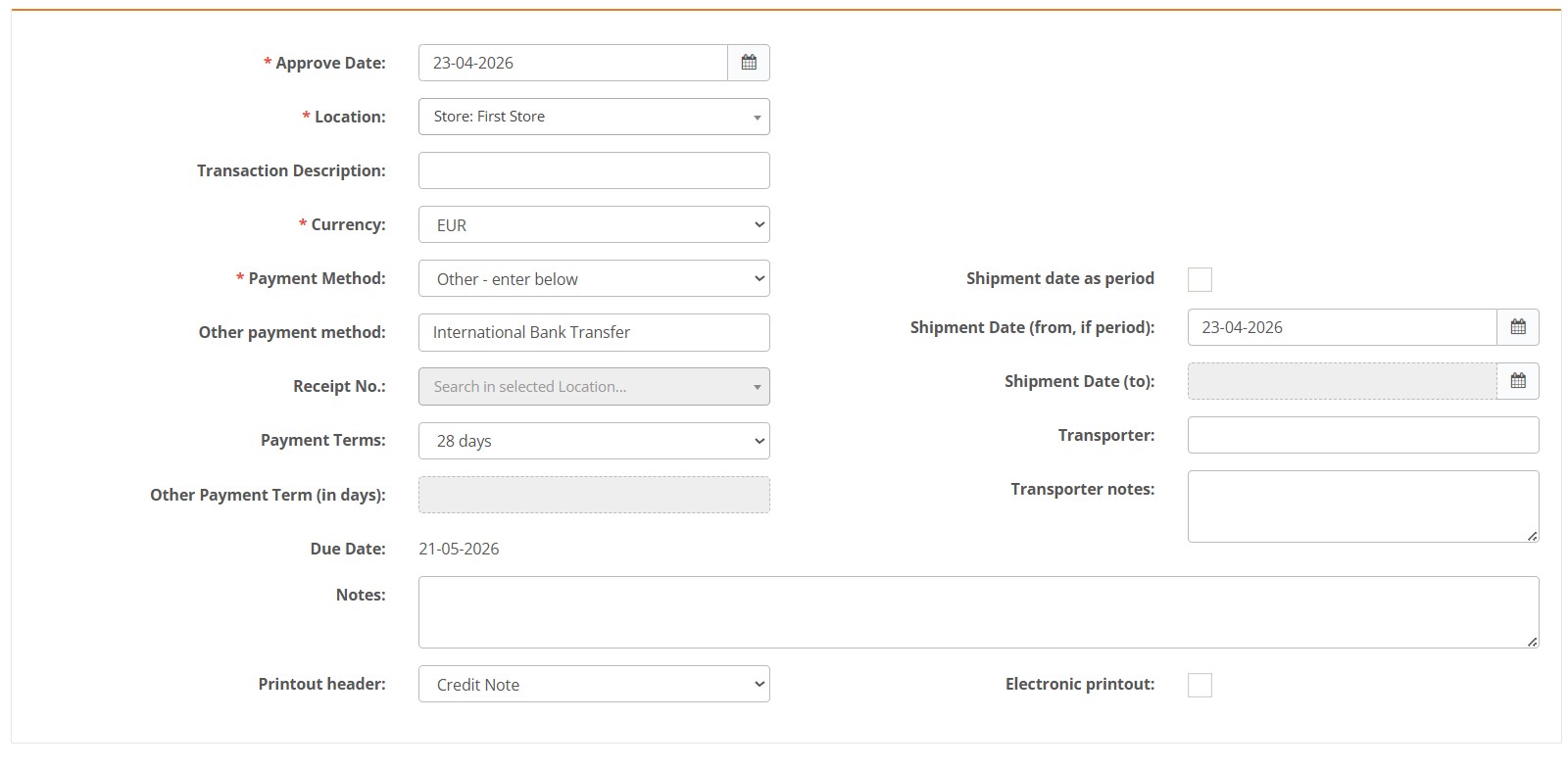
Enter header details – Complete the Details section:
- Approve date – mandatory; defaults to the current date. Determines when the return will affect stock.
- Location – mandatory; choose the warehouse/store that is returning goods.
- Currency – mandatory; typically EUR.
- Payment method – mandatory; select the method for settling the credit (e.g. bank transfer, cash). If you choose “Other – enter below,” complete the Other payment method field.
Optional fields include:
- Transaction description – Used to briefly explain the purpose of the transaction.
- Receipt No. – Provided if the credit order has already been paid; enter the receipt number used for the original payment.
- Payment terms – Define the number of days within which the payment must be made.
- Shipment dates (from/to),
- Transporter and Transporter notes.
-
Add credit note lines – A Credit Note lines table appears.
Click Add a new line to enter each returned product. Mandatory columns are:
- Product No. – select the product being returned; search or scan the product number/alias.
- Qty – quantity being returned. Enter a positive number; the system calculates the credit (negative value) automatically.
- Import or export lines – Use the Import / export dropdown to import multiple lines from an Excel or CSV template. At minimum, column A (Item No.) and column B (Quantity) are required. You can also export existing lines to a spreadsheet for analysis.
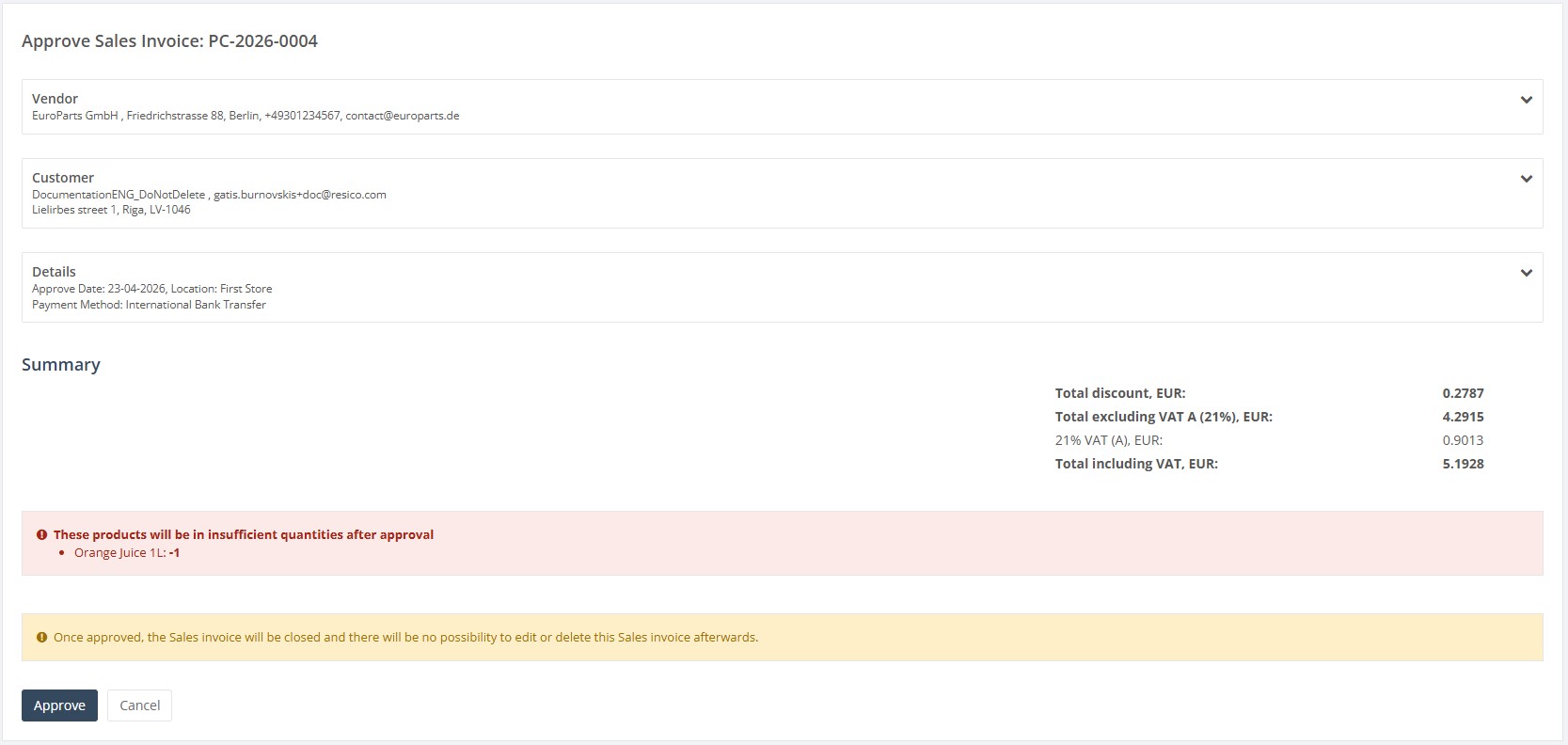
- Save and approve – Click Save to store the draft. Use Approve to finalise the credit note and adjust stock. After approval, the document becomes read‑only but can still be downloaded or printed.
- Mandatory fields are marked with a red asterisk; the system will not save or approve without them.
- Quantity values in lines must be positive; the system interprets them as returns and calculates negative amounts accordingly.
- Duplicate product numbers on different lines are allowed but will create separate lines. To return multiple quantities on one line, adjust the quantity accordingly.
- The credit note cannot be approved if required header fields or lines are missing.
- Negative stock warning – When returning goods you may see a warning if the quantity exceeds available stock. Users with the proper rights can approve the credit note even if it leads to negative stock.
- Other payment method – Selecting “Other – enter below” in Payment method reveals an additional input. Use this to describe non‑standard refund methods.
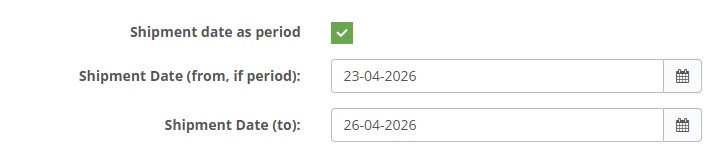
- Shipment dates – If goods were shipped over a period rather than on a single day, tick the “Shipment date as period” checkbox and enter “From” and “To” dates.
- “Please select a vendor/location/payment method” – one or more mandatory header fields are blank.
- Import file errors – occur when the import file does not match the expected template or contains unknown product numbers. Always use the provided template and ensure products exist in the system.
- Not enough stock – a warning displayed when returning more quantity than is available. Depending on user rights, you may still proceed.
- If lines cannot be added, make sure the header has been saved and all required fields are completed.
- If a product cannot be found, verify it exists in the Products module and is active.
- When import fails, use the downloadable template and ensure item numbers and quantities are numeric.
- If the Approve button is disabled, ensure at least one line exists and that your user account has rights to approve purchase credit orders.
- A vendor is selected.
- An approval date is entered.
- A return location is selected.
- A currency is selected.
- A payment method is selected.
- The Other payment method field is completed if Other – enter below is selected.
- The document contains at least one saved product line.
- Every line contains an existing product.
- Every returned quantity is numeric and greater than zero.
- Any line currently being edited has been saved or cancelled.
- You have permission to edit and approve Purchase Credit Orders.
- Verify that the correct return location is selected.
- Open the Product Card and check the Balance tab.
- Confirm the available quantity at the return location.
- Check whether other open documents may affect the stock balance.
- Correct the return quantity if necessary.
- The product exists in the Product List.
- The product is active.
- The correct product number, barcode or alias is entered.
- The complete product identifier is entered without additional spaces.
- The Product Card has been saved correctly.
- Use the template provided by Resico.
- The first required column must contain Item No..
- The second required column must contain Quantity.
- Each product identifier must match an existing product.
- Quantities must be numeric and greater than zero.
- The file should not contain merged cells or additional heading rows.
- Clear the search field.
- Check the selected status.
- Check the Paid filter.
- Review any vendor, location or date filters.
- Remove active column filters or use the clear-filter option.
Required fields
Vendor – The supplier to whom the credit note will be sent.
Approve date – The date when the credit note will impact stock levels and accounting records.
Location – The warehouse or store from which the goods are returned.
Currency – The currency used for the transaction (for example, EUR).
Payment method – The method used to refund or settle the credit with the vendor.
Product No. – The number or alias identifying the product being returned.
Qty – The quantity of each product being returned.
Validation rules
Exceptions
Common errors
Troubleshooting
Frequently Asked Questions
Why does the Purchase Credit Order not update inventory?
Only an Approved Purchase Credit Order updates inventory. Saving the document or adding lines does not change stock quantities.
Open the document, verify the vendor, location, approval date, products and quantities, and then click Approve.
Does approving a Purchase Credit Order increase or decrease stock?
Approving a Purchase Credit Order decreases stock at the selected location because the products are being returned to the vendor.
Before approval, verify that the selected location is the location from which the goods will physically be returned.
Should I enter a positive or negative return quantity?
Enter the returned quantity as a positive number.
The system interprets the Purchase Credit Order as a vendor return and applies the negative inventory and credit values automatically. Do not enter a negative quantity to control the return direction.
Why can’t I add credit note lines?
The document header must be saved before product lines can be added.
Select the vendor, approval date, location, currency and payment method, then save the header. The Add a new line button will then become available.
Why can’t I approve the Purchase Credit Order?
Before approving the document, check that:
Why does the system show a Not enough stock warning?
The quantity being returned is greater than the available stock at the selected location.
Before continuing:
Approving the document despite the warning may create negative stock. Proceed only if the negative balance is expected and permitted by company policy.
Why can’t I find a product when adding a line?
Check that:
Why did the line import fail?
Check the import file before trying again:
Why are imported product numbers or barcodes not recognized?
Excel may remove leading zeroes, add decimal formatting or convert long identifiers into scientific notation.
Format the Item No. column as Text before entering or pasting product numbers and barcodes. Verify that the complete identifier is still visible before importing the file.
Can the same product be added more than once?
Yes. Duplicate products can be entered on separate lines, but each line will remain a separate return entry.
If the products have the same price, VAT treatment, batch information and return reason, it is usually clearer to combine them into one line and enter the total returned quantity.
Why is an additional payment method field displayed?
The additional field appears when Other – enter below is selected as the payment method.
Enter a clear description of the non-standard settlement method before saving or approving the document.
When should I enter the original receipt number?
Enter the original receipt number when the returned goods relate to an earlier paid transaction and the receipt is required for reconciliation.
Use the receipt number from the original payment or purchase document.
How should shipment dates be entered for a return period?
Select Shipment date as period when the returned goods were shipped over more than one day.
Enter the first shipment date in the From field and the final shipment date in the To field. The To date must not be earlier than the From date.
Why can’t I find an existing Purchase Credit Order?
An active filter may be hiding the document.
Can I edit an approved Purchase Credit Order?
Approved Purchase Credit Orders are read-only.
If the system provides an Undo approve action and the user has the required permission, undo the approval and wait until the reversal process is complete before editing.
If approval cannot be undone, create a correcting document according to the company’s accounting procedure.
How can I correct a return created for the wrong location?
If the document is still Open, change the location and save the document.
If the document is Approved, use Undo approve if available, wait for the stock reversal to complete, select the correct location and approve the document again.
Which date is used for the inventory adjustment?
The inventory adjustment uses the Approve date entered in the Purchase Credit Order header.
Before approval, confirm that this date represents the date on which the goods are returned to the vendor and should be removed from inventory.
Does marking the document as Paid update inventory?
No. The Paid status records the financial settlement of the vendor credit.
Inventory is updated only when the Purchase Credit Order is approved.