
Overview
Product departments group categories and products for accounting and reporting purposes. They are often used to break down sales by department (e.g., Grocery, Clothing). The Product Departments page lists existing departments and allows you to add new ones.
Who Can Use This
Administrators and setup users with product management rights can manage departments. POS clerks only see departments as part of product information.
Preconditions
- You must have permission to manage product structures.
Navigation
Go to Retail Setup → Product Departaments (note the spelling in the menu).
Step‑by‑Step Process
- Open the Product Departments page. A table lists existing departments with columns for Department Name and a Negative flag.
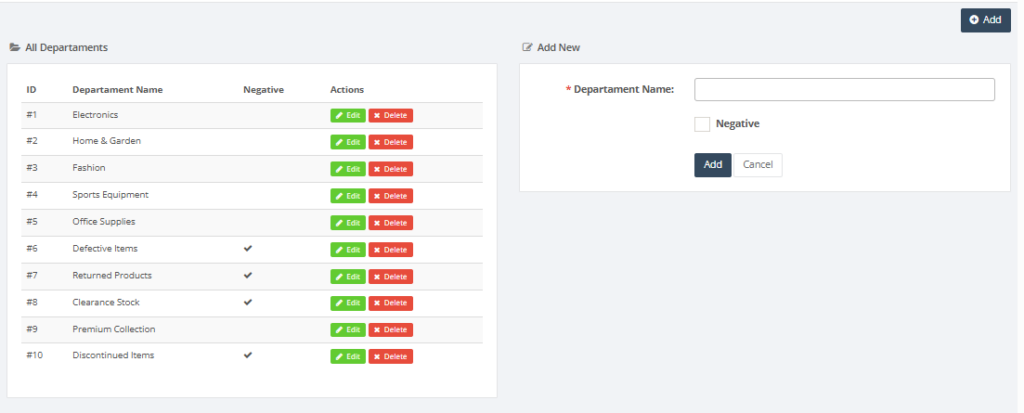
- To add a new department, enter the Department Name in the form on the right. If sales in this department can produce negative stock values, tick the Negative checkbox.
- Click Add to save the department. It will appear in the list.
- Use the edit or delete actions (if available) to modify existing departments.
Required Fields
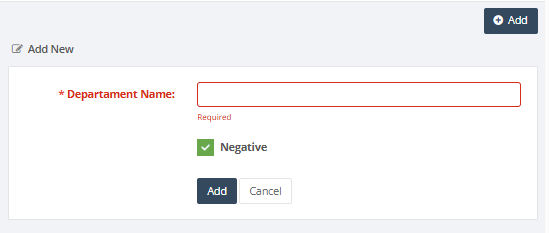
- Department Name is mandatory.
Validation Rules
- Department names must be unique.
- Use the Negative flag only if the department is allowed to sell products when stock is below zero.
Common Errors
- Duplicate name: departments cannot share the same name.
Troubleshooting
- If a department is missing from reports, confirm that products are assigned to the correct department.
Related Pages
- Product Categories – departments can contain multiple categories.
- Price Groups – may interact with departments for pricing.