
Purpose
Use the Invoice page to configure how the client’s invoice-related documents behave and look in Resico ERP. This page controls the invoice logo, standard invoice notes, custom invoice and offer templates, naming labels, line display options and tax accounting labels used on printouts.
Roles involved
- System administrator
- Finance manager
- Sales operations manager
Preconditions
- You need permission to edit Client profile.
- Before uploading templates or logos, prepare the correct files in the supported format.
- If you plan to change item number or item description behavior, confirm the required print layout and business rules with the users who create and print invoices.
- VAT groups and tax labels should already exist because the tax accounting section is built from configured VAT records.
Navigation path
Client profile → Invoice
Step-by-step procedure
- Open Client profile → Invoice.
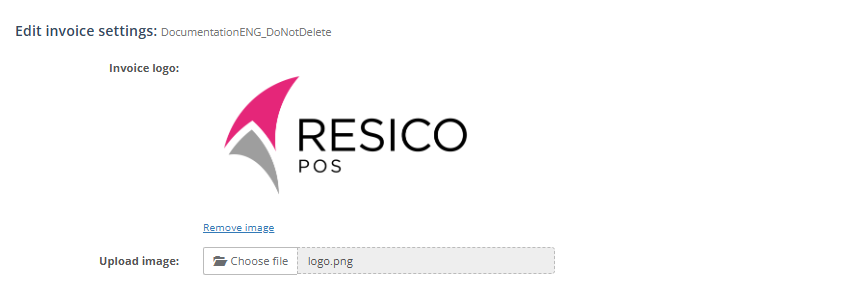
- In the top section, review the current Invoice logo. Use Upload image to add or replace the logo. Use Remove image if the current logo should be removed.
3. Enter or update Sales invoice notes. This is the standard note text stored for invoice output.

4. In the Price rounding section, select:
Calculation signs :
Print signs:

5. In the Custom template section:
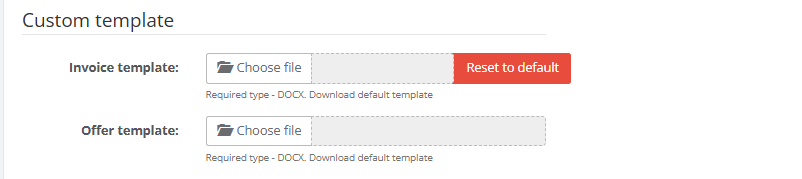
- Upload the Invoice template if a client-specific invoice layout is needed.
- Upload the Offer template if a client-specific offer layout is needed.
- Use the provided Download default template link to get the standard file as a starting point.
- If a custom template is already uploaded, use Reset to default to remove it and return to the system default.
When creating custom invoice or offer templates, item rows support the following price-related variables:
Invoice Line Variables
When creating custom invoice or offer templates, item rows support the following variables:
| Variable | Description |
|---|---|
$ino$ | Item number. |
$iname$ | Item name. |
$uom$ | Unit of measure. |
$qty$ | Quantity. |
$price$ | Unit price without VAT. |
$price_with_vat$ | Unit price including VAT. |
$disc$ | Discount value. |
$amount$ | Line total amount. |
$vat$ | VAT rate or VAT value for the line. |
Document Variables
| Variable | Description |
|---|---|
$DocTitle$ | Document title. |
$DocNo$ | Document number. |
$DocDate$ | Document date. |
$TrnDescr$ | Transaction description. |
$PayMethod$ | Payment method. |
$DueDate$ | Payment due date. |
$DelivDate$ | Delivery date. |
$Notes$ | Document notes. |
$AutoNotes$ | Automatically generated notes. |
$fTotal$ | Grand total amount. |
$currentDate$ | Current print date. |
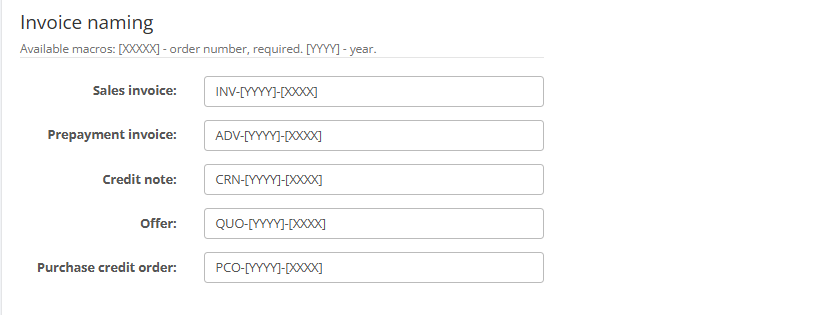
6. In the Invoice naming section, define the labels used for document types:
- Sales naming
- Prepayment naming
- Credit naming
- Offer naming
- Purchase credit naming
7. In the Representation of products in invoices section, define how product references and extra information should appear on invoice lines:
Item number can be displayed as one of the following:
- Product No.
- Barcode
Item description allows you to include additional product information:
- Batch numbers
- Serial numbers
- Barcode
- Description
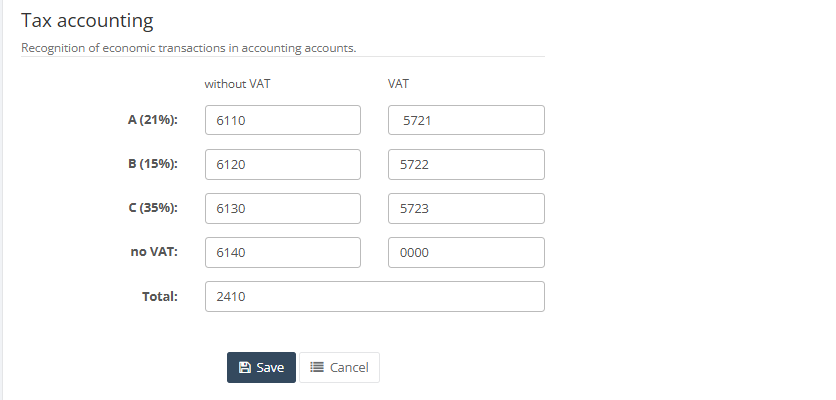
8. in the Tax accounting section, specify the accounting transaction recognition codes for each configured VAT group.
- Each VAT group is displayed in a separate row (for example, A (21%), B (15%), C (35%), and No VAT).
- For each VAT group, values can be entered in the following columns: (without VAT , VAT )
- The section also includes a separate Total field used for the overall invoice total accounting code.
9. Click Save to apply the changes. Use Cancel to leave the page without saving.
Required fields
- Sales naming
- Prepayment naming
- Credit naming
- Offer naming
- Purchase credit naming
- Item number selection
- Invoice total text in the tax accounting section if this is required by the client’s print layout
- Invoice template and Offer template only when custom templates are used
Validation rules
- Uploaded logo and template files must use a supported file format.
- Calculation signs and Print signs must be selected from the values available on the page.
- Item number must be chosen from the allowed display values shown in the dropdown.
- If product aliases, batch numbers or serial numbers are not enabled for the tenant, the related line-display options may be hidden.
- Tax accounting labels are stored separately for each VAT row and should be filled consistently to match the company’s invoice format.
Exceptions
- The document prefix fields exist in the screen structure but are placed inside a hidden block. Their practical use in the live tenant should be confirmed before relying on them.
- Custom field checkboxes appear in the Order lines section only for custom fields marked for template use.
- The available line-description options depend on whether the client has batch numbers, serial numbers or product aliases enabled.
- Template behavior depends not only on this page, but also on the content of the uploaded template files.
Common errors
- The invoice logo uploads successfully but does not appear because the selected template does not use the logo area.
- The wrong invoice or offer template is uploaded, causing incorrect print layout.
- The selected item number format does not match user expectations, for example printing barcode instead of product number.
- Tax accounting labels are incomplete or inconsistent across VAT rows, causing unclear printed totals.
- Users expect batch or serial data on invoice lines, but the related line-description checkboxes are not enabled.
Troubleshooting
- After any major change on this page, print one sample sales invoice and one sample offer.
- If the logo is missing, confirm that the upload succeeded and that the selected template uses the logo section.
- If line descriptions are incomplete, review the Order lines checkboxes and confirm that the related client features are enabled.
- If a custom template produces unexpected output, reset it to the default template and compare the result before re-uploading a corrected version.
- If the tax labels print incorrectly, review every VAT row in the Invoice tax accounting section and test again.
Questions / Gaps
- The page structure includes prefix fields inside a hidden block, so the exact business use of those fields in this tenant should be confirmed in live operation.
- The exact downstream print behavior of Calculation signs and Print signs should be confirmed with real printed examples, because the page shows numeric values only.
- The precise rules for which custom fields appear as invoice line options depend on the custom field configuration and should be confirmed in the live tenant.