
Overview
Passkeys provide a passwordless authentication method for signing in to Resico ERP. Instead of relying on a traditional password, passkeys use cryptographic keys generated and securely stored by the user’s device, browser or password manager.
A passkey can be added after signing in normally to the user’s account. Once configured, it can be used from the login page as an alternative to entering a password.
Depending on the device and browser, the passkey can be stored in the current browser or device, in a password manager, or protected with device authentication such as fingerprint, face recognition or a device PIN.
Preconditions
Before creating a passkey:
- The user must be able to sign in to Resico ERP normally.
- The user must have access to their profile.
- The browser or device must support passkeys.
- If biometric authentication is used, fingerprint or face recognition must already be configured on the device.
- If a password manager is used, it must support passkey storage.
Navigation
First sign in to Resico ERP normally.
Then navigate to:
Profile → Passkeys
Step-by-Step Process
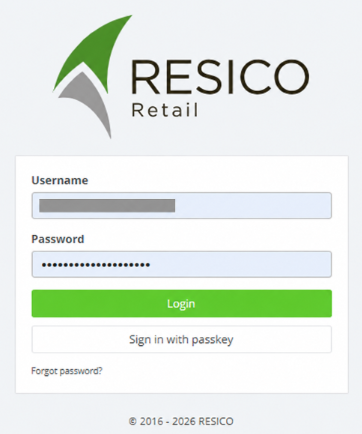
- Sign in normally:
- Open the Resico ERP login page.
- Sign in using your existing login credentials.
- Passkey setup is performed after you are already authenticated.
- Open your profile:
- Open your user profile.
- Locate the Passkeys section.
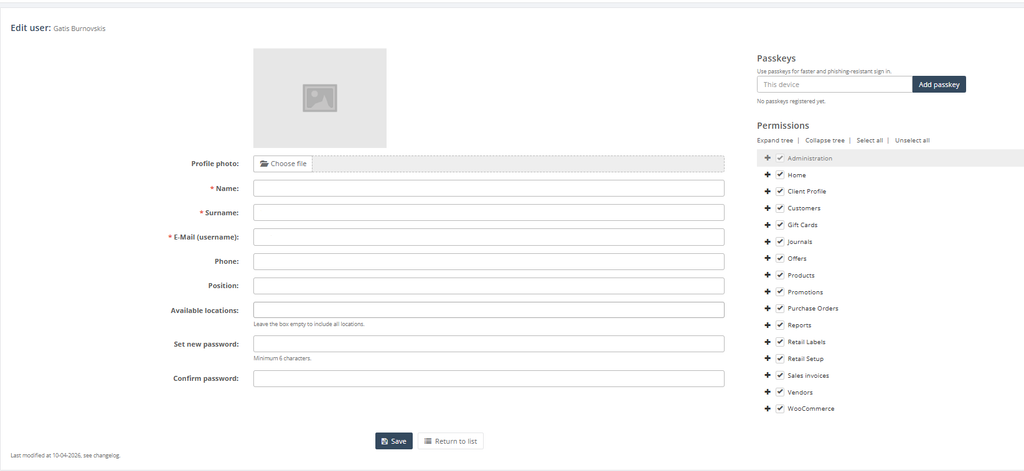
- Add a new passkey:
- Click the option to add or create a new passkey.
- Your browser or operating system will display the available passkey storage options.
- Choose where to save the passkey: Depending on the device and browser, you may be able to:
- Save the passkey on the current device or browser.
- Save the passkey in a supported password manager.
- Protect the passkey using fingerprint, face recognition or another device authentication method.
- Use another device, such as a phone or tablet.
- Using another device:
- If another device is selected, a QR code may be displayed.
- Open the camera on the phone or tablet you want to use.
- Scan the QR code.
- Follow the instructions on the device to create and save the passkey.
- Complete passkey registration:
- Confirm the request using the authentication method requested by your device.
- After confirmation, the passkey is associated with your Resico ERP account.
- Sign in using the passkey:
- Return to the Resico ERP login page.
- Select the option to sign in with a passkey.
- Choose the saved passkey if more than one is available.
- Confirm the login using the method requested by your device, such as fingerprint, face recognition, device PIN or password manager authentication.
- After successful verification, you will be signed in without entering your Resico password.
How Passkeys Work
Traditional passwords rely on a shared secret that the user enters during authentication.
Passkeys instead use a pair of cryptographic keys:
- A public key is stored by Resico ERP.
- A corresponding private key remains securely stored on the user’s device or in the selected password manager.
During login, the device proves that it possesses the private key without sending the private key itself to the server.
This makes passkeys resistant to many common password-related attacks, including phishing and password reuse.
Common Errors
- Passkey option is not available:
The browser, operating system or password manager may not support passkeys. - QR code cannot be scanned:
Make sure the QR code is fully visible and scan it using the camera on the device where the passkey should be stored. - Biometric authentication is unavailable:
Fingerprint or face recognition may not be configured on the device. Configure device authentication first or select another available authentication method. - Passkey is not shown during login:
Make sure the passkey was created for the same Resico ERP account and that the device or password manager containing the passkey is available. - Passkey authentication was cancelled:
Start the passkey login process again and complete the authentication prompt on the device.
Troubleshooting
- If the passkey option does not appear, try using an up-to-date browser with passkey support.
- If you saved the passkey in a password manager, make sure the password manager is unlocked and available in the browser.
- If the passkey was created on another device, make sure that device is available when authentication requires it.
- If biometric authentication does not work, try the device PIN or another authentication method offered by the operating system.
- If necessary, sign in using the normal login method and create a new passkey from your profile.
FAQ
- What is a passkey?
A passkey is a passwordless authentication method that uses cryptographic keys instead of a traditional password. - Do I need to sign in before creating a passkey?
Yes. First sign in normally, open your profile and add the passkey from there. - Can I still use my normal login after creating a passkey?
Yes. Creating a passkey provides an additional login method. - Where is my passkey stored?
Depending on your choice and device, it can be stored on the device, in the browser environment or in a supported password manager. - Can I use fingerprint or face recognition?
Yes, if supported and configured on the device. The biometric authentication protects access to the passkey. - Can I create the passkey using my phone?
Yes. When the QR code option is displayed, scan it with the phone or tablet where you want to create and save the passkey. - Does Resico receive my fingerprint or face data?
No. Biometric verification is performed by the user’s device. The authentication process uses the passkey rather than sending biometric data to Resico. - Why are passkeys more secure than passwords?
Passkeys do not require the user to type or transmit a reusable password. The private cryptographic key remains on the user’s device or in the selected passkey provider. - Can I have more than one passkey?
If multiple passkeys are supported, separate passkeys can be created for different devices or passkey providers.
Best Practices
- Create passkeys only on devices or password managers that you trust.
- Keep device screen lock, PIN or biometric authentication enabled.
- Do not scan passkey setup QR codes from unknown or untrusted websites.
- When using a shared computer, avoid storing a passkey locally on that computer.
- Consider keeping access to another login method in case the device containing the passkey is unavailable.