
Overview
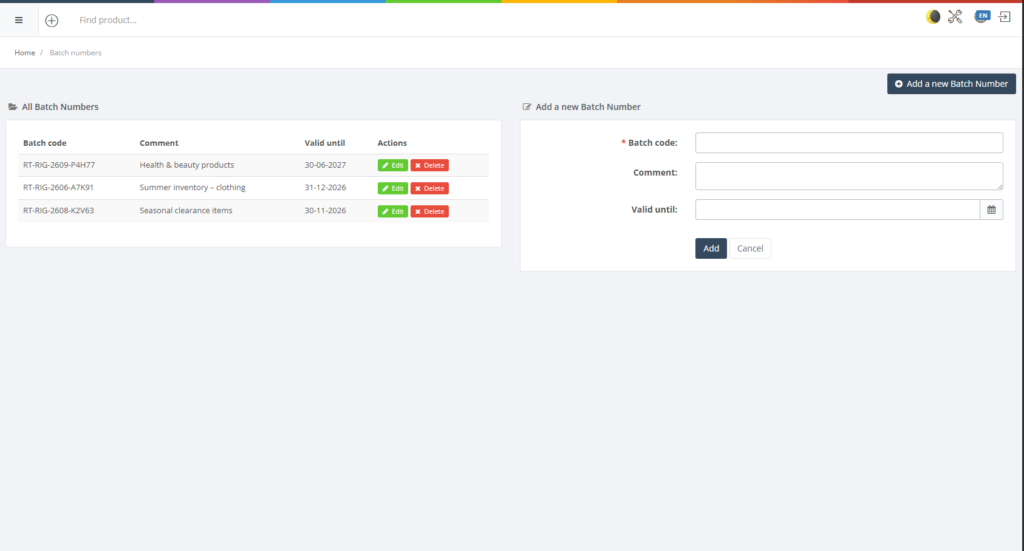
Batch numbers are used to track products produced or purchased in specific batches, often with an expiry or best‑before date. Batch tracking allows you to recall items, manage expiry dates and comply with traceability requirements. The Batch Numbers page lists existing batches and includes a form to add new ones.
Who Can Use This
Inventory managers and users with retail setup rights can create and manage batch numbers. Other users reference batch information when viewing or selling products.
Preconditions
- Ensure that batch tracking is enabled for the relevant products.
- You need permission to manage batch numbers.
Navigation
Select Retail Setup → Batch numbers.
Step‑by‑Step Process
- Open the Batch Numbers page. The table lists existing batches with columns for Batch code, Comment, Valid until and actions.
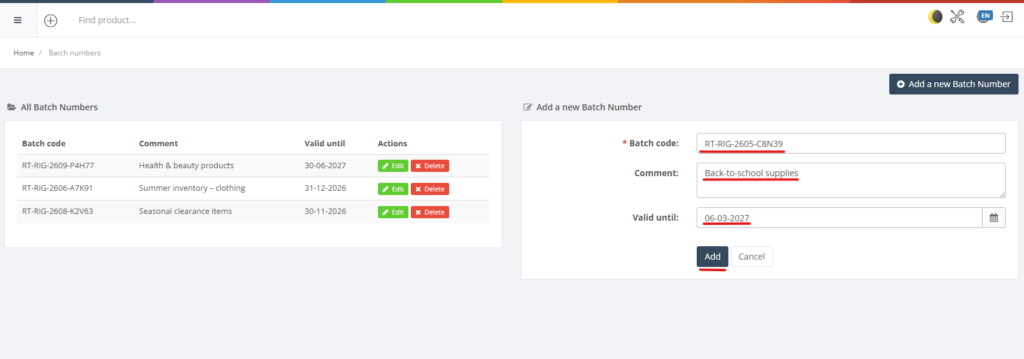
- To add a new batch:
- Enter a unique Batch code (required).
- Optionally add a Comment describing the batch, such as an expiry note.
- Enter a Valid until date if the batch has an expiry date.
- Click Add to create the batch. The new entry appears in the list and can be assigned to products.
- Use the Edit and Delete buttons to modify or remove batches as needed.
Required Fields
- Batch code is a mandatory field.
Validation Rules
- Batch codes must be unique.
- The Valid until date should be in the future and follow the MM-DD-YYYY date format.
Common Errors
- Duplicate batch code: you cannot create two batches with the same code.
- Invalid date format: ensure you use the date picker to avoid typing errors.
Troubleshooting
- If batch numbers do not appear when editing purchase orders or sales invoices, ensure the batch was saved and that batch tracking is enabled for the product.
Related Pages
- Purchase Orders – used to reference and track purchased products.
- Sales Invoices – can include references to specific batches when products are sold.