
Overview
The Administration → Users section in Resico ERP allows system administrators to create and maintain user accounts, assign them to specific store locations, and manage their permissions across all modules. Permissions are arranged in a hierarchical tree that covers every functional area of the ERP. This page describes how to view the user list, add a new user, edit existing users, and assign rights using the permissions tree.
Who Can Use This
- Users with access to the Administration module.
- Typically, system administrators or managers responsible for user maintenance.
Preconditions
- You must be logged in and have Administration rights.
- Required setup (such as locations and VAT groups) should already exist so that users can be assigned to locations.
- Ensure the email address you plan to use for a new user is unique.
Navigation
From the main menu, navigate to:
ERP → Administration → Users
Step‑by‑Step Process
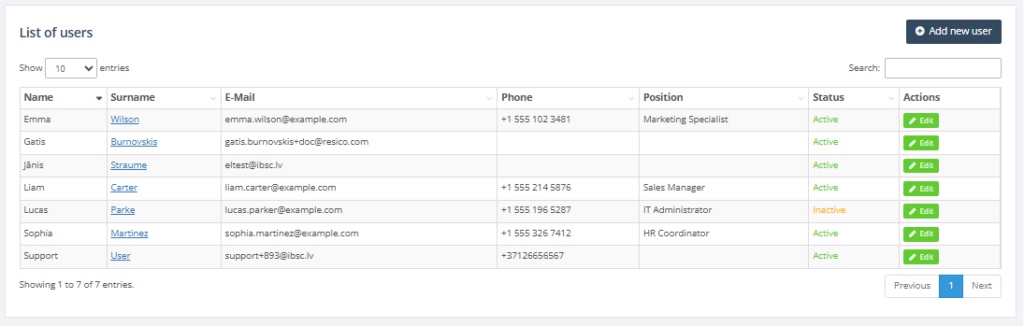
- Open the user list: Select Administration → Users to view all existing users. A table displays the user’s name, surname, email (username), phone, position, status, and actions, such as Edit.
2. Add a new user:
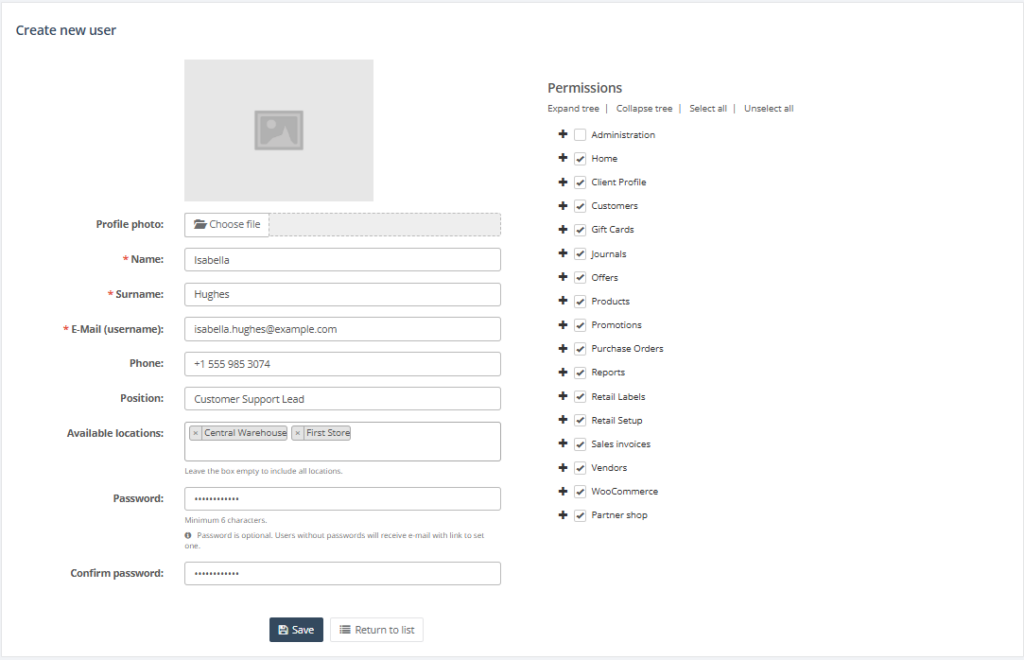
- Click the Add new user button (usually above the table).
- Enter the Name, Surname, and E‑Mail (username). These fields are mandatory (marked with a red star).
- Optional fields include Phone and Position.
- Select one or more Available locations. Leaving this box empty grants access to all locations.
- Set a password by entering Password and Confirm password. Passwords must be at least six characters long. If you leave these fields blank when creating a new user, the system will send a welcome email containing a link for the user to set their own password. When editing an existing user, leaving these fields blank keeps the current password unchanged.
- Save the new user. A unique email address/username is required.
3. Edit an existing user:
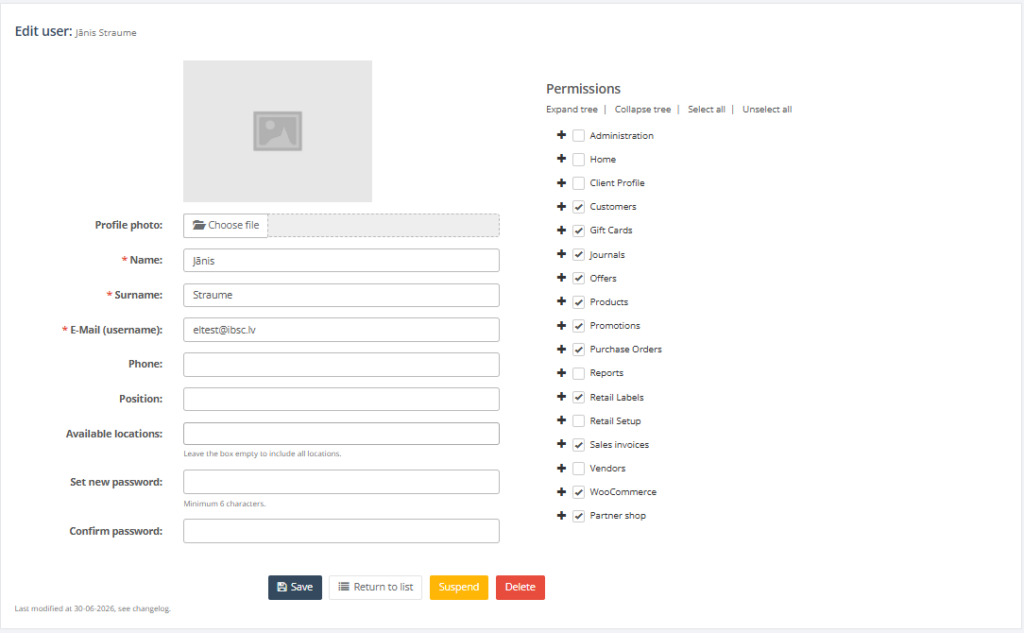
- In the user list, click the Edit (pencil) button next to a user.
- The edit page opens, showing the user’s details and a Permissions panel.
- Update profile details (name, surname, email, phone, position, available locations) as needed.
- To manage rights, use the Expand tree link in the Permissions panel. This expands the hierarchical rights tree.
- Check or uncheck boxes to grant or revoke access. Use Collapse tree, Select all, or Unselect all to quickly adjust permissions.
- Click Save to apply changes or Return to list to cancel.
Required Fields
- Name – user’s given name (mandatory; maximum 50 characters).
- Surname – user’s family name (mandatory; maximum 50 characters).
- E‑Mail (username) – unique login name and valid email address (up to 120 characters).
- Password – at least six characters. When creating a new user, you may leave the password fields blank; the system sends a welcome email with a link for the user to set their own password. When editing an existing user, leaving the password fields blank keeps the current password unchanged. If you enter a new password, Confirm password must match.
- Available locations – optional. Select one or more locations to restrict access. Leaving this blank grants the user access to all locations.
- Photo – optional. Upload a profile picture in JPEG, PNG, JPG, GIF or WebP format.
Validation Rules
- All fields marked with a red star are mandatory.
- Name and Surname may not exceed 50 characters.
- Phone numbers are limited to 20 characters.
- Position can contain up to 100 characters.
- Email (username) must be a valid email address and unique. Duplicate emails are not allowed.
- Passwords must be at least six characters and the Password and Confirm password fields must match. Leaving both fields blank during editing keeps the existing password unchanged.
- Photo files must be in JPEG, PNG, JPG, GIF or WebP format if provided.
- The permissions tree uses checkboxes; checking a parent category implicitly grants access to all child rights.
- When editing your own user account, the system ensures you retain rights to edit users; you cannot accidentally revoke your own administration permission.
Common Errors
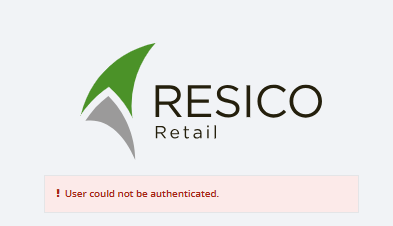
- “User could not be authenticated” – occurs when the username or password is incorrect when logging in. Ensure credentials are correct.
- Duplicate email address – the system prevents saving a user with an email that already exists. Use a different email.

- Missing mandatory fields – if you leave a mandatory field blank (Name, Surname, E‑Mail), the system highlights it with a red border.

- Rights missing due to collapsed tree – if a user cannot access a module, verify that the relevant rights are checked and that you expanded the tree when assigning permissions.
Troubleshooting
- If a user lacks access to a section they should see, edit their profile and expand the permissions tree to ensure the appropriate rights are selected. For example, to allow access to product data, check view Products and edit Products under Products.
- If reports are not visible, ensure that specific report rights are granted under the Reports category (e.g., view Sales Analysis Report, view Inventory Valuation Report, view Transactions Report).
- When a user cannot perform purchasing functions, check rights under Purchase Orders (view, edit, approve, reopen).
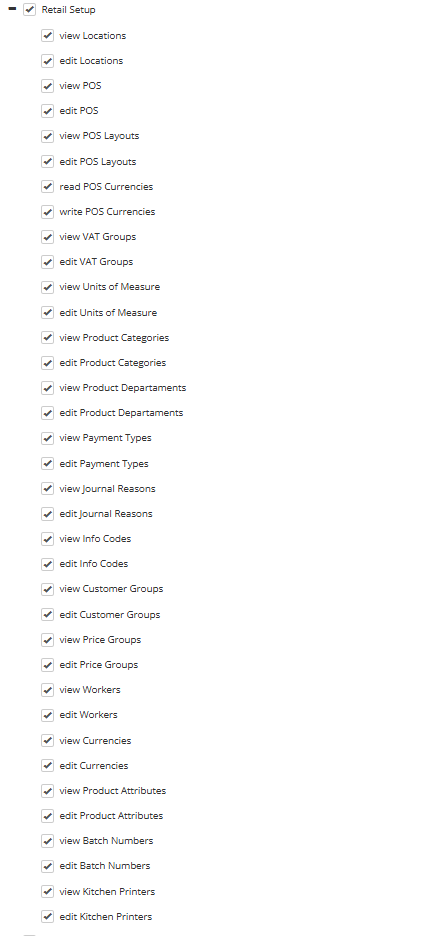
- To enable configuration of retail settings (locations, POS, VAT groups, units of measure, etc.), grant rights under Retail Setup.
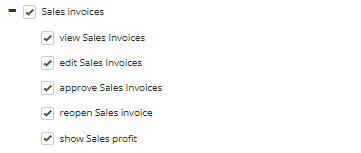
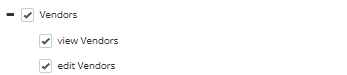
- For sales and vendor management, verify rights under Sales invoices and Vendors.
Related Pages
Permissions Tree Overview
The permissions tree includes the following top‑level categories (each with numerous sub‑rights):
- Administration – rights such as view Users and edit Users.

- Home – includes dashboard access (KPI, Reports).

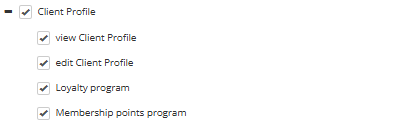
- Client Profile – rights for viewing and editing client profiles, loyalty programs and membership points.
- Customers – view and edit customer records.

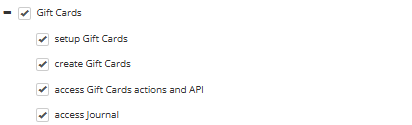
- Gift Cards – setup, creation, actions/API, and journal access.
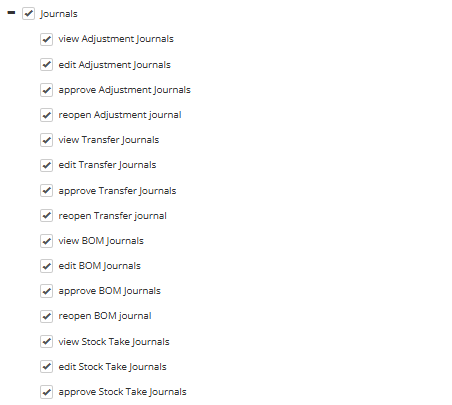
- Journals – view/edit/approve/reopen rights for adjustment, transfer, BOM, and stock take journals.
- Offers – view and edit offers.

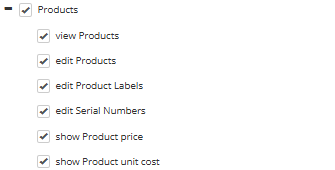
- Products – view/edit products, product labels, serial numbers, product groups, order options, and price and unit cost visibility.
- Promotions – view/edit total basket promotions, customer group promotions, product category promotions, and multi‑product promotions.
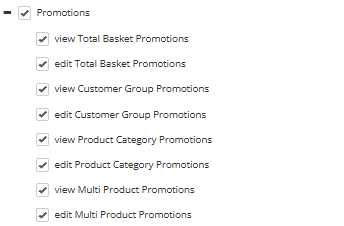
- Purchase Orders – view/edit/approve/reopen purchase orders, manage drafts and credit orders.
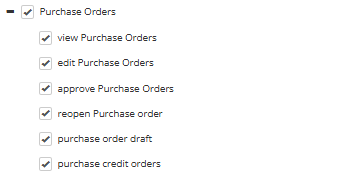
- Reports – extensive report rights, including sales analysis, general report, inventory valuation, expiration dates, transactions, toplist, tax, low stock, stock location, category, customer sales, orders summary, returns, location order stock overview, EJ report, POS sales overview and stock movement.
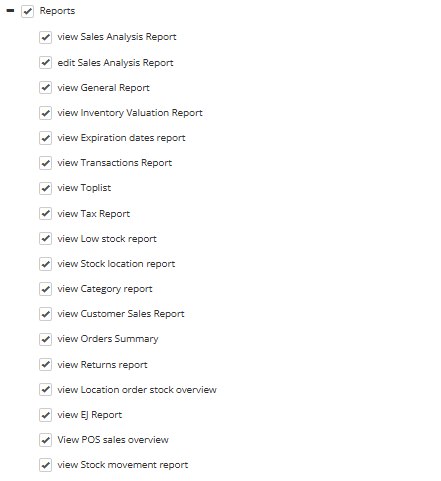
- Retail Labels – view and edit retail labels.
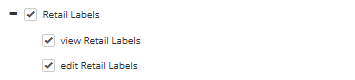
- Retail Setup – rights to view/edit locations, POS and POS layouts, manage POS currencies, VAT groups, units of measure, product categories and departments, payment types, journal reasons, info codes, customer groups, price groups, workers, currencies, product attributes, batch numbers and kitchen printers.
- Sales invoices – view/edit/approve/reopen sales invoices and show sales profit.
- Vendors – view and edit vendors.
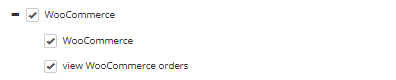
- WooCommerce – rights for the WooCommerce integration and viewing WooCommerce orders.
- Partner shop – rights to open the shop and show orders.
