
Purpose
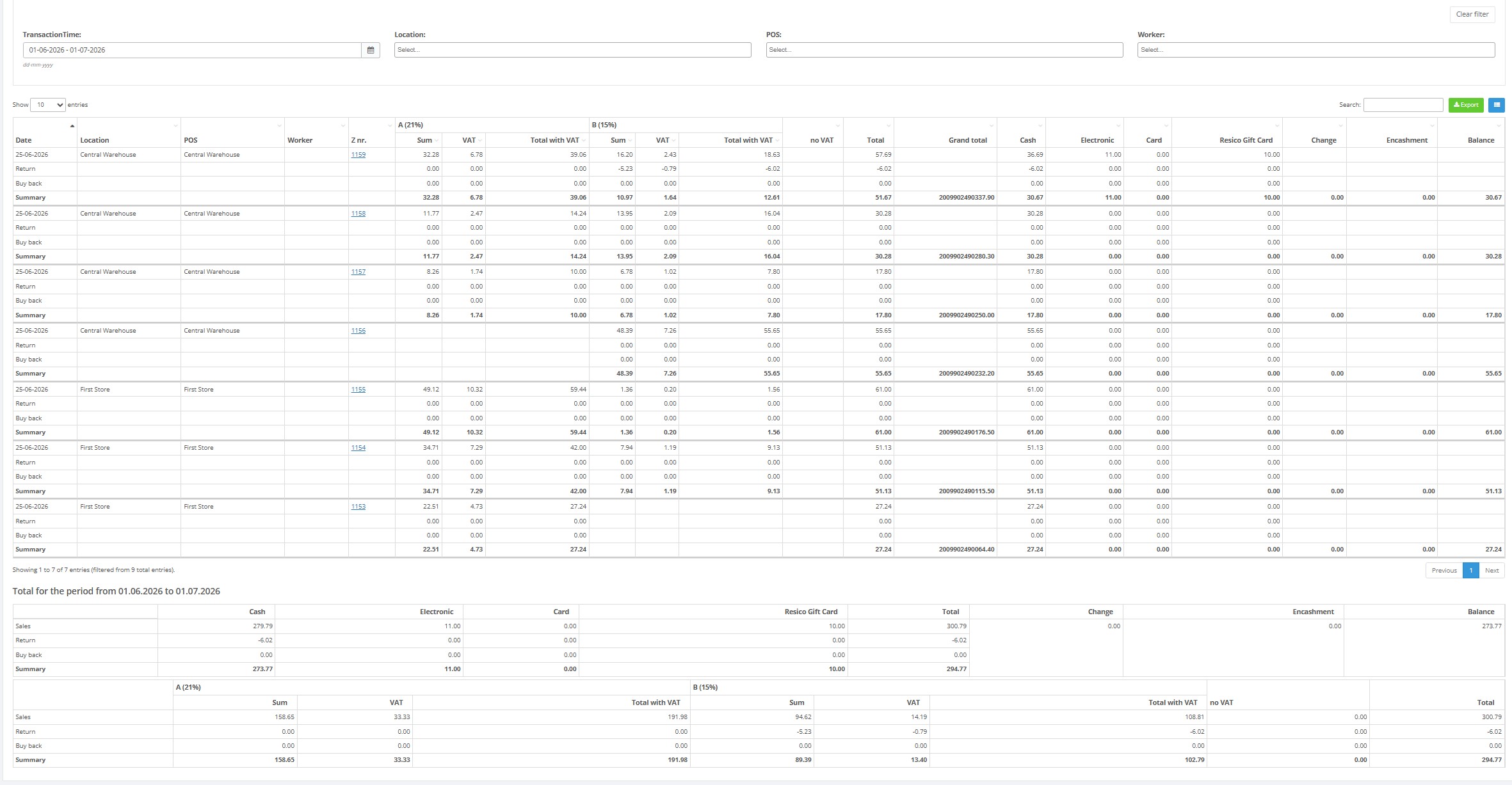
Use the POS sales overview report to review Z-report style sales summaries by POS, location, worker and time, with drilldown to detailed Z report records.
Roles involved
- Store manager
- POS supervisor
- Finance user
Preconditions
- The user needs permission to read the POS sales overview / Z report.
- Z report data must exist.
Navigation path
Reports → POS sales overview
Step-by-step procedure
- Open Reports → POS sales overview.
- Use the available filters such as transaction time, creation date, location and POS.
- Run the report.
- Review the list. The report includes document number, location, POS, worker, transaction time and creation date.
- Open a document number to view the detailed Z report item view.
- Use download or export actions where needed.
Required fields
- No single filter is mandatory, but date / location filtering is recommended.
Validation rules
- Filter values must match configured locations and POS values.
Exceptions
- This report is list-based with drilldown to Z report details.
- Additional actions such as download or trigger can exist on detailed Z report records.
Common errors
- Users expect line-level sales details on the list instead of opening the Z report detail.
- The list is too large because no time-based filter is used.
Troubleshooting
- Use date, location and POS filters to narrow the result.
- Open one record from the list to validate the summarized data before exporting.
Questions / Gaps
- The exact difference between POS sales overview and EJ Report should be confirmed with live examples if both are used by the client.