
Purpose
Use the Location order stock overview report to compare ordered quantity, stock in the selected location and stock in other locations for each item.
Roles involved
- Purchasing user
- Inventory controller
- Store manager
Preconditions
- The user needs permission to read stock overview.
- Products, vendors, locations and open order data must exist.
Navigation path
Reports → Location order stock overview
Step-by-step procedure
- Open Reports → Location order stock overview.
- Filter by Vendor if needed.
- Select the target Location.
- Run the report.
- Review the result list. The report includes product number, description, barcode, vendor, ordered quantity, location stock and other stock.
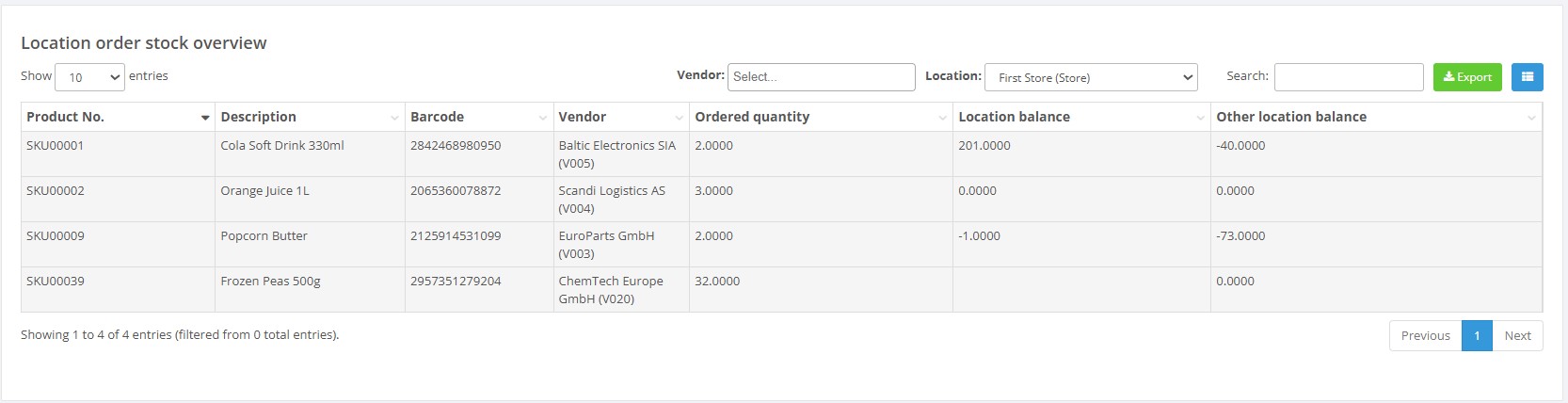
- Use export when you need the report in file form.
Required fields
- Location
Validation rules
- The location must be selected from configured locations.
- Vendor filters must match existing vendors.
Exceptions
- The report compares one selected location against stock in other locations, so the chosen location is central to interpretation.
Common errors
- Users forget which location was selected and misread ‘other stock’.
- Users expect sales data, but the report is focused on ordered quantity and stock.
Troubleshooting
- Always confirm the selected location before reviewing stock columns.
- Filter by vendor when the list is too broad.
Questions / Gaps
- The exact source of OrderedQty in the final business flow should be confirmed in live use if needed for purchasing training.