
Purpose
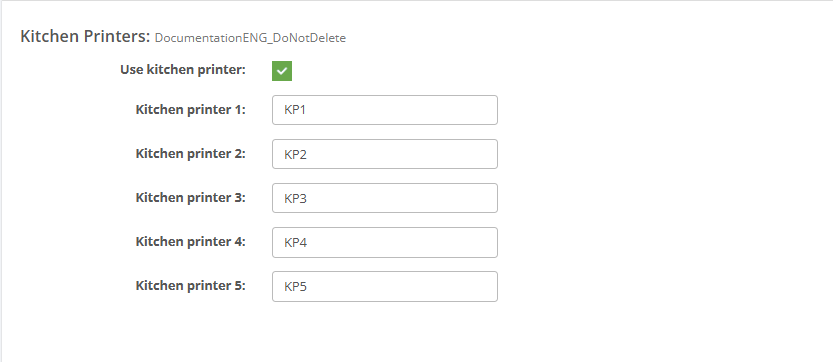
Use the Kitchen Printers page to enable kitchen printer usage for the client and define the printer names used by the kitchen printing workflow. This page controls whether the kitchen printer function is active and stores up to five named kitchen printer targets.
Roles involved
- System administrator
- Restaurant / horeca operations manager
- Implementation / support team
Preconditions
- You need permission to edit Client profile.
- The client should already know whether kitchen printing is used in its sales process.
- If printer names are already defined in POS, printer middleware or network printing tools, use the same names here.
Navigation path
Client profile → Kitchen Printers
Step-by-step procedure
- Open Client profile → Kitchen Printers.
- Enable the feature using Use kitchen printer if the client uses kitchen order printing.
- Review and fill the printer name fields shown on the page:
- Kitchen printer 1
- Kitchen printer 2
- Kitchen printer 3
- Kitchen printer 4
- Kitchen printer 5
- Enter the printer names exactly as they should be used by the kitchen printing flow.
- Click Save to apply the changes.
- Use Cancel to leave the page without saving.
Required fields
- Use kitchen printer should be enabled when kitchen printing is required.
- At least one printer name should be maintained when the client uses kitchen printing.
- Additional printer name fields should be completed only when multiple kitchen printers are used.
Validation rules
- Each printer name field accepts text up to 50 characters.
- Printer names should be entered consistently and should match the names used in the related printing environment.
- The page allows up to five kitchen printer names.
Exceptions
- The page stores printer names only; the actual routing and printer connectivity may still depend on POS, location or network-level setup outside this page.
- A client can keep the kitchen printer function disabled even if printer names are filled.
- Not every client uses all five printer slots.
Common errors
- The kitchen printer feature is enabled, but the printer names do not match the names expected by the operational printing setup.
- Users fill multiple printer fields even though only one printer is actually used, creating confusion in later setup.
- The page is saved correctly, but kitchen tickets still do not print because the issue is outside the client profile page.
Troubleshooting
- If kitchen printing does not work, first confirm that Use kitchen printer is enabled.
- Check whether the printer names entered on this page match the names used in the live kitchen printing environment.
- After saving, test one real kitchen printing transaction from the related POS or order workflow.
- If the setup is saved but tickets still do not print, review the related POS, location or printer infrastructure configuration.
Questions / Gaps
- The page clearly stores the feature flag and five printer names, but the exact routing logic between those names and the live kitchen printing workflow should be confirmed in production use.
- It should be confirmed whether all five printer fields are actively supported in every tenant or whether some clients use fewer printer channels by design.