
Overview
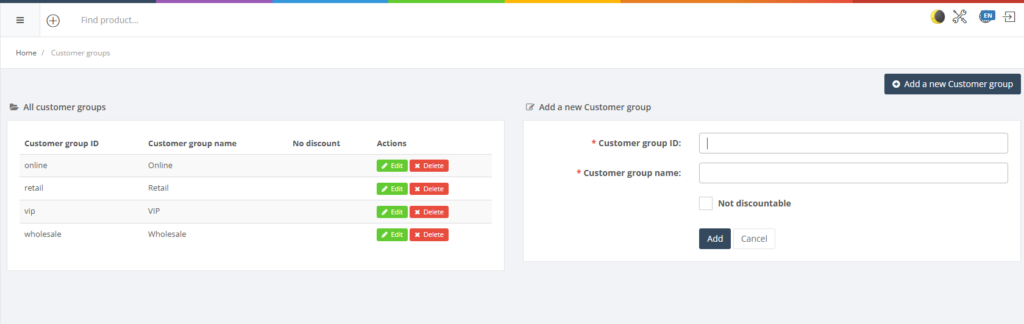
Customer groups allow you to categorise customers for pricing, promotions and reporting. Examples include Retail, VIP or Wholesale. The Customer Groups page lists all groups and provides a form to add new ones.
Who Can Use This
Users with customer management or retail setup rights can create and maintain customer groups. POS operators and regular users see group assignments only when relevant (e.g., applying discounts).
Preconditions
- Permissions to manage customer groups.
Navigation
Go to Retail Setup → Customer Groups.
Step‑by‑Step Process
- Open the Customer Groups page. The table lists existing groups with columns such as Group ID and Group name.
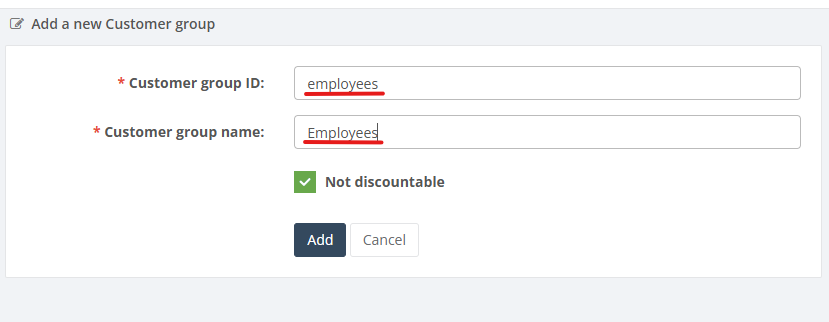
- To create a new group, enter a unique Customer group ID and a descriptive Customer group name in the form provided.
- Click Add to save. The new group is added to the list and becomes available for assigning to customers.
- Use the actions column to edit or delete existing groups (if enabled).
Required Fields
- Customer group ID and Customer group name are mandatory.
Validation Rules
- Group IDs must be unique.
- Group names should be descriptive and avoid duplicates.
Common Errors
- Duplicate group ID: the system will not allow two groups with the same ID.
Troubleshooting
- If a discount or promotion does not apply, verify that the customer’s group is correctly assigned and that the group is part of the promotion definition.
Related Pages
- Offers – promotions can target specific customer groups.
- Price Groups – groups can be linked to price groups for tiered pricing.