
Purpose
Use the Mozello page to view information about the client’s Mozello webshop integration with Resico ERP.
The Mozello integration is used to exchange data between Resico ERP and the client’s Mozello webshop.
Data exchange is performed using the Mozello API. No additional plugin or application must be installed in Mozello.
The integration requires the API key configured in the client’s Mozello profile.
After the integration is configured, synchronization parameters are available in the client’s Mozello tab in Resico.
Important: For clients, Mozello integration settings can be changed only by IBSC support employees or authorized implementation specialists. The user may see the settings, but cannot change them.
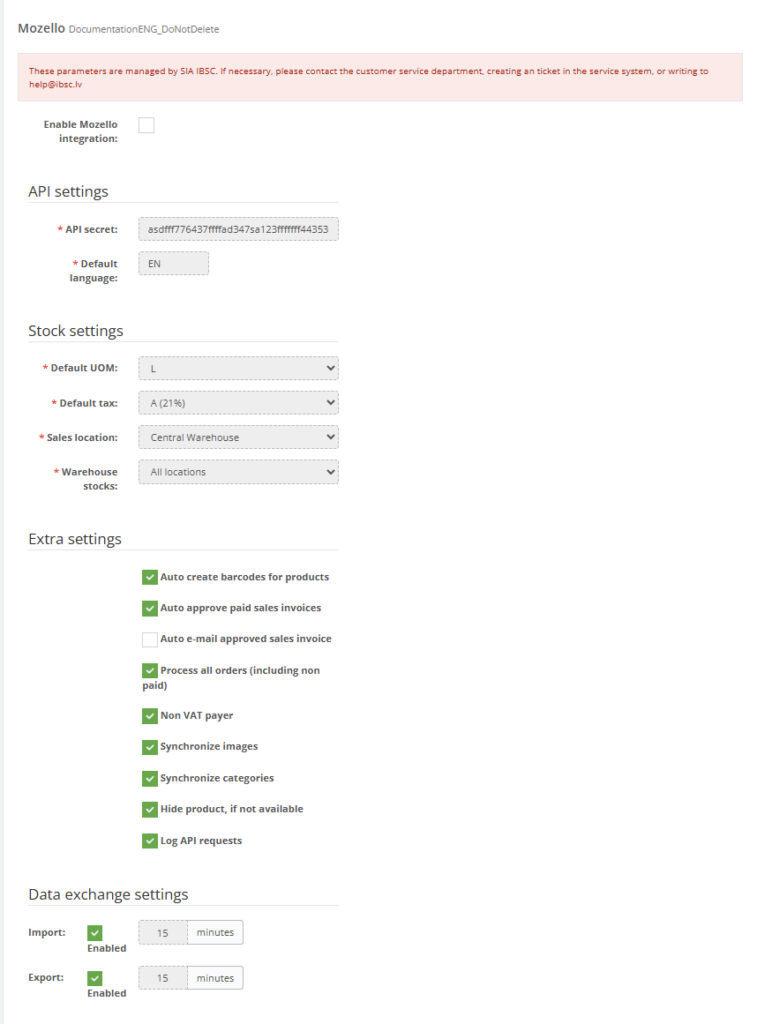
This page displays:
- Whether Mozello integration is enabled.
- Mozello API configuration.
- Default language configuration.
- Default unit of measure and tax settings.
- Sales location used for imported orders.
- Warehouse stock location used for stock synchronization.
- Product, image and category synchronization options.
- Order import and invoice approval settings.
- Data exchange settings used for import and export processes.
- API request logging for troubleshooting.
Note: Mozello integration settings are managed by SIA IBSC. Users cannot modify these settings themselves. To request changes, contact customer support.
Roles involved
- System administrator
- E-commerce manager
- Integration / support team
- IBSC support team
- Mozello webshop administrator
Preconditions
Before requesting Mozello integration setup or modification, the following information should be prepared:
- The Mozello webshop that will be connected.
- The Mozello API key from the client’s Mozello profile.
- The webshop language requirements.
- The default language that must be used for synchronization.
- The Resico unit of measure that should be used as the default value.
- The Resico tax rate that should be used as the default value.
- The Resico sales location where webshop sales should be registered.
- The Resico warehouse or stock location that should be used for stock synchronization.
- Whether products, categories and images should be synchronized.
- Whether order import and product export are required.
- Whether unpaid or unfinished orders should also be imported into Resico.
Navigation path
Client profile → Mozello
Access and permission rules
The Mozello tab is primarily intended for viewing integration status and configuration. For IBSC clients, the configuration is managed by IBSC support.
- Clients can view the Mozello integration settings if they have access to the page.
- Clients cannot change Mozello integration parameters themselves.
- Only IBSC support employees or authorized implementation specialists may change Mozello integration settings.
- Any setup changes must be requested through support.
- Configuration changes may affect product synchronization, stock balances, order import, invoice creation and tax handling.
Page Overview
The Mozello page displays the current configuration of the Mozello connection and the rules used for data exchange between Mozello and Resico ERP.
Enable Mozello Integration
Enable Mozello Integration indicates whether the Mozello integration is active for the selected client.
Possible values:
- Enabled – Mozello integration is active.
- Disabled – Mozello integration is not active.
If the integration is disabled, regular data exchange between Mozello and Resico ERP will not take place.
API Settings
API Settings contain the technical connection details used to communicate with the client’s Mozello webshop.
Mozello integration uses the Mozello API. No additional plugin or external application must be installed. The required connection value is the API key from the client’s Mozello profile.
- API Secret / API key – Displays the API connection key used for secure communication between Mozello and Resico ERP.
- Default Language – Displays the default language used for product and webshop synchronization.
Important: The default language must be entered manually because the Mozello API does not provide this information automatically.
Examples of language codes:
- lv
- en
- lt
The language code should match the webshop language that is used as the main synchronization language.
Warehouse Settings
Warehouse Settings define the default Resico ERP values that are used when Mozello data is received and processed in Resico.
- Default UOM – The default unit of measure used when creating or processing product and invoice data. The unit must already be defined in Resico ERP.
- Default Tax – The default tax rate used when creating documents from Mozello data. The tax rate must already be defined in Resico ERP.
- Sales Location – The Resico location where Mozello sales are registered.
- Warehouse Stocks – The Resico stock location used for stock synchronization. In some configurations, all stock locations may be selected and the total balance is sent.
Default values are used when the API does not provide a matching value that is already defined in Resico ERP.
The selected sales location affects where stock is deducted and where related operations are processed, for example BOM production if the sold product uses BOM logic.
The selected warehouse stock setting defines which Resico stock balance is sent to Mozello. This may be one specific Resico location or all locations combined as a total available balance, depending on the client’s setup.
Extra Settings
Extra Settings control additional synchronization behavior for products, invoices, orders, images, categories, stock visibility and diagnostic logging.
- Auto Create Barcodes – Automatically generates product barcodes when products do not already have barcodes.
- Auto Approve Paid Sales Invoices – Automatically approves paid sales invoices created from Mozello orders.
- Auto Email Approved Sales Invoice – Sends approved sales invoices by e-mail if the client has e-mail functionality configured.
- Process All Orders – Imports all orders into Resico, including orders that are not yet paid or completed.
- Non VAT Payer – Applies special VAT handling when importing orders for clients that are not VAT registered.
- Synchronize Images – Enables product image synchronization.
- Synchronize Categories – Enables product category synchronization.
- Do Not Process Products If Not Available – Products that are not available in Mozello are not processed by the integration.
- Log API Requests – Registers API requests for troubleshooting and diagnostics.
Auto Create Barcodes
If this option is enabled, products without barcodes will receive automatically generated barcodes.
This helps maintain complete product data in Resico ERP when products are received from Mozello without barcode values.
Automatic invoice approval
If this option is enabled, paid sales invoices created from Mozello orders can be approved automatically.
Automatic approval should be enabled only if the client’s order processing process allows invoices to be approved without manual review.
Send approved invoices by e-mail
If this option is enabled, approved invoices can be sent to customers by e-mail.
This option works only if e-mail functionality is configured for the client in Resico ERP and the customer e-mail address is available.
Process All Orders
This option controls whether all Mozello orders are imported into Resico, including orders that are not yet paid or completed.
If this option is disabled, the integration may process only orders that match the expected paid or completed order flow.
This setting should be agreed with the client because it affects which webshop orders become documents in Resico ERP.
Non VAT Payer
This option changes VAT handling when importing orders from Mozello.
It is intended for cases where the client is not VAT registered and imported order tax logic must be adjusted accordingly.
This setting must be configured carefully because incorrect use may cause inconsistent tax handling in imported invoices.
Synchronize Images and Categories
Image and category synchronization can be enabled if product images and product category structure should be exchanged between Resico ERP and Mozello.
These options may remain disabled if Resico/POS and the internet webshop require different images, category structure or product presentation.
Before enabling these options, confirm where the client maintains product images and category structure.
Do Not Process Products If Not Available
This option prevents the integration from processing products that are not available in Mozello.
When this setting is enabled, unavailable Mozello products are excluded from processing. This setting alone does not establish that existing Resico ERP records are deleted or deactivated.
Log API Requests
This option registers API requests made by the integration.
It is recommended to keep this option enabled because API request logs are useful for troubleshooting synchronization issues, API errors and unexpected integration behavior.
Recommendation: Do not disable API request logging unless there is a specific support-approved reason.
Mozello Integration Specifics
SKU handling
SKU handling is one of the most important parts of the Mozello integration.
In the Mozello integration, Resico does not generate product codes in the same way as in other integrations. Instead, Resico uses the SKU value that is provided by Mozello.
Because of this, the client must be informed that all SKU values in Mozello must be unique.
The first data import checks whether SKU values are unique. After the initial import, it is no longer possible to reliably determine whether an incoming SKU belongs to the same product or whether multiple Mozello products have been created with the same SKU.
Important: Duplicate SKU values in Mozello can cause incorrect product matching, incorrect stock updates or unexpected product synchronization behavior in Resico ERP.
Recommended SKU rules for clients
- Each Mozello product must have a unique SKU. Keep the SKU unchanged while the product is linked to Resico ERP unless a change has been reviewed by IBSC support.
- Each product variant must also have a unique SKU, if variants are used.
- Do not reuse old SKU values for different products.
- Do not create multiple Mozello products with the same SKU.
- Check SKU values before the first import into Resico.
- If duplicate SKU values are found after the integration is already active, contact support before changing products manually.
Product and Variation Lifecycle
Product changes are processed according to the enabled import, export and synchronization settings. Import means Mozello → Resico ERP; export means Resico ERP → Mozello. Enabling both processes does not mean that every product field is synchronized in both directions.
Product changes
Before changing a synchronized product, check which system is used to maintain each field. A change made in one system may be overwritten by a later synchronization if that field is maintained in the other system.
| Product data | Synchronization rules |
|---|---|
| Product name and description | Product data export may be enabled. The available settings described on this page do not specify the import/export mapping for each field. Confirm the direction and overwrite rules with IBSC support. Changing the product name alone does not change the product’s identity, provided that its SKU remains unchanged. |
| Price | Confirm which price is exported and whether changes made in Mozello are imported into Resico ERP. Changes are synchronized according to the configured integration settings. |
| Stock quantity | Stock balances can be sent from Resico ERP to Mozello using the configured Warehouse Stocks selection. Do not assume that editing a Mozello stock value creates a stock movement in Resico ERP. |
| SKU | Resico ERP uses the SKU received from Mozello for product identification. Keep each product and variant SKU unique. Ask IBSC support to review the existing link before changing a synchronized SKU. |
| EAN / barcode | Auto Create Barcodes can generate missing barcodes in Resico ERP. This is separate from SKU-based product matching and does not confirm barcode synchronization in both directions. |
| Categories and images | Synchronization depends on Synchronize Categories and Synchronize Images. Confirm the direction and overwrite rules before changing content in either system. |
Important: A name change alone should not be used to identify a different product. In this integration, SKU is used for identification. Changing SKU may affect the existing product link; it must not be treated as an ordinary text change.
Product without variants → Product with variants
Adding variants changes the product structure in Mozello. The terms Simple Product and Variable Product are used here only to describe products without and with variants; they are not assumed to be Mozello interface labels.
Before adding variants to an already synchronized product, ask IBSC support to confirm how the existing Resico ERP record and the new variants will be linked. Each variant must have a unique SKU, and an existing SKU must not be reused for a different item.
The supplied integration description does not establish whether the existing Resico ERP record is retained as a parent, replaced, or linked to a variant. It also does not establish automatic stock redistribution or history transfer. Review the existing balance, open documents and transaction history before making the change; verify the resulting records and balances after synchronization.
Product with variants → Product without variants
Removing the variant structure in Mozello does not establish what happens to the corresponding Resico ERP records. Automatic deletion, deactivation or merging of these records is not confirmed by the integration description.
Before changing an already synchronized product, ask IBSC support to review the variant SKUs, existing balances, open documents and historical links. Confirm which SKU will identify the remaining product. Do not assume that variant balances or history will automatically move to that product.
Deleting a variant in Mozello
A variant may already have a corresponding Resico ERP record with stock movements, sales or document history. The integration description does not confirm whether deleting the variant in Mozello leaves that record active, deactivates it or changes its link.
Before deleting a synchronized variant, ask IBSC support to confirm the expected synchronization result and review the remaining stock and open documents. After the change, verify the corresponding record and its status in Resico ERP. Do not reuse the deleted variant’s SKU for a different item.
Deleting a product in Mozello
Deleting a product in Mozello must not be assumed to delete or deactivate the corresponding Resico ERP record. The automatic Resico ERP response to this action is not specified in the integration description.
Before deletion, review the product and variant SKUs, stock balances, open orders and related documents with IBSC support. Confirm whether the configured export can create or update the product again. If the item is discontinued, agree how it should be removed from sale and handled in Resico ERP while retaining the required historical records.
Delete vs Deactivate in Resico ERP
Deactivate means retaining a product record while marking it inactive. For a discontinued item with sales, stock or document history, consider deactivation rather than permanent removal. Confirm which operations are restricted for inactive products and whether the status affects Mozello synchronization in the configured integration.
Delete means permanently removing a record where the system permits this. Before attempting deletion, check existing document links, transaction history, stock and integration links. Before deleting or deactivating a product linked to Mozello, submit a support ticket to IBSC to confirm the effect on synchronization and existing records.
For variants, first confirm which Resico ERP record represents the variant. Neither deleting nor deactivating a record in Resico ERP should be assumed to perform the same action in Mozello. Confirm the cross-system effect before making the change.
Historical data and stock balances
Products and variants may be referenced by sales invoices, stock movements and other historical documents. Removing an item from the current webshop catalogue does not remove the need to retain those references for reporting and document review.
Product structure changes, deletion and deactivation must not be treated as stock adjustments. If stock must be transferred, written off or otherwise corrected, use the appropriate Resico ERP stock operation after agreeing the required handling with support. Do not assume that changing a product or variant moves its existing stock or history to another record.
Before changing synchronized products
- Record the existing product and variant SKUs and the corresponding Resico ERP records.
- Review current stock balances, open orders and linked documents.
- Confirm the synchronization direction for the fields being changed.
- Ask IBSC support to confirm the expected result for SKU changes, structure changes, deletion or deactivation.
- After synchronization, verify the records, statuses, balances and webshop availability in both systems.
Data Exchange Settings
Data Exchange Settings display import and export configuration for Mozello synchronization.
- Import – Indicates whether automatic import from Mozello to Resico ERP is enabled.
- Export – Indicates whether automatic export from Resico ERP to Mozello is enabled.
- Import Frequency – Shows the configured import interval in minutes.
- Export Frequency – Shows the configured export interval in minutes.
- Last Import – Shows when the last import was executed.
- Last Export – Shows when the last export was executed.
Import is typically used to receive orders or other webshop data from Mozello into Resico ERP.
Export is typically used to send product, stock, category or image information from Resico ERP to Mozello, depending on the enabled synchronization options.
Manual Export and Import actions may be available on the page for setup, testing or troubleshooting purposes.
Manual actions should be used carefully and only by IBSC support or authorized specialists, especially when large product or stock data volumes are involved.
Typical synchronization logic
The exact synchronization process depends on the client’s Mozello configuration, Resico setup and enabled integration options. A typical setup may include the following logic:
- Mozello orders are imported into Resico ERP.
- Sales invoices are created in Resico ERP based on Mozello order data.
- Paid invoices may be approved automatically if automatic approval is enabled.
- Approved invoices may be sent by e-mail if e-mail functionality is configured.
- Product data may be exported from Resico ERP to Mozello.
- Stock balances may be sent from the selected Resico warehouse location to Mozello.
- Images and categories may be synchronized if the corresponding settings are enabled.
- Products that are not available in Mozello may be excluded from processing if the corresponding setting is enabled.
Information That May Need to Be Provided to Support
When requesting Mozello integration setup, changes or troubleshooting, support may require:
- Mozello webshop URL.
- Mozello API key from the client’s Mozello profile.
- Default webshop language.
- Preferred Resico sales location.
- Default tax configuration.
- Default unit of measure.
- Warehouse or stock location used for Mozello stock synchronization.
- Information whether all stock locations should be summed or only one stock location should be used.
- Whether images should be synchronized.
- Whether categories should be synchronized.
- Whether all orders or only paid/completed orders should be imported.
- Whether the client is a VAT payer or non-VAT payer.
- Confirmation that SKU values in Mozello are unique.
- Examples of affected products, orders or invoices if an issue is reported.
- Screenshots of visible errors or unexpected behavior.
- Approximate time when the issue occurred.
Required fields
- Mozello API Secret / API key
- Default Language
- Default UOM
- Default Tax
- Sales Location
- Warehouse Stocks / Stock Location
Validation rules
- Mozello API Secret / API key must match the target Mozello webshop environment.
- Default Language must be entered manually because this value is not provided by the Mozello API.
- Default Language should be a short language code, for example lv, en or lt. Use the exact code configured for the selected webshop language.
- Default UOM, Default Tax, Sales Location and Warehouse Stocks must be selected from configured Resico values.
- Import Frequency and Export Frequency must be numeric values in minutes.
- Extra settings should be enabled only when they match the intended business flow.
- Non VAT Payer should be enabled only if the client’s tax handling requires it.
- Process All Orders should be enabled only if unpaid or unfinished orders must also be imported into Resico.
- Log API Requests should normally remain enabled for diagnostics.
- All Mozello SKU values must be unique before and after the initial import.
Exceptions
- Mozello integration settings are managed exclusively by SIA IBSC or authorized support personnel.
- Clients may see Mozello integration settings but cannot change them.
- No additional plugin installation is required for Mozello integration.
- The integration requires the API key from the client’s Mozello profile.
- The default language must be provided manually.
- Manual Mozello export and import actions may only be available to specific users or when integration data already exists.
- Background import and export behavior may depend on scheduled processes outside this page.
- Available information and actions may vary depending on the client’s integration setup and user permissions.
Common errors
- Wrong API secret prevents the Mozello connection from working.
- Incorrect language code causes content or synchronization issues in the webshop.
- Wrong tax, UOM, sales or stock mapping causes imported or exported data to use incorrect defaults.
- Duplicate SKU values in Mozello cause incorrect product matching or synchronization issues.
- Do Not Process Products If Not Available is enabled without confirming expected webshop behavior, causing some products not to be synchronized.
- Non VAT Payer is enabled incorrectly, resulting in inconsistent tax handling.
- Process All Orders is enabled unexpectedly, causing unpaid or unfinished orders to appear in Resico.
- Images or categories are not synchronized because the corresponding synchronization options are disabled.
- API request logging is disabled, making troubleshooting more difficult.
Troubleshooting
Integration is not working
If the Mozello integration is not working, check the following:
- Verify that Enable Mozello Integration is enabled.
- Verify that the API key matches the client’s Mozello webshop.
- Check whether the default language is entered correctly.
- Verify that default UOM, tax, sales location and warehouse stock values exist in Resico ERP.
- Check whether import and export are enabled if automatic data exchange is required.
- Check whether API request logging is enabled.
- Review recent API request logs and visible error messages.
If the issue cannot be resolved, contact support and provide screenshots, error messages and the approximate time when the issue occurred.
Product synchronization issues
If products are not synchronizing correctly, provide support with:
- Product code or SKU.
- Product name.
- Information whether the product is available in Mozello.
- Expected result.
- Actual result.
- Relevant screenshots from Mozello and Resico ERP.
Also verify whether the SKU is unique in Mozello. Duplicate SKU values are one of the most important causes of Mozello product synchronization problems.
Duplicate SKU issues
If duplicate or incorrect products appear after synchronization, check whether multiple products or variants in Mozello use the same SKU.
Because Resico uses the SKU received from Mozello as the product identifier, duplicate SKU values may cause Resico to match incoming data to the wrong product.
If duplicate SKU values are found, contact support before changing product data manually, especially if the integration is already active.
Incorrect stock levels
If incorrect stock values are displayed in Mozello, provide support with:
- Product code or SKU.
- Stock value shown in Mozello.
- Stock value shown in Resico ERP.
- Resico warehouse location that should be used.
- Information whether one stock location or all stock locations should be used for the total balance.
Also verify whether the selected Warehouse Stocks setting matches the client’s intended stock synchronization process.
Missing orders
If Mozello orders are not imported into Resico ERP, provide support with:
- Order number.
- Order date and time.
- Order payment status.
- Screenshot from Mozello.
- Description of the issue.
If unpaid or unfinished orders are missing, verify whether Process All Orders is enabled.
Invoices are not approved automatically
If invoices are created but not approved automatically, check whether Auto Approve Paid Sales Invoices is enabled.
Also verify that the imported order is considered paid and that the invoice does not contain incomplete or unsupported data.
Product images or categories are not synchronized
If product images or categories are not synchronized, check whether Synchronize Images and Synchronize Categories are enabled.
If these options are disabled, this may be intentional. Some clients maintain different images or category structures in Resico/POS and in the internet webshop.
Incorrect VAT handling
If imported orders have incorrect tax values, check whether Non VAT Payer is enabled correctly.
This setting changes VAT handling when importing orders and should match the client’s actual VAT status.
FAQ
Can the client change Mozello integration settings?
No. For IBSC clients, Mozello integration settings are changed only by IBSC support employees or authorized specialists. The client may see the settings, but cannot change them.
Does Mozello integration require a plugin?
No. Mozello integration uses the Mozello API. No additional plugin or application must be installed. The integration requires the API key from the client’s Mozello profile.
Why must the default language be entered manually?
The default language must be entered manually because the Mozello API does not provide this information automatically.
Why are unique SKU values important?
Resico uses the SKU received from Mozello as the product identifier. If several Mozello products have the same SKU, Resico may not be able to determine which product should be updated.
Does Resico generate product codes for Mozello products?
No. In the Mozello integration, Resico uses the SKU value provided by Mozello instead of generating product codes in the same way as in other integrations.
Can all Resico stock locations be used for Mozello stock synchronization?
Yes, depending on the setup. The integration can use a specific Resico stock location or all stock locations as a summed total balance.
Should unpaid orders be imported?
Only if the client’s business process requires it. If unpaid or unfinished orders should be imported into Resico, Process All Orders must be enabled.
Should images and categories be synchronized?
This depends on the client’s process. These options can remain disabled if Resico/POS and Mozello require different product images or category structures.
Should API request logging be enabled?
Yes. API request logging should normally remain enabled because it helps support diagnose synchronization problems and API errors.
Notes
- This page is primarily informational for clients.
- Mozello integration settings are managed by SIA IBSC.
- Clients cannot change Mozello integration settings themselves.
- Changes must be requested through support.
- Mozello integration uses the Mozello API and does not require additional plugin installation.
- The API key must be taken from the client’s Mozello profile.
- The default language must be entered manually.
- Default tax, unit and sales location settings must exist in Resico ERP before they can be selected.
- Stock synchronization depends on the selected warehouse stock setting.
- SKU values in Mozello must be unique.
- API request logging should normally remain enabled because it helps with troubleshooting.
- Manual import and export actions should be used only when required by setup or support processes.
- Configuration changes may affect product synchronization, stock balances, invoice creation, tax handling and order processing.