
Purpose
Use the Low stock report to identify products that are below their configured safety stock or otherwise marked by the low-stock logic. The report is filterable and exportable.
Roles involved
- Inventory controller
- Store manager
- Purchasing user
Preconditions
- The user needs permission to read the Low stock report.
- Products should have safety stock and stock-related master data configured if you expect meaningful low-stock results.
Navigation path
Reports → Low stock report
Step-by-step procedure
- Open Reports → Low stock report.
- Use the available filters such as Location, Vendor, Category, Type and stock-related type filters.
- Run the report.
- Review the result list. The report includes product number, description, barcode, category, location, vendor, safety stock and on-hand quantity.
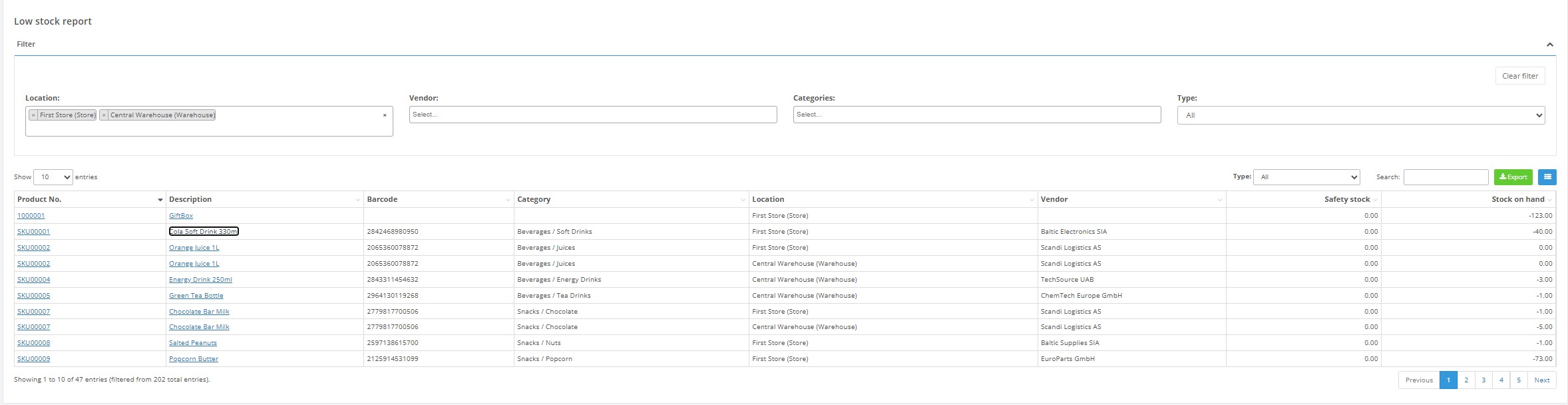
- Click export when you need the report in file form.
Required fields
- At least one meaningful filter is recommended, although the report can be opened without narrowing the list.
Validation rules
- Filter values must come from configured vendors, locations, categories and item types.
Exceptions
- The report uses stock logic and safety stock values, so products without those settings may behave differently than expected.
Common errors
- Users expect all low-availability products to appear even if safety stock is not configured for them.
- Users forget to filter by location and mix multiple stores in one result.
Troubleshooting
- If the list is too large, add location or vendor filters.
- If expected items are missing, verify the product’s safety stock and current balance.
Questions / Gaps
- The exact stock-type logic used by the report should be confirmed in live use if end users need a strict definition of ‘low stock’.