
Overview
The Retail Labels module in Resico ERP lets users print price tags and other product identification labels directly from the system. Labels are generated from predefined layouts that control paper size, label dimensions and the position of product details (such as name, barcode, price and custom text). Once a layout is configured it can be reused whenever labels need to be printed.
Who Can Use This
Users need access rights to the Retail Labels section. Editing or adding layouts requires additional permissions to modify label configurations. Only users with edit rights can add products to the print list, import lines, and save or delete layouts.
Preconditions
- A label layout must exist or be created before printing (the system will not print without a defined layout).
- Products you wish to label should already be in the product catalogue with valid Product No. values.
- You need a configured printer connected to the system.
- Users must have the Retail Labels permission.
Navigation
Menu path: ERP → Retail labels. This opens the Retail label print page where you can manage layouts, add items and print.
Step-by-Step Process
- Select or configure a layout:
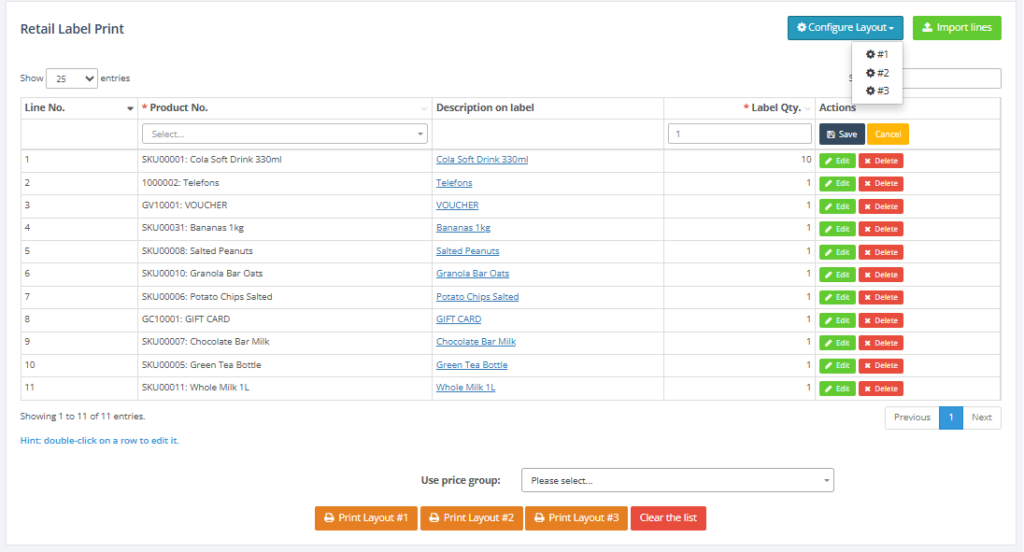
- On the Retail labels page, use the blue Configure Layout button. Clicking the small arrow displays existing layouts. Select a layout to make it the default for printing. Alternatively, click the main button to open the layout configuration page.
b .In the configuration page, enter a Layout name and select a Paper size (e.g., A4). Specify the Width and Height of a single label in millimetres.
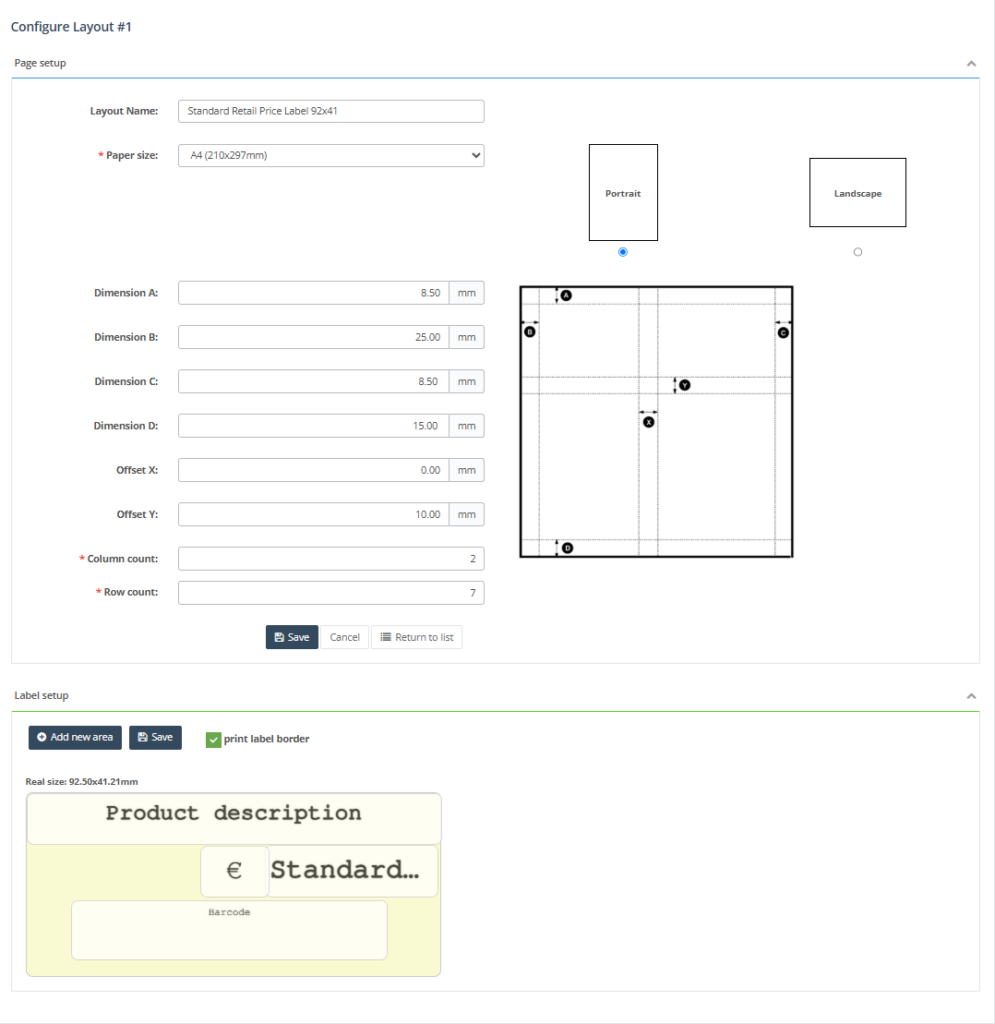
c. In the configuration page, click Add new area to create a label element. Each area represents a piece of content that will be printed on the label, such as the product name, price, barcode, or an image.
he available Content value options are:
- Product No. – The unique product identifier or SKU.
- Product No. alias – An alternative product code or internal reference.
- Product description – The product name or description.
- Unit of measure – The product unit (e.g., pcs, kg, L).
- Standard price – The regular product price.
- Standard price without decimals – The integer part of the standard price.
- Standard price decimals part – The decimal part of the standard price.
- Sale price – The discounted or promotional price.
- Sale price without decimals – The integer part of the sale price.
- Sale price decimals part – The decimal part of the sale price.
- Product category – The category assigned to the product.
- Barcode – The product barcode value.
- Price per Kg – The calculated price per kilogram.
- Price per L – The calculated price per litre.
- Product label – The product label or tag assigned to the product.
- Country of origin – The country where the product was manufactured.
- Importer – The importer information configured for the product.
- Ingredients – The product ingredient list.
- Attributes – All configured product attributes.
- Native field – A standard field available within the system.
- Specific attribute – A selected product attribute value.
- Extra argument – Additional product information configured in the system.
- Custom field – A user-defined custom field.
- Current date – The current date when the label is generated.
- Image – A product image.
- Background image – An image used as the label background.
- Custom – Static text manually entered by the user.
In addition to selecting the content value, you can customize the area’s font, font size, text color, background color, text alignment, style (bold, italic, underline, strike-through), and rotation angle.
2 . Save the layout. It will now appear in the list of layouts available from the arrow on the Configure Layout button.
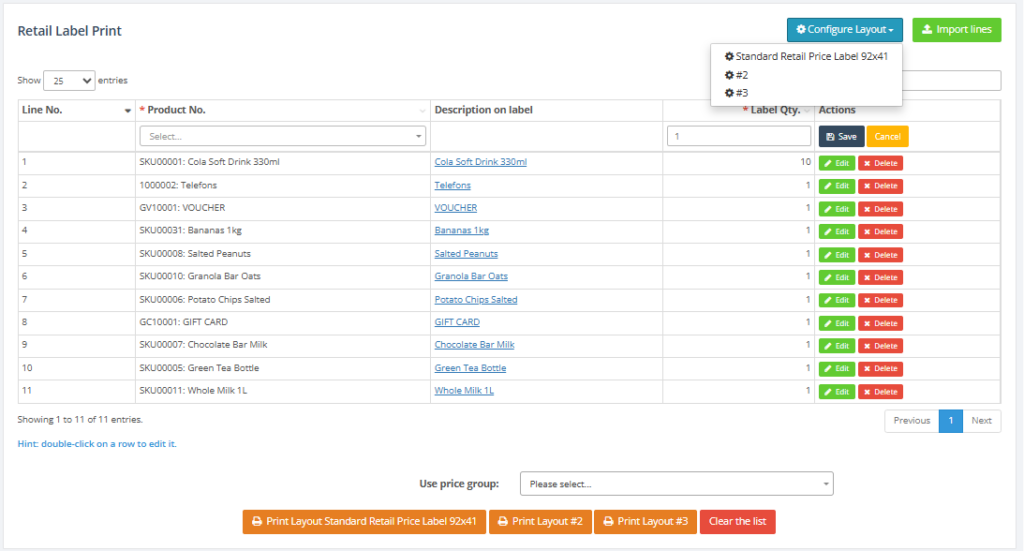
- Add products to the print list:
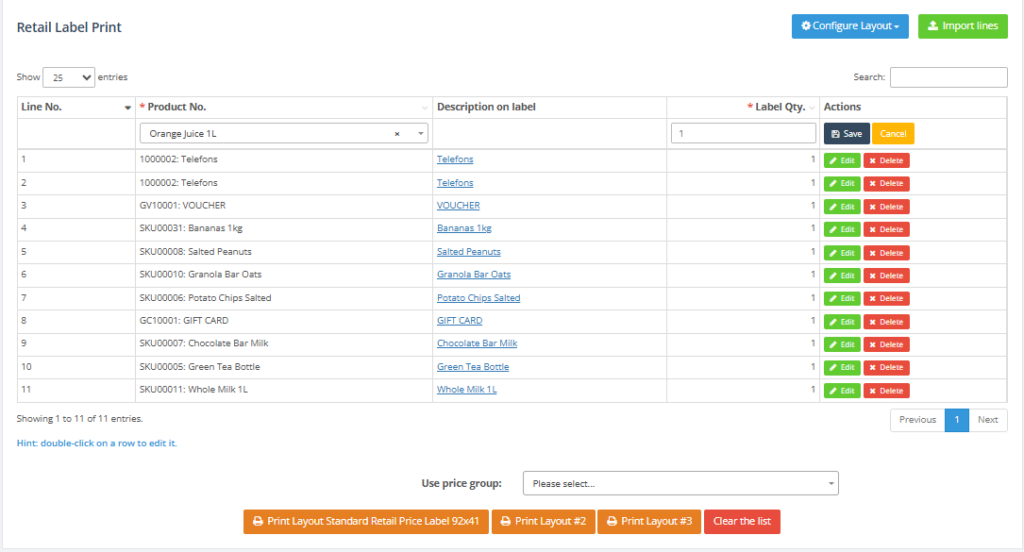
- In the labels table, double‑click an empty row to activate editing. Enter the Product No. Enter the Label Qty. (number of labels to print).
- Save the row by clicking the green check mark in the Actions column.
- To remove a product, click the red cancel icon in the row’s Actions column.
- Import product lines (optional):
- Click the green Import lines button. Download the template, fill it with the product numbers and label quantities, then upload it back.
The system adds each product from the file to the label list.
- Click the green Import lines button. Download the template, fill it with the product numbers and label quantities, then upload it back.
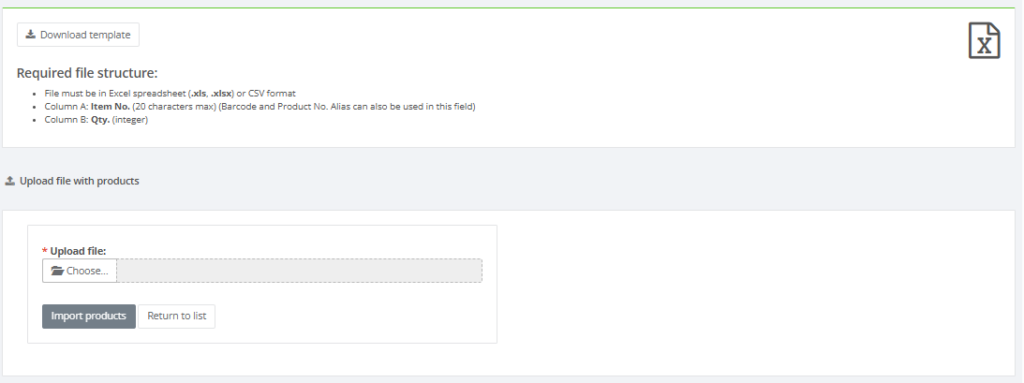
- Choose a price group:
- Below the label table is a drop‑down labelled Price group for price printing. Select the price group whose prices should appear on the labels (for example, retail or wholesale prices). If no price group is selected, prices may not print.

- Print labels:
- After adding all products and selecting a price group, click one of the orange Print layout … buttons.
Each button corresponds to a predefined layout. - The selected layout determines the label size and arrangement.
- After adding all products and selecting a price group, click one of the orange Print layout … buttons.
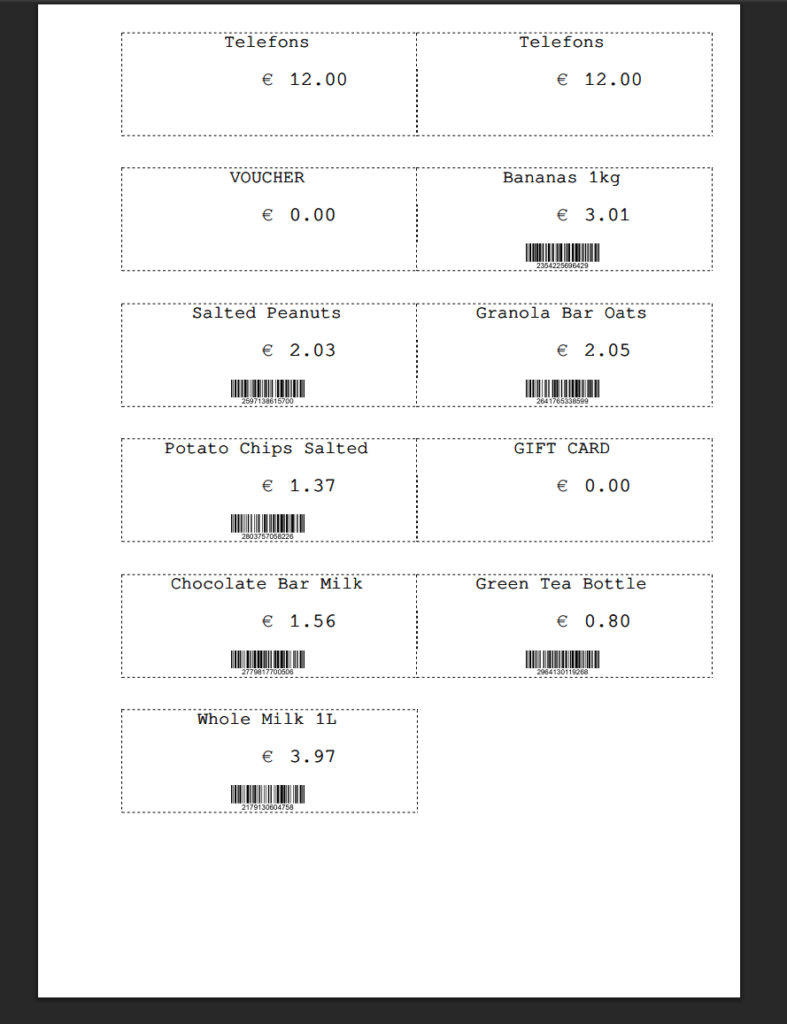
- Clear the list:
- After printing, click the Clear the list link to remove all items from the print queue.
Required Fields
- Product No. – unique product identifier; mandatory for each row in the label table.
- Label Qty. – number of labels to print for each product; mandatory.
- In layout configuration: Layout name, Paper size, Width, Height and Printer must be provided.
Validation Rules
- Rows cannot be saved without a Product No. and Label Qty.
- Label width and height must be numeric values (millimetres) that fit the selected paper size.
- Only existing products can be selected. An invalid product number triggers an error and the row will not save.
- Multiple layouts can be defined, but one must be chosen before printing.
Common Errors
- Missing layout – attempting to print without selecting a layout causes an error. Choose or configure a layout before printing.
- Invalid product number – if the product number does not exist in the catalogue, an error displays and the row does not save.
- Non‑numeric dimensions – width and height must be numeric; otherwise the layout form will not save.
Troubleshooting
- If labels print off‑centre or get cut off, verify that the layout’s width and height match your paper and printer settings.
- If a product doesn’t appear on the label, ensure the product number exists and that description and price data are filled in on the product card.
- If nothing prints, confirm that the correct printer is selected in the layout and that your browser allows print pop‑ups.
- If import fails, check that the imported file matches the provided template format (correct columns and file type).
Related Pages
- Product Card – manage products and retrieve product numbers.
- Retail Setup – Price Groups – define price groups used on labels.
- Retail Setup – POS Layouts – manage layouts for POS; separate from label layouts but conceptually similar.