
Purpose
The Gift Card Journal provides a comprehensive log of all gift cards issued, sold, used, reserved or cancelled. It allows users to view the status and financial details of each card, search for specific card numbers or filter by various criteria, and export the data for reporting or audit purposes. The journal is the primary tool for monitoring gift card activity throughout their lifecycle.
Roles involved
- Accounting and finance staff – monitor outstanding liabilities and verify that card activations, redemptions and expirations are recorded correctly.
- Sales and marketing managers – review the success of gift card campaigns and track usage patterns.
- Support teams – investigate customer queries about card balances and statuses.
- Users must have rights such as “view gift card journal” and possibly “export gift card data” to perform exports.
Preconditions
- Gift cards must exist in the system; otherwise the journal will be empty.
- The user needs appropriate permissions to view or export journal data.
- If exporting data, ensure that pop‑ups are allowed in the browser so the export file can be downloaded.
Navigation path
Access the journal via:
Gift Cards → Journal
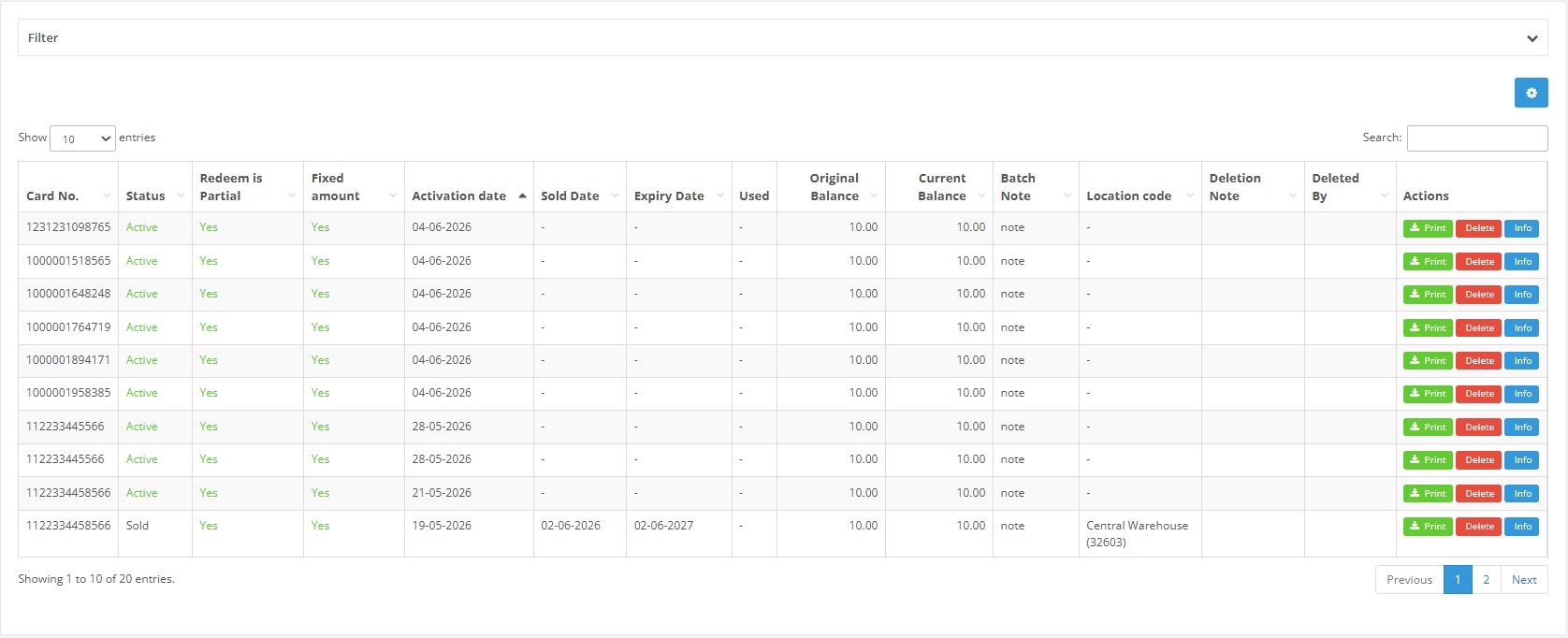
This opens the Gift Card Journal with a table of cards, a search bar, and a collapsible filter panel.
Step‑by‑step procedures
- View the journal – Navigate to Gift Cards → Journal. The table lists cards with columns such as Card No., Status, Redeem is Partial, Fixed amount, Activation date, Sold Date, Expiry Date, Used, Original Balance and Current Balance.
- Search for a card – Use the search box to filter results by card number or batch note.
- Adjust rows displayed – Use the Show entries drop‑down to change how many rows are visible.
- Sort columns – Click a column header to sort ascending or descending.
- Use advanced filter – Click the filter icon to expand the filter panel. Enter values for one or more fields such as Card No., Status, Redemption type, Fixed amount, Activation date range, Sold date range, Expiry date range, Original balance range, Current balance range, Batch note or Location. Click Apply to filter; use Clear filter to reset.
- Export the journal – If enabled, click the export button to download the filtered journal as a CSV or Excel file.
- View batch details – Search by batch note to view all cards created in a specific batch. The journal does not open separate details pages; it displays all information in the grid.
Required fields
No fields are required to view the journal. When using the filter panel, specify at least one criterion; leaving all fields blank will show all records.
Validation rules
- The start date must not be after the end date when filtering by dates.
- Minimum values in numeric filters (balance ranges) cannot exceed maximum values.
- Status filters accept only predefined values from the drop‑down; unrecognised values are ignored.
Exceptions
- If no records match the filter criteria, the journal displays “No matching records found”.
- Users without export permissions will not see the export button.
Common errors
- Entering text in numeric fields results in validation errors.
- Using an invalid date format prevents the filter from executing; use the date picker instead of typing.
Troubleshooting
- Remove or adjust filters if no results are returned.
- Ensure date and amount ranges are correct; for example, search for cards with Current Balance greater than zero to find unused cards.
- If the export file is empty, verify that you applied the desired filters before exporting.