
Purpose
The Manual Actions page provides quick tools for selling a gift card, checking card information and redeeming (using) a gift card directly within the ERP. These functions are typically used by front‑of‑house staff when the POS is unavailable or when administrative actions need to be performed outside of normal sales transactions.
Roles involved
- Cashiers and sales associates – sell gift cards manually to customers when not using the POS.
- Customer service staff – check gift card balances and details on request.
- Managers – redeem gift cards outside of the normal sales process, for example during returns or special promotions.
- Users need appropriate permissions such as “gift card manual actions” and “view gift cards”.
Preconditions
- The user must have a working internet connection and be logged into the ERP.
- Gift cards must already exist for “Card Info” and “Use Gift Card” actions.
- For “Sell Gift Card”, the card number should be available (e.g., from a physical card stock).
Navigation path
Open manual actions via:
Gift Cards → Actions
The page displays buttons labelled Sell Gift Card, Card Info and Use Gift Card.

Step‑by‑step procedure
- Sell Gift Card
- Click Sell Gift Card. A form opens prompting for a Gift card number.
- Enter the card number (scan or type). Click Find card to retrieve the card details.
- If the card exists and is not yet sold, the system displays its value and status. Confirm the sale through the POS or follow on‑screen instructions to accept payment.
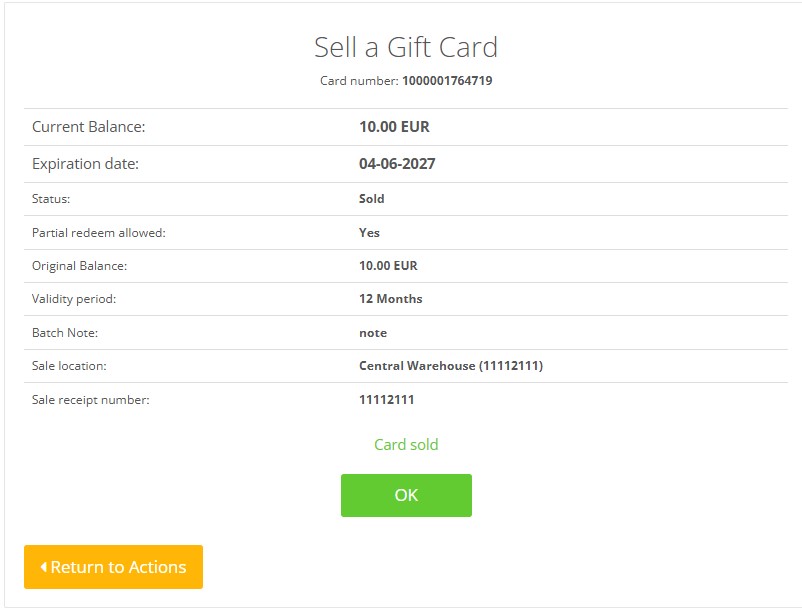
- If the card does not exist, you may need to create it through the Create gift card batch process.
- Use Return to Actions to go back to the main actions menu.
- Card Info
- Click Card Info. A form asks for the Gift card number.
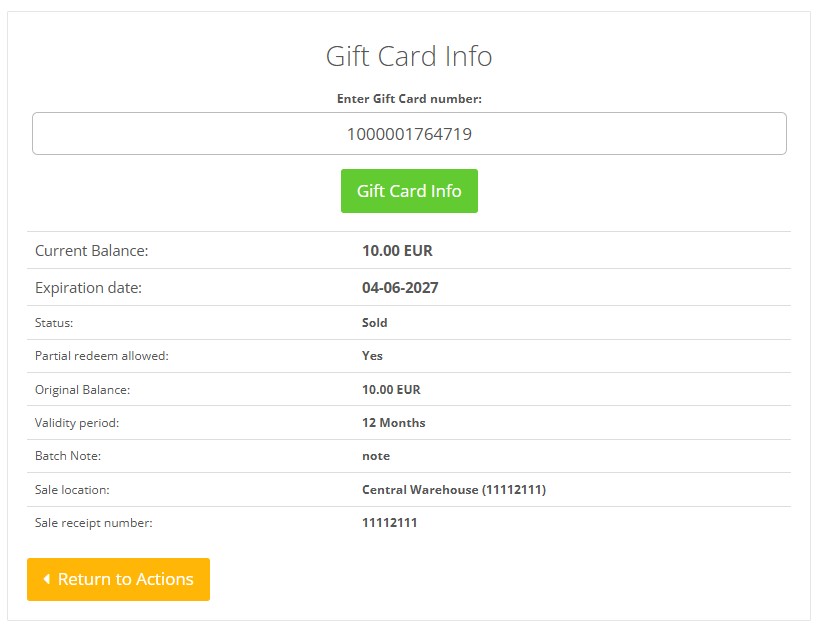
- Enter the card number and click the Gift Card Info button.
- The system displays information such as status (Sold, Used, Expired, Reserved), fixed amount flag, original balance, current balance and expiry date.
- If the card is not found, an error message appears.
- Use Return to Actions to return to the main menu.
- Use Gift Card
- Click Use Gift Card. A form appears prompting for the Gift card number.
- Enter the card number and click Find card to retrieve its details.
- If the card has sufficient balance, the system guides you through entering the amount to redeem. Complete the payment process as instructed.
- Partial redemptions are allowed only if the card was created with the Redeem is Partial flag; otherwise the full amount must be used.
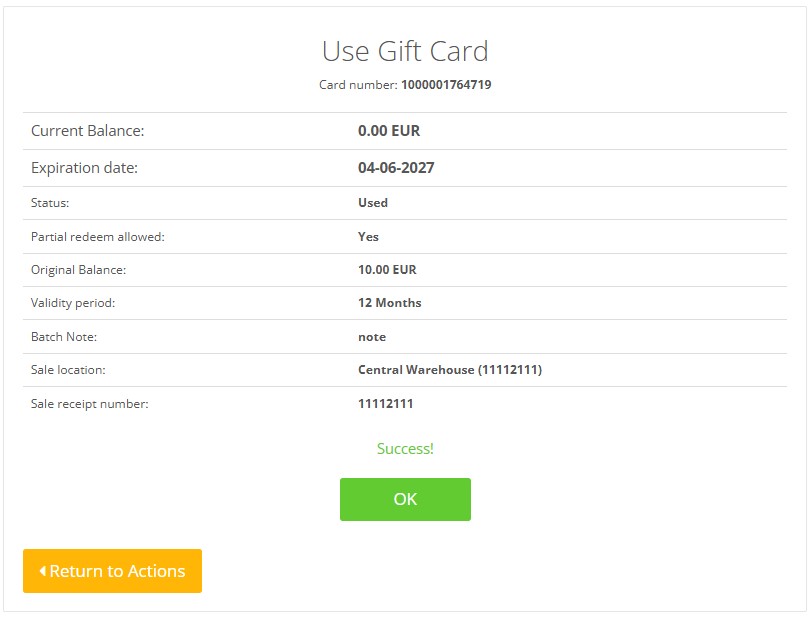
- After successful redemption, the card’s balance is updated and a confirmation message is displayed.
- Use Return to Actions to go back to the action menu.
Required fields
Each manual action requires a valid gift card number. If the number is unknown or invalid, the system cannot proceed.
Validation rules
- The gift card number must match the format used by the system; invalid numbers return an error.
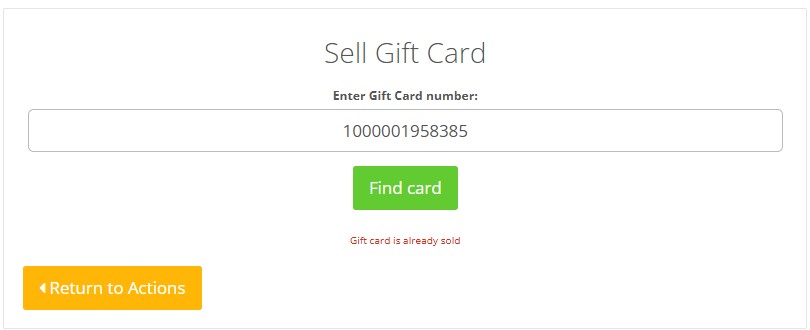
- A card can only be sold if its status is “New” (not yet sold). Attempting to sell an already sold card will fail.
- A card can only be redeemed if it is active and has sufficient balance. Expired or reserved cards cannot be used.
Exceptions
- If a card number is not found, the system displays an error and no further action can be taken.
- If the card is expired or locked due to reservation, use the appropriate API or admin function to cancel the reservation before redeeming.
- Offline POS systems may not update the card balance immediately; synchronise as soon as possible to avoid overspending.
Common errors
- Mistyping the card number results in “Card not found”. Re‑scan or re‑enter the number.
- Attempting to redeem more than the available balance triggers an insufficient balance error.
- Trying to sell a card that has already been sold produces an error message indicating the card’s current status.
Troubleshooting
- If you cannot find a card, check the number for accuracy and verify that it exists in the system.
- For repeated errors, verify that you have the necessary permissions and that the system is online.
- If the card balance does not update after redemption, check network connectivity and synchronise the POS.