
Purpose
The Offers module (sometimes called Sales quotes) allows sales staff to prepare price quotations for customers before an order is confirmed. Offers do not impact stock or accounting. After negotiation, an offer can be converted into a sales invoice with one click. This module helps businesses formalise pricing discussions and track the status of prospective orders.
Roles involved
The following roles commonly use offers:
- Sales representatives – prepare and send offers to customers.
- Managers – review, approve or adjust offer pricing and discount levels.
- Accounting staff – convert accepted offers into sales invoices and monitor outstanding offers.
Preconditions
- Customers and products exist in the system.
- Locations have been configured to represent warehouses or stores.
- Users creating offers understand pricing rules and VAT groups for the products they quote.
Navigation path
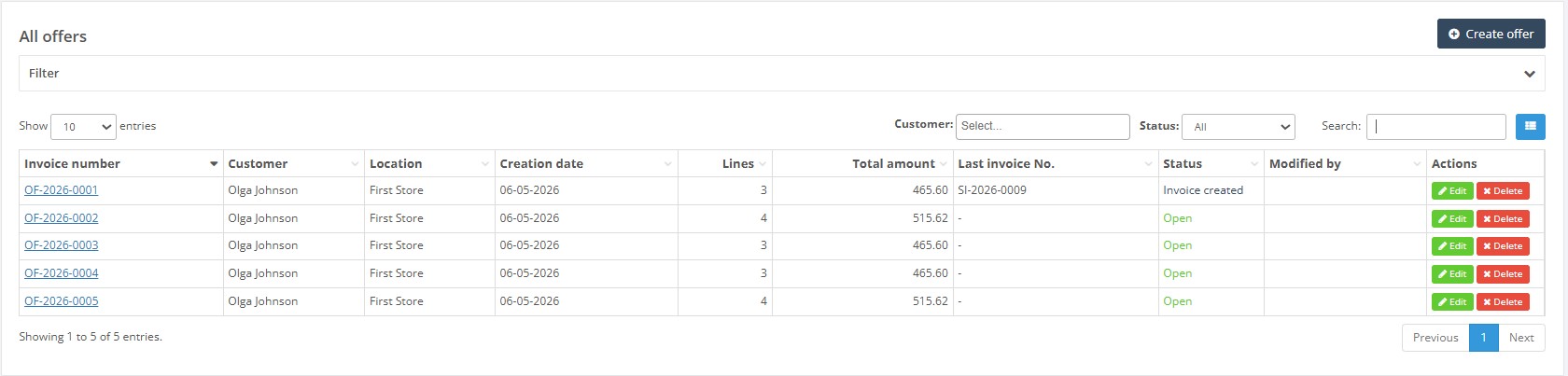
Open Sales invoices → Offers from the side menu to display the list of offers. The list page shows existing offers and provides filters for customer and status.
Step‑by‑step procedure
- Review existing offers. The list page displays columns such as Offer number, Customer, Location, Creation date, Lines, Total amount, Last invoice number, Status and Modified by. Use the search field and filters (Customer, Status) to find a specific offer. Click an offer number to open it; use the actions column to edit or delete an open offer.
- Create a new offer. Click Create offer to open a new offer form. The header section requires:
- Location* – the warehouse or store from which goods will be supplied.
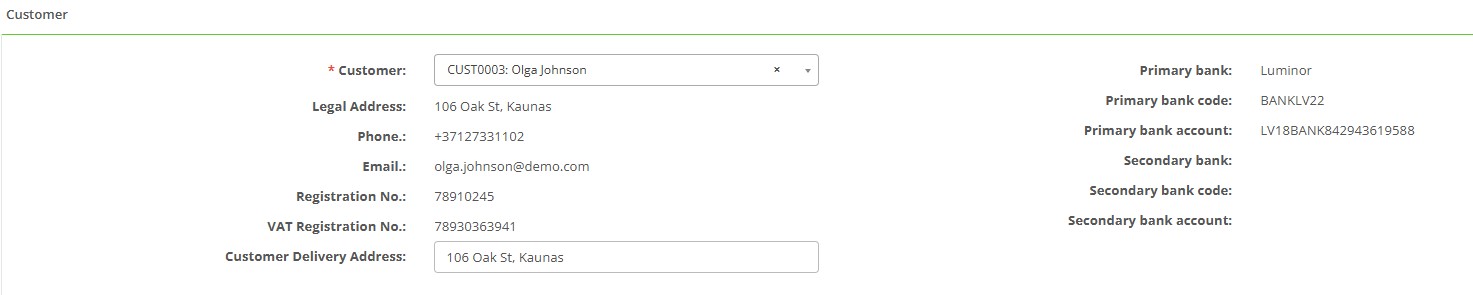
- Customer* – the customer receiving the quote. Choosing a customer populates address and contact information.
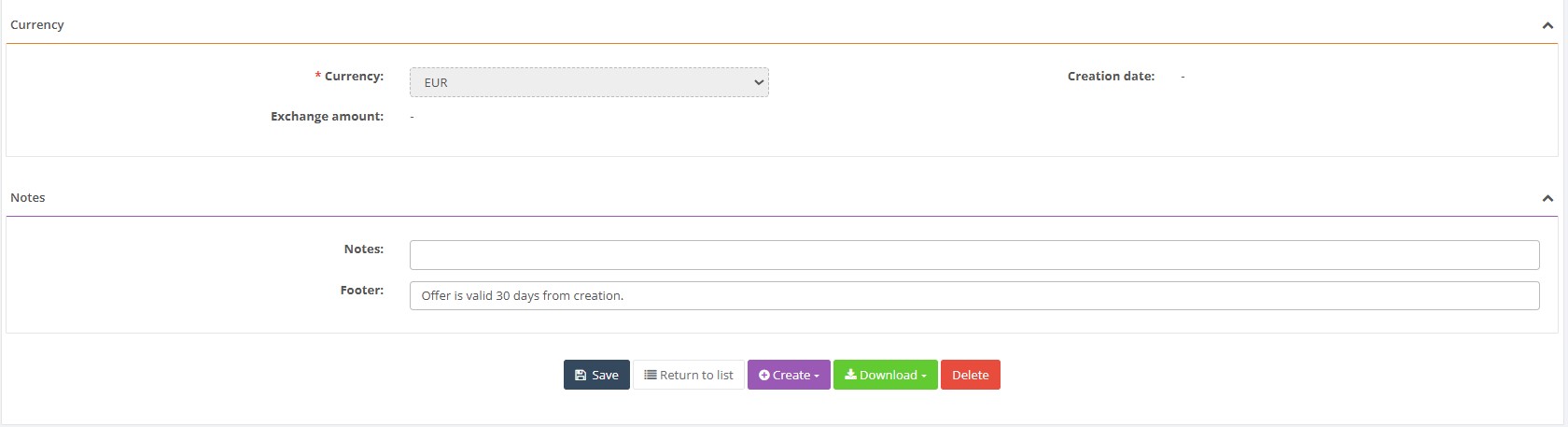
- Currency – default is EUR; change if necessary.
- Notes and Footer – optional free‑text fields. The footer often includes validity information (e.g., “Offer valid for 30 days”).
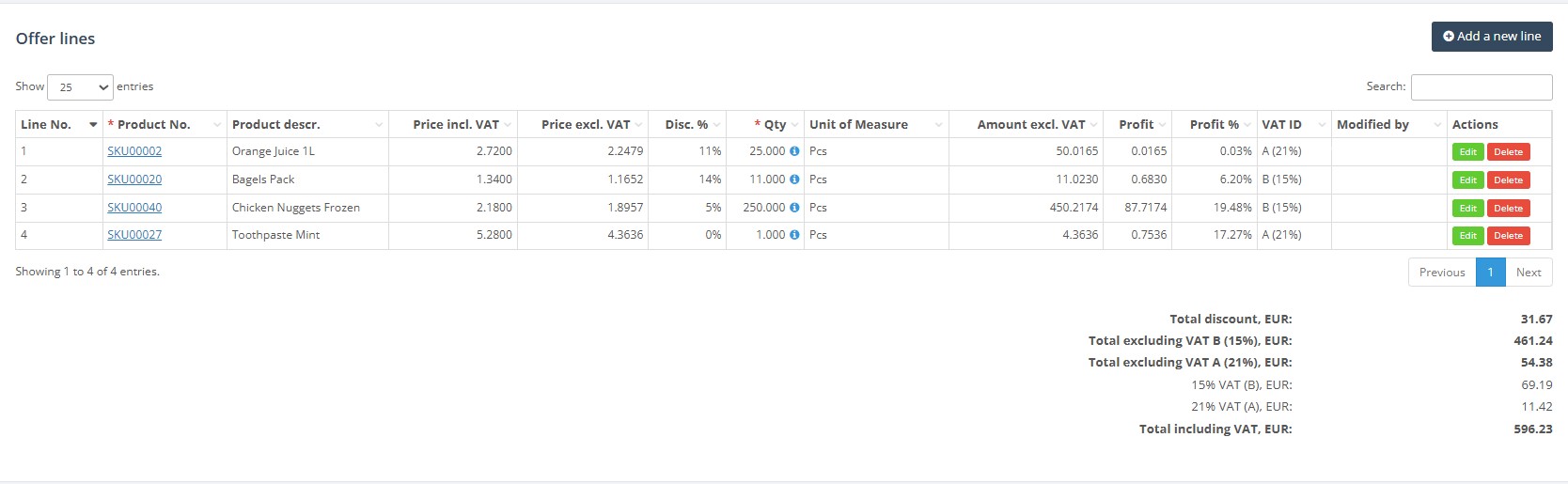
- Add offer lines. On the lines tab click Add new line to insert products. Each line requires Product No. and Quantity. Prices including and excluding VAT are pulled from the product card, and discounts can be entered. The system calculates amount, profit and profit percentage. Use the Import/Export menu to import lines from a CSV or download the current offer lines.
- Save changes. Click Save to store the offer. Offers remain in “Open” status until converted. You may edit or delete lines while the offer is open.
- Convert the offer to an invoice. When a customer accepts the offer, open the document and click Create in the action bar. The system creates a new sales invoice with the same customer and lines. The offer status changes to “Invoice created”, and the resulting invoice number appears in the Last invoice No. column.
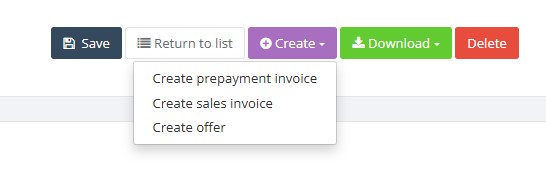
- Download or print. Use the Download button to export the offer in DOCX or PDF format. Offers can also be emailed directly to customers if email templates are configured.
Required fields
- Location – indicates which warehouse or store will fulfil the potential order.
- Customer – the customer receiving the quote.
- Product lines – each line requires Product No. and Quantity; price and VAT values are pulled from the product card but can be overridden if the user has price edit rights.
Validation rules
- Mandatory fields (marked with a red asterisk) must be completed before saving.
- Offer numbers are assigned automatically and must remain unique.
- Quantities must be positive; negative values are not permitted on offers.
- Prices and discounts follow product pricing rules; overriding them may require specific permissions.
Exceptions
Offers do not create stock or accounting movements. Once an offer is converted into an invoice, the original offer becomes read‑only. To make changes after conversion, edit the generated sales invoice.
Common errors
- “Location is required” – occurs if the location is not selected when saving.
- “Customer is required” – ensure a customer is selected before saving.
- “Product does not exist” – the entered product code is invalid; choose an existing product.
- “Quantity must be greater than zero” – quantities must be positive on all lines.
Troubleshooting
- If the list page appears empty, ensure that filters (Customer or Status) are cleared.
- Offers cannot be approved, but they can be converted into invoices. If the Create button is missing, check that the offer contains at least one line and that you have the permission to create invoices.
- Use the column configuration button to reveal hidden columns such as Last invoice number or Profit.
- To adjust an offer after conversion, open the resulting sales invoice and edit it; the original offer remains as historical reference.
FAQ
Why do i have incorrect Delivery Address on an Invoice or Delivery Note?
- The system uses the delivery address from the location/warehouse specified on the document.
- To correct the address, open the corresponding location card, update the address details, and save the changes.
- The updated delivery address will be used automatically in all newly created documents.