
Overview
BOM (Bill of Materials) journals in Resico ERP allow users to produce or disassemble products whose type is BOM (a BOM product consists of multiple components). These journals generate stock movements when a finished product is created from its components or when an existing assembly is broken down. The BOM journals list is similar to other journal lists; it displays existing journals with their status and provides actions to edit, approve, delete or view entries depending on the journal’s status.
Who Can Use This
Users must have BOM journals rights assigned under the Administration → Users → Permissions tree. Separate rights exist for viewing journals and creating/editing them. Only users with view BOM journals rights can see the list and only those with edit BOM journals rights can create, edit or approve journals.
Preconditions
- Bill of Materials products and their component items must exist in the Product list and have the BOM product type.
- Locations, units of measure, VAT groups and other retail setup data must be configured.
- The user must have appropriate rights to view and edit BOM journals.
Navigation
Menu path: ERP → Journals → BOM Journals. The All BOM journals page lists existing BOM journals and includes a Create new BOM journal button.
Step‑by‑Step Process
Viewing the BOM Journals List
- Navigate to Journals → BOM Journals.
- The list displays each journal’s Journal code, Journal name, Number of lines, Amount, Status, Approved date, Modified by and Actions
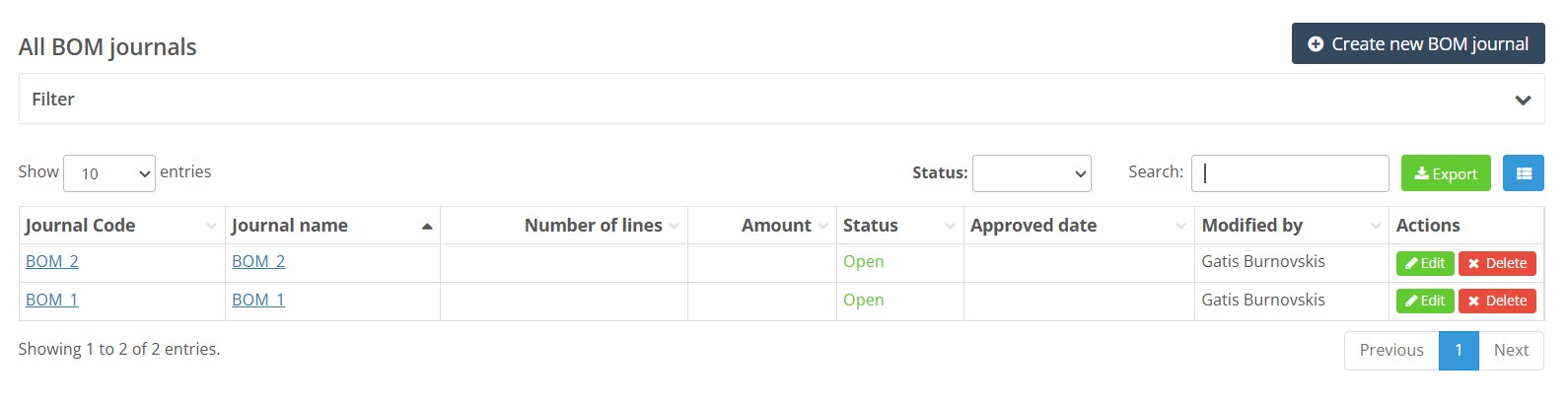 Columns can be added, removed or reordered using the blue column‑customization button in the upper‑left corner of the table (same as other journals).
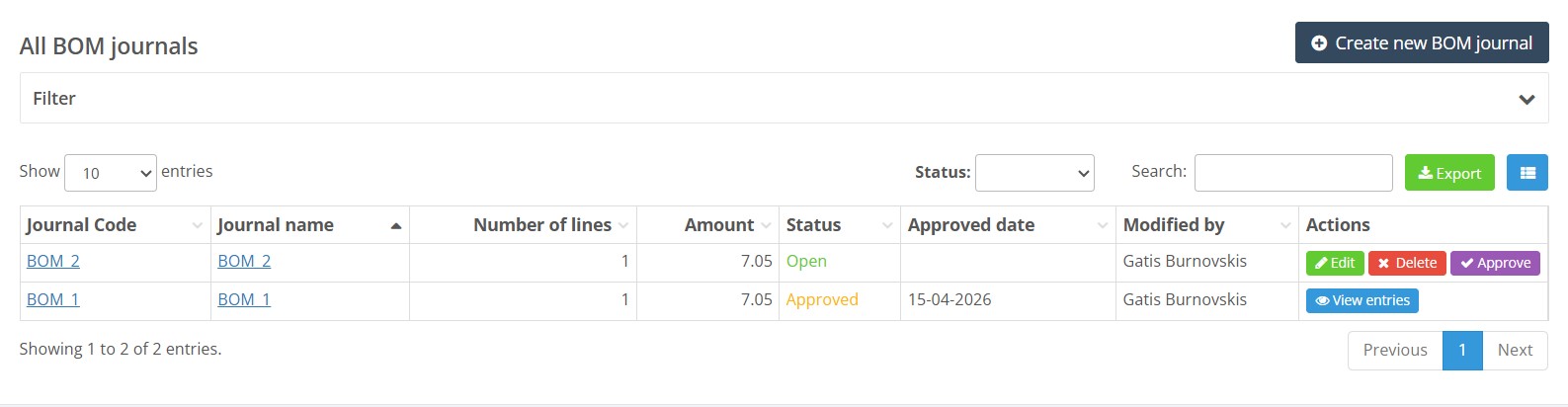
 - Use the Status dropdown to filter open or approved journals and the Search box to find a journal by code or name. Quick filter buttons allow filtering by status, and a green Export button exports the current list.
- For each open journal, the Actions column provides buttons to Edit, Delete or Approve. Approve button shows only when the journal has entries. Approved journals only show a View entries button.
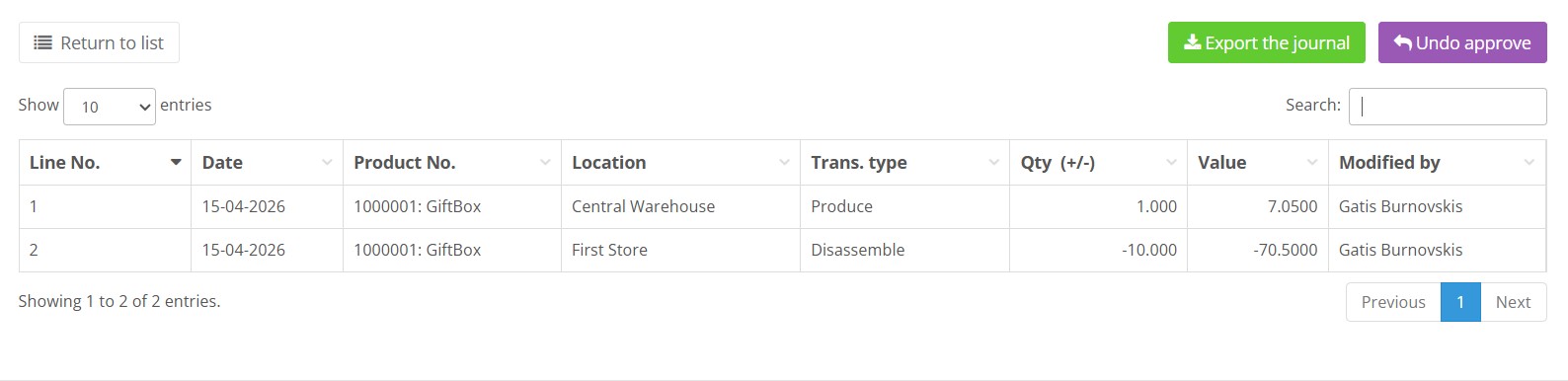
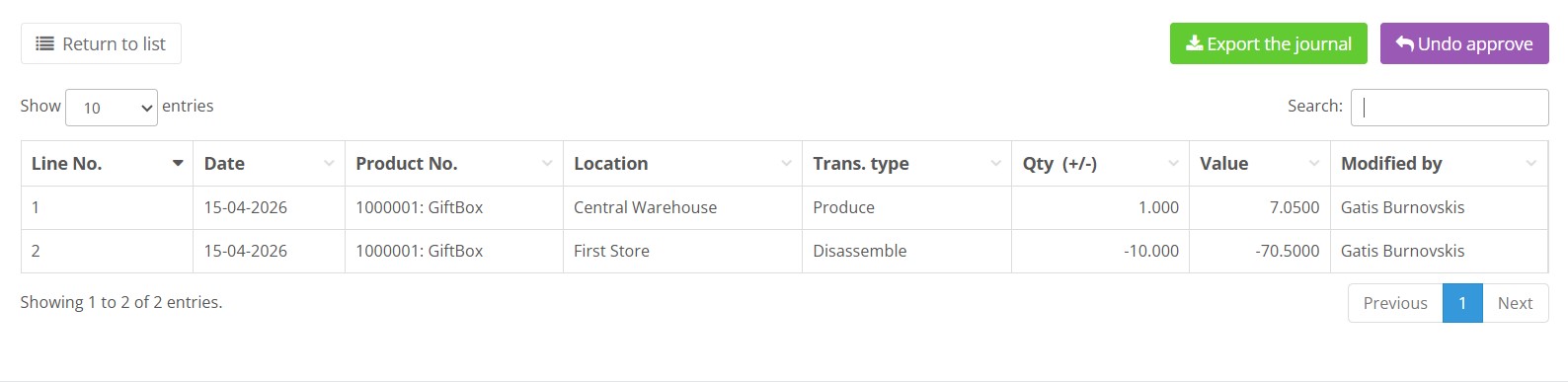
- To view lines of an approved journal, click View entries—the system opens a read‑only page showing all lines with columns Line No., Date, Product No., Location, Trans. type, Qty (+/‑), Value and Modified by. The page includes Return to list, Export the journal, and Undo approve buttons>
Creating a New BOM Journal
- From the BOM journals list, click Create new BOM journal.
- Enter a Journal code (optional) and a Journal name (mandatory). If you supply a journal code, it must be unique and up to 40 characters. The journal name must not exceed 45 characters and should describe the production or disassembly activity (e.g., “Assemble product 800010 on 2025‑02‑03”).
- Click Save. The lines table appears below the header.
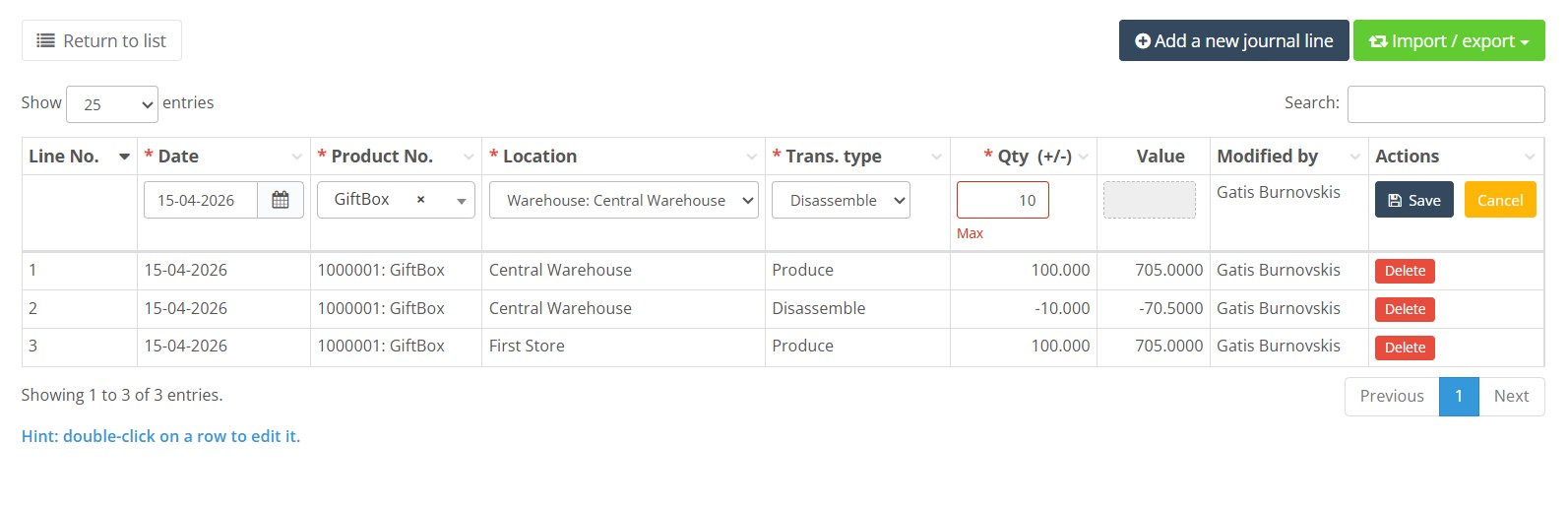
- Click Add a new journal line to open an editable line row For each line, fill in:
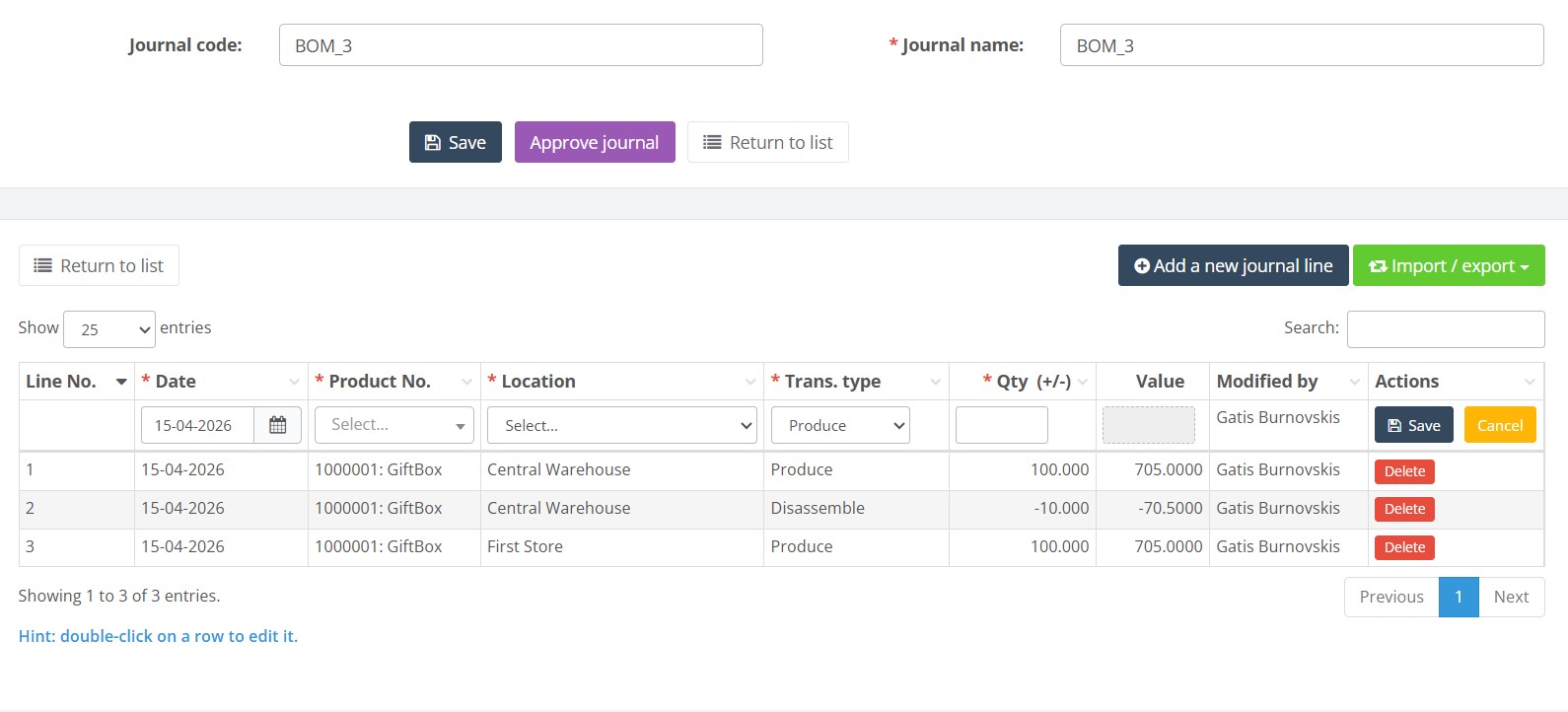
- Date – the transaction date (defaults to today).
- Product No. – select the BOM product being assembled or the BOM (or component) product being disassembled. Product numbers (including barcodes or aliases) may be up to 50 characters and must correspond to existing products.
- Location – choose the inventory location (code up to 20 characters).
- Trans. type – select Produce to assemble the BOM product from its components or Disassemble to break down a BOM product into its components.
- Qty (+/‑) – quantity of the finished product to produce or disassemble. Enter a positive number when you are producing and a positive number when disassembling; the system applies the sign based on the transaction type. For example, entering 10 with Produce increases the BOM product by 10 and reduces components accordingly. Quantities can include decimals if the unit of measure allows fractional quantities.
- If needed, click Add a new journal line again to add additional transactions. Use the Delete button (trash icon) to remove a line.
- When all lines are correct, click Save at the top of the page to save the journal header and lines. The journal remains in Open status and can be edited later.
- To finalize and update stock, click Approve journal. Approval posts the stock changes—quantities of component items decrease (for production) or increase (for disassembly) and quantities of BOM products adjust accordingly. Once approved, lines can no longer be edited.
- Use the Import / export dropdown to Export the journal for audit or record purposes. Unlike Adjustment and Transfer journals, BOM journals currently do not support importing lines—only exporting is available.
Required Fields
- Journal code – optional but must be unique if provided; codes can be up to 40 characters.
- Journal name – mandatory; the journal cannot be saved without a name and must not exceed 45 characters.
- Line fields – each line requires Date (in
dd‑mm‑yyyyformat), Product No. (up to 50 characters), Location (up to 20 characters), Trans. type (Produce or Disassemble) and Qty (number). Trans. type determines whether the quantity is treated as production or disassembly.
Validation Rules
- Journal name cannot be empty.
- Quantity must be a number; negative quantities are used for disassembly or can be positive if “Disassemble” type is selected. Positive quantities with “Produce” type increase stock of the BOM product and decrease stock of its components.
- Product number must correspond to a BOM product (for production) or to a BOM product or component (for disassembly). If an invalid product is chosen, the system will display an error.
- The same journal cannot be approved twice. To make further changes, use Undo approve on the entries page and then edit the journal.
- Journal code, if provided, must be unique and no longer than 40 characters; journal name must be no longer than 45 characters.
- Product numbers and barcodes must not exceed 50 characters.
- Location codes must not exceed 20 characters.
- Quantity must be numeric and greater than zero for both Produce and Disassemble. The transaction type determines the direction of the stock movement.
Common Errors
- Missing mandatory fields – if you attempt to save without filling a required field, an inline error appears next to the field. Fields with red asterisks cannot be left blank.
- Incorrect quantity: Enter a positive quantity for both Produce and Disassemble. The system determines the stock movement direction from the selected transaction type. Zero or negative quantities may cause validation errors or unexpected stock movements.
- Product not a BOM – if a product is not of type BOM (simple or service), production cannot be performed; choose the correct BOM product.
Troubleshooting
- If a journal doesn’t appear in the list, ensure the Status filter and quick filter buttons are not restricting results. Clear filters or select All.
- If no option appears in the Product No. field, verify that the BOM product exists in the Product list and that you have rights to view it.
- If the stock balance of a BOM product is incorrect or negative, first check whether the BOM item is configured for automatic or manual production.
- If automatic production was not previously enabled, create the missing quantity manually in the BOM Production Journal.
- Important: Do not use both automatic and manual production methods within the same BOM chain, as this may cause stock discrepancies.
- If an approved journal needs correction, open the journal via View entries and click Undo approve.The journal will return to Open status and can be edited again.
- For unexpected errors, refresh the page or log out and log back in. The demonstration environment may occasionally reset sessions.
Frequently Asked Questions
Why does the BOM journal not change inventory balances?
Only an Approved BOM journal changes inventory balances. Saving the journal or adding journal lines does not create stock movements.
Open the journal, verify the product, location, transaction type and quantity, and then click Approve journal.
What is the difference between Produce and Disassemble?
- Produce increases the stock of the finished BOM product and decreases the stock of its components.
- Disassemble decreases the stock of the BOM product and increases the stock of its components.
Enter a positive quantity for both transaction types. The system applies the correct stock movement based on the selected transaction type.
Should I enter a negative quantity for Disassemble?
No. Enter a positive quantity and select Disassemble as the transaction type.
Do not use a negative quantity to control the stock movement direction. The selected transaction type determines whether the BOM product is produced or disassembled.
Why can’t I approve the BOM journal?
Before approving the journal, check that:
- The journal name is entered.
- The journal contains at least one saved line.
- Each line has a valid date.
- Each line contains an existing BOM product.
- A location is selected.
- Produce or Disassemble is selected.
- The quantity is numeric and greater than zero.
- Any line currently being edited has been saved or cancelled.
- You have permission to edit and approve BOM journals.
Why can’t I select a product in the BOM journal?
Check that:
- The product exists in the Product List.
- The product is active.
- The product type is BOM.
- The BOM product has a valid component definition.
- The correct product number, barcode or alias is being entered.
A simple product or service cannot be produced as a BOM product.
Why can’t I produce a BOM product?
Open the Product Card and verify that the product type is BOM. Also check that the BOM definition contains the required components and quantities.
If the BOM definition is missing or incomplete, correct the Product Card before creating or approving the journal.
Why did a component get a negative inventory balance?
Resico may allow BOM production even when the required component quantity is not available at the selected location.
Before approving the journal:
- Open the BOM product’s component list.
- Check the required quantity of each component.
- Open each component’s Balance tab.
- Verify that sufficient stock is available at the selected location.
- Reduce the production quantity or correct the component stock if necessary.
Why is the BOM product balance zero or negative?
Check whether the BOM product is configured for automatic or manual production.
If automatic production was not enabled when the BOM product was sold, create the missing production quantity manually in a BOM journal using the Produce transaction type.
Avoid mixing automatic and manual production within the same BOM chain, because this can create inconsistent stock balances.
How do I manually produce a BOM product?
- Create or open an Open BOM journal.
- Click Add a new journal line.
- Select the transaction date.
- Select the BOM product.
- Select the inventory location.
- Select Produce.
- Enter the quantity to produce as a positive number.
- Save the journal line.
- Review the component and finished-product movements.
- Click Approve journal.
How do I disassemble a BOM product?
- Create or open an Open BOM journal.
- Add a new journal line.
- Select the BOM product and location.
- Select Disassemble.
- Enter the quantity as a positive number.
- Save the journal line.
- Review the expected stock movements.
- Approve the journal.
Approval decreases the BOM product quantity and returns its components to stock according to the BOM definition.
Why can’t I edit an approved BOM journal?
Approved BOM journals are read-only.
Open the journal using View entries and click Undo approve. The journal will return to Open status and can be edited again.
After making corrections, review all lines and approve the journal again.
How can I correct a BOM journal created with the wrong transaction type?
- Open the approved journal using View entries.
- Click Undo approve.
- Edit the journal line.
- Select the correct transaction type: Produce or Disassemble.
- Verify that the quantity is positive.
- Save the line and approve the journal again.
If the original journal must remain unchanged for audit purposes, create a separate correcting BOM journal instead.
Why can’t I find an existing BOM journal?
An active filter may be hiding the journal.
- Clear the search field.
- Check the selected Status value.
- Remove any active column filters.
- Select All or use the available clear-filter option.
Can BOM journal lines be imported from Excel?
No. BOM journals currently support journal export, but journal lines cannot be imported from Excel.
Add production and disassembly transactions manually using Add a new journal line.
Which date is used for the BOM stock movement?
The stock movement uses the date entered on the BOM journal line.
Before approval, verify that the date is correct, especially when recording production or disassembly for a previous inventory or accounting period.
Why is the Approve button not displayed?
The Approve button may not be displayed when the journal contains no saved entries.
Add and save at least one valid journal line. Also verify that the journal is Open and that you have permission to edit BOM journals.
Related Pages
- Adjustment Journals – create journals to increase or decrease stock quantities without assembling or disassembling a BOM product.
- Transfer Journals – move inventory between locations.
- Product List – manage products including BOM types and their components.
- Product Card – view and edit individual products, including BOM definitions.
- Home Page – learn how to configure KPIs and add health analysis reports.