
Overview
A Product Card stores all master data and inventory settings for a single product. It contains many fields such as product number, descriptions, pricing, unit cost, unit of measure, VAT group, category and department codes, as well as flags for e‑commerce channels and loyalty settings. Because other modules depend on these details, keeping the Product Card accurate is critical for purchasing, sales, inventory and reporting.
Who Can Use This
Only users with edit rights for products can modify a Product Card. Users with view rights can open product cards in read‑only mode. Typical roles include purchasing managers, inventory controllers and sales administrators.
Preconditions
- You must have an account with permission to edit products in Products → Product List.
- Supporting data must exist: VAT groups, Units of measure, Product categories and Product departments. These are selected from drop‑downs on the card.
- Product numbers must be unique across all items. The system automatically prevents duplicates.
- If you plan to assign barcodes, ensure that no existing barcodes conflict with the product number; the system checks barcode uniqueness.
Navigation
To open a product card:
- From the Product List, click the product number or the Edit icon next to the desired item.
- To create a new product card, click Add new product on the Product List. A blank Product Card opens.
Step‑by‑Step Process
- Open or create a Product Card: Use the navigation above to open an existing product or start a new one.
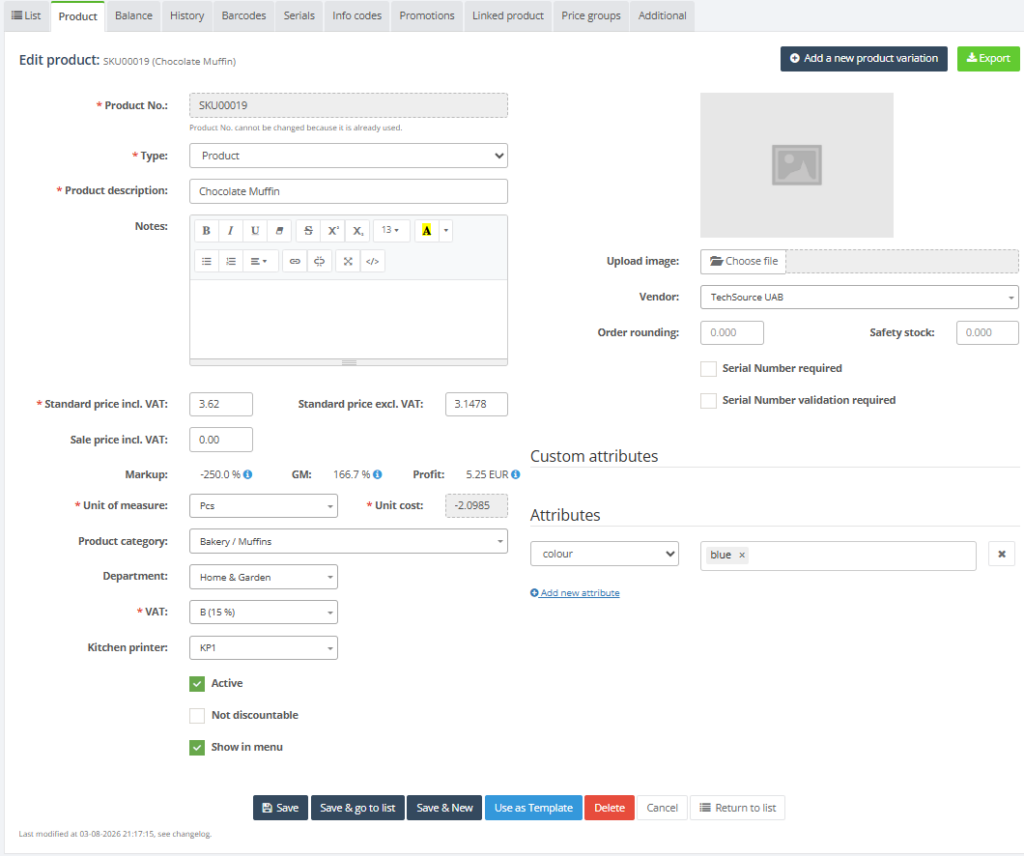
2. Enter product details:
- Product number * – enter a unique code for the product. Once saved, this field becomes read‑only.
- Type * – choose Product, Service or BOM. For BOM products, a Parent item field appears to link components.
- Description * – primary product description. A second description field is available for additional text that appears on receipts or e‑commerce sites.
- Product alias – optional alternate code used for scanning or quick entry. This field must be unique if you choose to use it.
- Notes – optional free‑text notes about the product (e.g., handling instructions or internal comments).
- Pricing: Enter Sales price (base selling price), optional Discount price (promotional price) and Last unit cost (latest purchase cost). Prices must be positive numbers.
- Unit of measure * – select the appropriate unit (e.g.,
PC,KG) from the available list. - VAT group * – select a VAT code from the available list. Optionally enable Reverse VAT and specify a Reverse VAT code.
- Product category and Department – choose from lists of categories and departments. These values aid in reporting and may be mandatory depending on policy.
- Vendor – select the primary vendor from whom you purchase this item. This field is optional for products but can be required for replenishment features.
- Inventory settings: Specify Safety stock and Order rounding quantities. These values influence replenishment suggestions.
- Flags: Tick boxes to indicate whether the product is Active, Not discountable, Always ask price (price entered at sale), Include in menu, Include in quick orders, Reverse VAT, Auto produce BOM, etc. These flags control behaviour across modules.
- Adjustments and serial numbers: If the product will be adjusted through inventory journals, enable Use adjustments. If each unit requires a serial number, tick Serial number required so that serials can be recorded when selling.
- Loyalty points: Enter the number of points awarded for selling this product.
- Price per kg / litre: If applicable, enter a price per kilogram or per litre. You can choose to display these prices on labels and, if necessary, have the system calculate them based on formulas.
- E‑commerce activation: Use the available flags to make the product available on your web platforms such as WooCommerce, Shopify, Mozello or PrestaShop.
- Images and attributes: Upload product images (thumbnail, small, large) and add custom attributes.
3 . Manage barcodes and serials:
- Barcodes tab: Assign barcodes to the product. Barcodes must be unique; duplicates are not allowed.
- Serials tab: For products requiring serial numbers, record individual serials.
4 . Review other tabs:
- Balance tab: View inventory per location, reserved quantities on sales invoices, and quantities on purchase orders.
- History tab: Examine transaction history (sales, purchases, adjustments) for the product.
- Info codes, Promotions, Linked products: Assign Info codes, promotional pricing, or link this product to components or kits.
- Price groups: Enter special prices for different price groups.
- Min/Max and Order options: Set inventory thresholds and ordering rules.
5. Save: Click Save to apply your changes. Use Save & go to list to return to the Product List or Save & New to create another product. Click Cancel to discard changes.
Required Fields
The system marks mandatory fields with a red star. These include:
- Product number – must be unique. The system prevents duplicates.
- Type – Product, Service or BOM.
- Description – primary name of the product.
- Sales price – base selling price (excl. VAT).
- VAT group – select a VAT code from the available list.
- Unit of measure – select a unit of measure from the available list.
Validation Rules
- Unique product number: The system prevents duplicate product numbers.
- Unique barcodes: The system prevents duplicate barcodes. A barcode must not match any existing product number or barcode.
- Unique product alias: If you use a product alias, it must be unique. The system checks that aliases do not clash with other product numbers or aliases.
- Numeric fields: Prices, costs, stock and quantities must be positive numbers; negative values are not allowed.
- Valid references: VAT codes, units of measure, categories and departments must be selected from the existing lists in Retail Setup.
- Read‑only product number: After initial save, the product number cannot be edited. To change it, create a new product.
- Serial numbers required: If the Serial number required flag is enabled, serial numbers must be recorded when inventory is adjusted or sold.
Common Errors
- Duplicate product number: Attempting to save a product with an existing product number causes an error message. Choose a unique code.
- Duplicate barcode: Assigning a barcode that matches an existing barcode or product number will cause a validation error.
- Duplicate alias: If a product alias is entered that matches another item’s number or alias, the system will report a conflict. Use a different alias or leave it blank.
- Missing mandatory fields: The system highlights empty required fields and refuses to save until they are completed.
- Invalid references: Selecting a VAT code, unit of measure, category or department that does not exist produces a validation error.
Troubleshooting
- If changes do not save, check for error messages and ensure all required fields are filled and unique values are used for product numbers and barcodes.
- If a dropdown is empty (e.g., VAT groups or units), verify that the underlying records exist in Retail Setup and that the user has rights to them.
- For unexpected behaviour, refresh the page or log out and back in. If issues persist, contact the system administrator or support.
FAQ
- Can I change the Product number after the product has been saved?
No. After the Product Card is saved, the Product number becomes read-only. If the product number must be changed, create a new product card with the correct number. - Why can’t I save the Product Card?
The most common reasons are missing mandatory fields, duplicate product number, duplicate barcode, duplicate product alias, invalid dropdown values or numeric fields containing negative values. Check the highlighted fields and the error message shown by the system. - Which fields are mandatory on the Product Card?
Mandatory fields are marked with a red star. Typically these include Product number, Type, Description, Sales price, VAT group and Unit of measure. - What should I do if VAT group, Unit of measure, Category or Department is missing from the dropdown?
Verify that the required setup record exists in Retail Setup. If the value exists but is still not visible, check whether the user has sufficient rights to access the setup data. - Can two products have the same barcode?
No. Barcodes must be unique. A barcode also must not match any existing product number or another barcode already used in the system. - Can I use the same Product alias for multiple products?
No. If Product alias is used, it must be unique. The system checks that the alias does not conflict with another product number or another alias. - What is the difference between Sales price, Discount price and Last unit cost?
Sales price is the base selling price of the product. Discount price is an optional promotional or reduced price. Last unit cost reflects the latest purchase cost and is usually used for cost tracking and reporting. - When should I enable Serial number required?
Enable Serial number required only when each individual unit must be tracked separately by serial number. When this flag is enabled, serial numbers must be recorded during inventory adjustments or sales. - What does the Active flag control?
The Active flag indicates whether the product is available for use in the system. If a product should no longer be used in sales, purchasing or other processes, it can be deactivated instead of deleted. - When should I use Always ask price?
Use Always ask price when the cashier or user must enter the product price manually during sale. This is typically used for variable-price items or products where the price is not fixed. - What does Not discountable mean?
If Not discountable is enabled, the product is excluded from discounts. This is useful for items where discounts are not allowed by business rules or promotion policy. - How do I make a product available for e-commerce?
Use the relevant e-commerce activation flags on the Product Card, such as WooCommerce, Shopify, Mozello or PrestaShop availability. The exact platform depends on the enabled integrations. - Where can I check current stock for the product?
Open the Balance tab on the Product Card. It shows inventory by location, reserved quantities on sales invoices and quantities on purchase orders. - Where can I see product sales, purchases or adjustment history?
Open the History tab on the Product Card. It shows product-related transactions such as sales, purchases and inventory adjustments. - How do I add a barcode to a product?
Open the Barcodes tab on the Product Card and assign the barcode to the product. Before saving, ensure that the barcode is not already used by another product. - Can I upload images for a product?
Yes. Product images can be uploaded on the Product Card. Depending on the setup, thumbnail, small and large images may be used for labels, product lists or e-commerce platforms. - What should I do if the product should be sold by weight or volume?
Use the price per kg or price per litre fields if applicable. These values can be displayed on labels and may also be calculated by the system if formulas are configured. - What is a BOM product?
A BOM product is a Bill of Materials product. It can be linked to a parent item or components and may be used when one product is produced or assembled from other products. - When should I use Safety stock and Order rounding?
Use Safety stock to define the minimum stock level that should be kept available. Use Order rounding to control the quantity increments used for replenishment or purchase suggestions. - Can I delete a product if it has already been used?
Products that have related transactions should generally not be deleted. If a product is no longer used, deactivate it by removing the Active flag or following the company’s product lifecycle procedure.
Related Pages
- Product List – view all products and open their cards.
- Retail Setup – VAT Groups
- Retail Setup – Units of Measure
- Retail Setup – Product Categories
- Retail Setup – Product Departments