
Purpose
Use the Sales Analysis report area to create, save, edit and view reusable sales analysis definitions. The main screen shows a list of saved report definitions with their selected columns, rows, amounts and period.
Roles involved
- Retail analyst
- Finance analyst
- Advanced reporting user
Preconditions
- The user needs permission to read Sales Analysis. Separate permission is required to create, edit or delete report definitions.
Navigation path
Reports → Sales Analysis
Step-by-step procedure
- Open Reports → Sales Analysis.
- Review the list of saved report definitions. The list shows Name, Columns, Rows, Amounts, Period, From date and Till date.

- Click View to open an existing sales analysis report.
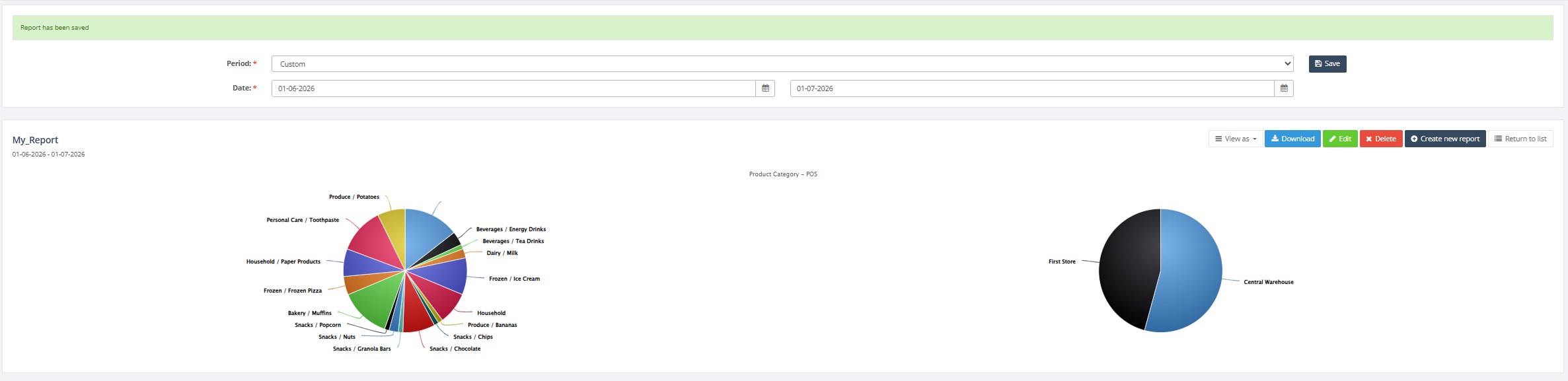
- If you have write permission, click Create report to create a new report definition.
- If you have write permission, click Edit to change an existing definition.
- When creating or editing a report, define the report name, date range, period type, row metric, column metric and amount metric, then save it.
- Use the report view to analyze the saved configuration and download it if the specific report view supports download.
Required fields
- Report name when creating/editing
- Columns metric
- Rows metric
- Amounts metric
- Period
- Date range
Validation rules
- Metrics must be selected from the report metric lists.
- Separate permissions are required for view versus edit/delete actions.
Exceptions
- The menu item opens the saved report list, not the final analysis output directly.
- Write actions are shown only if the user has permission to maintain sales analysis reports.
Common errors
- Users expect a single ready-made report, but this menu opens a list of saved report definitions.
- Users change a report definition without realizing it affects later viewing of that saved report.
Troubleshooting
- If you cannot create or edit, check user rights for Sales Analysis maintenance.
- If a saved report does not match expectations, open it in Edit and review its columns, rows, amounts and period settings.
Questions / Gaps
- The exact list of available metrics is dynamic and should be confirmed in the live edit screen when preparing end-user training.