
Purpose
Use the Open AI page to record the client’s confirmation for the AI-related setup in Resico ERP. This page is a confirmation and consent screen rather than a technical integration setup page. It presents an information text and requires two separate confirmations before the setup can be saved.
Roles involved
- System administrator
- Authorized company representative
- Implementation / support team
Preconditions
- You need permission to edit Client profile.
- The person completing this page should be authorized to accept the confirmation statements on behalf of the client.
- The information text on the page should be reviewed internally before the confirmations are saved.
Navigation path
Client profile → Open AI
Step-by-step procedure
- Open Client profile → Open AI.
- Review the information text shown at the top of the page. The page displays one general AI information / consent text block.
- Read the first confirmation statement and tick AIConfirm1 to confirm acceptance of that statement.
- Read the second confirmation statement and tick AIConfirm2 to confirm acceptance of that statement.
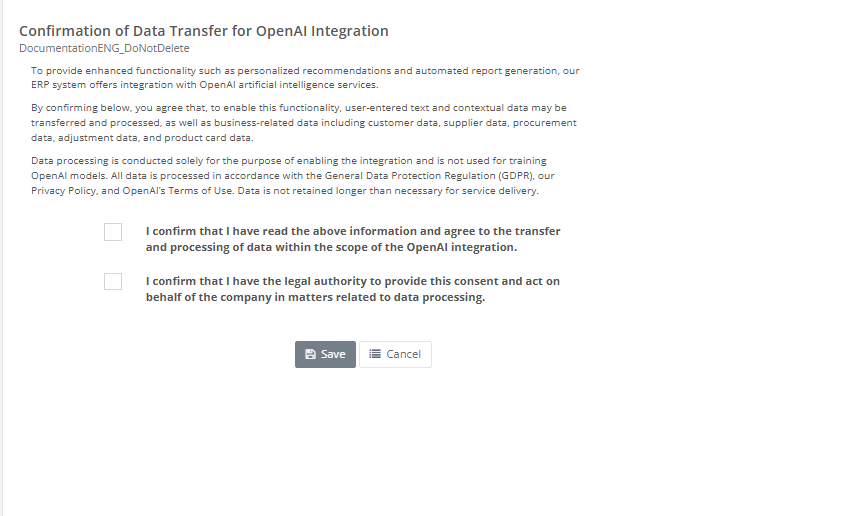
5. Click Save to store the confirmations.
6. Use Cancel to leave the page without saving.
Required fields
- AIConfirm1
- AIConfirm2
Validation rules
- Both confirmation checkboxes are treated as required inputs on this page.
- The page contains no additional connection fields, API keys or technical parameters.
- The information text should be reviewed before the confirmations are saved.
Exceptions
- This page is not used to configure prompts, models, API credentials or technical AI behavior.
- The page functions as an acceptance / confirmation screen and may be part of a broader implementation process outside this menu.
- If either confirmation is not accepted, the setup cannot be completed correctly.
Common errors
- Only one confirmation checkbox is selected, causing the save to fail or leaving the setup incomplete.
- The confirmations are accepted without internal review of the information text.
- Users expect technical AI settings on this page, but the page only contains confirmation fields.
Troubleshooting
- If the page cannot be saved, verify that both confirmation checkboxes are selected.
- If the client expects additional AI functionality after saving, confirm whether further implementation steps exist outside this page.
- If there is uncertainty about the meaning of the information text or confirmation statements, review them internally before enabling the setup.
Questions / Gaps
- The page clearly stores two confirmation values, but the exact downstream effect of saving them should be confirmed in the live tenant.
- It should be confirmed whether saving these confirmations alone enables AI functionality, or whether additional technical setup is required elsewhere.
- The full legal and operational meaning of the AI information text should be validated directly in the live environment before production use.