
Purpose
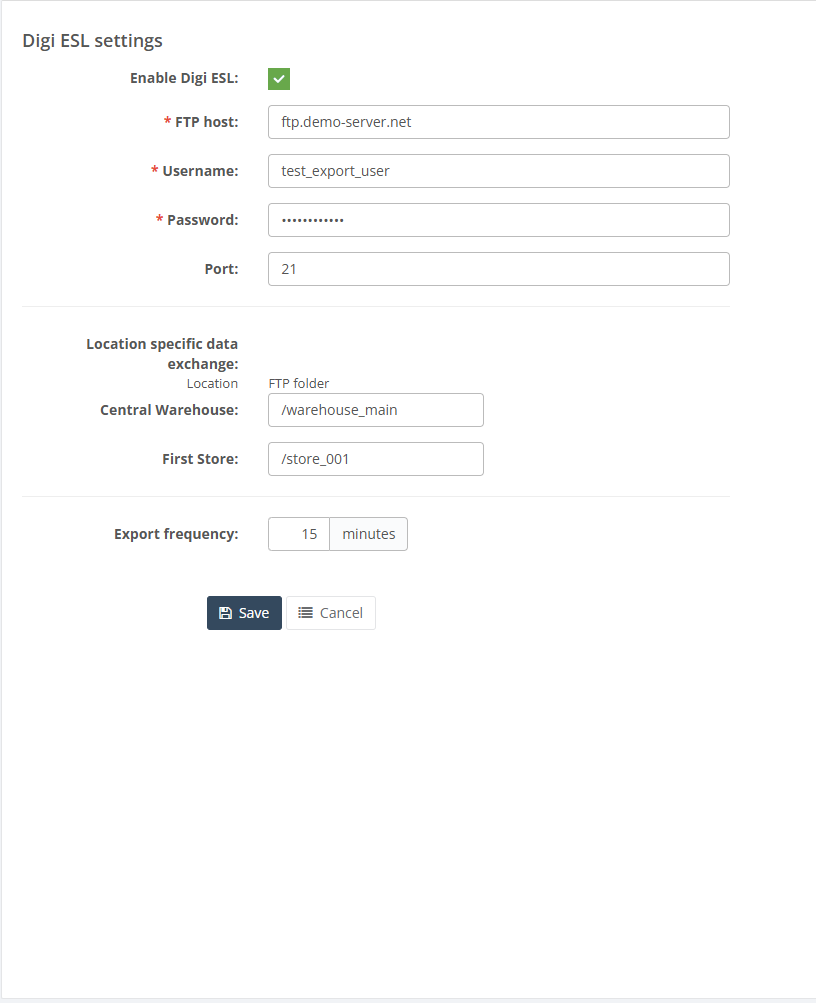
Use the Digi ESL page to configure the client’s Digi electronic shelf label integration in Resico ERP. This page controls whether Digi integration is enabled, stores the connection credentials, defines optional location-specific FTP folder mappings, and sets the export frequency for data exchange.
Roles involved
- System administrator
- Retail operations manager
- Integration / support team
Preconditions
- You need permission to edit Client profile.
- The Digi connection details must already be available before setup.
- If location-specific exchange is used, the FTP folder naming convention for each location should already be agreed.
Navigation path
Client profile → Digi ESL
Step-by-step procedure
- Open Client profile → Digi ESL.
- Enable the integration using Enable Digi.
- Enter the main connection details:
- Host
- Username
- Password
- Port
- If the page shows the Location specific data exchange section, review the list of locations.
- For each location in that section, enter the corresponding FTP folder value that should be used for data exchange for that location.
- Set the Export frequency in minutes.
- If a previous export request exists, review the Last request value shown on the page.
- Click Save to apply the configuration.
- Use Cancel to leave the page without saving.
Required fields
- Host
- Username
- Password
Additional required fields when used in the client’s Digi setup:
- Port
- Location-specific FTP folder values for each relevant location
- Export frequency
Validation rules
- Host, Username and Password are treated as mandatory fields on the page.
- Port should be numeric if used.
- Export frequency must be numeric and is entered in minutes.
- Location-specific folder values must fit within the page field length and should match the external Digi exchange structure.
Exceptions
- The location-specific mapping section is shown only when the client has locations available for Digi data exchange.
- Some clients may use a single shared Digi exchange and may not need separate folder values for every location.
- The page stores configuration values only; the actual Digi connection behavior depends on the external Digi environment and background export process.
Common errors
- Incorrect host, username or password prevents Digi integration from connecting.
- Wrong port value causes connection failures.
- Location-specific FTP folder values are entered incorrectly, causing data to be sent to the wrong destination.
- The export frequency is set incorrectly, causing updates to run too often or not often enough.
Troubleshooting
- If Digi updates are not working, first verify the Host, Username, Password and Port.
- If only some locations fail, review the Location specific data exchange folder values for those locations.
- If updates seem delayed, check the configured Export frequency.
- Review the Last request value to confirm whether recent export activity has been triggered.
Questions / Gaps
- The page clearly stores connection values and optional location-specific folder mapping, but the exact external Digi file structure should be confirmed in the live implementation.
- It should be confirmed whether Port is optional in all environments or effectively required in production use.
- The exact execution method of the scheduled Digi export process should be confirmed in the client’s live environment.