Purpose
Use the WooCommerce page in the client profile to view and monitor the WooCommerce integration with Resico ERP.
This page provides an overview of the WooCommerce connection status, technical compatibility checks, API configuration, synchronization settings, stock handling logic, invoice creation rules and other integration-related parameters.
The page is intended mainly for support, system administrators and e-commerce users who need to verify whether the WooCommerce integration is active and whether the required technical configuration is available.
Roles involved
- System administrator
- E-commerce manager
- Integration / support team
- IBSC support team
- WooCommerce / WordPress administrator
Preconditions
- WooCommerce integration must be configured by IBSC/support.
- A working WordPress and WooCommerce environment must be available.
- The Resico WooCommerce plugin must be installed in the corresponding WordPress/WooCommerce project.
- WooCommerce API credentials must be created and configured.
- Required products, stock locations, units of measure and invoice settings must be prepared in Resico ERP.
- If multilingual functionality is used, WPML configuration must be checked.
- If decimal stock quantities are used, the required WooCommerce measurement-related plugin must be installed and configured.
Navigation path
Client profile → WooCommerce
Page Overview
The WooCommerce page displays the current integration status and technical settings used for data exchange between WooCommerce and Resico ERP.
Data exchange between Resico ERP and WooCommerce is performed using the Resico WooCommerce plugin. The currently active plugin version and related technical information are available in the client WooCommerce tab.
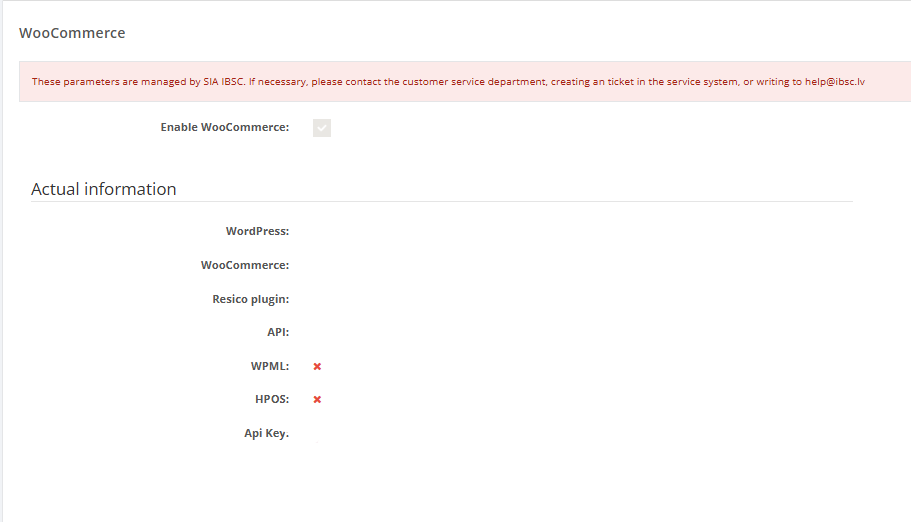
Enable WooCommerce
Enable WooCommerce indicates whether WooCommerce integration is enabled for the selected client.
Possible values:
- Enabled – WooCommerce integration is active.
- Disabled – WooCommerce integration is not active.
Important: after major WordPress or WooCommerce upgrades, the integration may be disabled automatically in some cases. If synchronization stops after an upgrade, this setting should be checked first.
Actual Information
Actual Information displays technical information about the connected WooCommerce environment and the Resico plugin status.
- WordPress – Shows information about the connected WordPress installation.
- WooCommerce – Shows information about the connected WooCommerce environment.
- Resico Plugin – Indicates whether the Resico WooCommerce plugin is installed and detected. The plugin enables data exchange between WooCommerce and Resico ERP.
- API – Indicates whether API communication between WooCommerce and Resico ERP is available. API access is required for synchronization between both systems.
- WPML – Displays the WPML compatibility status. This is relevant if the WooCommerce store supports multiple languages using WPML.
- HPOS – Displays the High-Performance Order Storage compatibility status. This indicates whether the WooCommerce environment supports the newer WooCommerce order storage architecture.
- API Key – Displays the API key assigned to the WooCommerce integration. The API key is used for communication between WooCommerce and Resico ERP.
WooCommerce Plugin Settings
The WooCommerce integration settings define how Resico ERP and WooCommerce exchange product, stock, order and invoice data.
API configuration
Resico ERP API key is used by the WooCommerce plugin to communicate with Resico ERP.
Resico ERP endpoint URL defines the API endpoint used by the integration. Standard endpoint format is the Resico API URL configured for the project.
The plugin performs a self-check to verify whether WooCommerce, WordPress and other required settings are compatible with the integration requirements.
WooCommerce API credentials
WooCommerce API credentials must be created in the corresponding WooCommerce administration panel.
Typical WooCommerce path for API keys:
WooCommerce → Settings → Advanced → REST API
In many projects, API credentials are initially created with read permissions while the client imports products, performs inventory checks and cleans up stock balances. After the initial setup is completed, the credentials can be changed to read/write permissions to enable full data exchange.
Important: read/write permissions should only be enabled when the integration is ready for active synchronization.
Authentication method
The integration can use different authentication methods depending on the client server configuration.
- Basic – Default authentication method.
- Query string – Used in specific cases when the client server does not allow standard authorization headers to pass through correctly.
If API communication fails even when credentials are correct, the authentication method should be reviewed together with the client server configuration.
Default unit of measure
WooCommerce does not use Resico-style units of measure. Therefore, one of the units defined in Resico ERP must be selected as the default unit that will be used when receiving or processing invoice-related data.
This setting is especially important when order and invoice data is imported from WooCommerce to Resico ERP.
Stock source locations
Stock source locations define which Resico ERP stock locations are used to calculate available stock for WooCommerce.
One or multiple locations can be selected. If multiple locations are selected, the stock quantity can be summed and sent to WooCommerce as the available stock.
This setting should match the client’s real warehouse and e-commerce stock logic.
Sales location
Sales location defines the Resico ERP location where WooCommerce sales will be registered.
This affects where stock will be deducted, where BOM production logic may be applied and how sales documents are created in Resico ERP.
Stock handling when Resico stock is zero or negative
This setting defines what should happen in WooCommerce when the Resico ERP stock quantity is 0 or below 0.
- Leave unchanged – Do not change the WooCommerce stock status.
- Set as out of stock – Mark the product as out of stock in WooCommerce.
- Allow backorders – Allow customers to place orders even when stock is not available.
This setting must be agreed with the client because it directly affects whether customers can purchase products that are not physically available.
Order and Invoice Synchronization
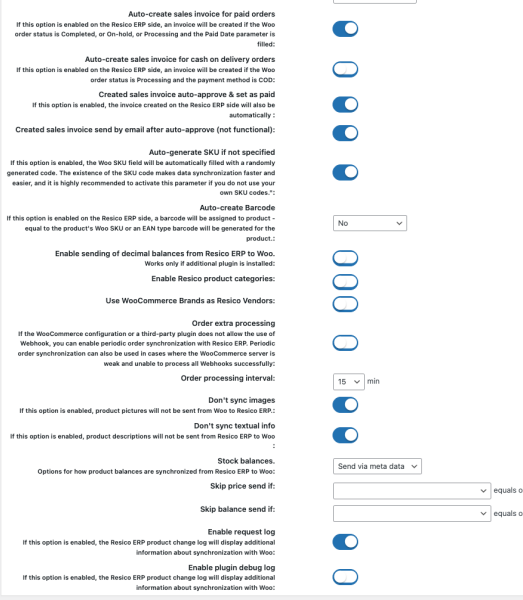
Automatic invoice creation for paid or completed orders
The integration can automatically create invoices in Resico ERP for WooCommerce orders that are paid or completed.
This allows WooCommerce orders to be transferred into Resico ERP without manual invoice creation.
Automatic invoice creation for post-payment orders
The integration can also automatically create invoices for WooCommerce orders with post-payment terms.
This setting is used when the client allows order processing before payment is received.
Automatic invoice approval
Created invoices can be approved automatically in Resico ERP.
Important: an invoice may fail to approve automatically if the created Resico ERP invoice amount differs significantly from the WooCommerce order amount.
Example: if the WooCommerce order contains a product or discount from a third-party solution that Resico ERP cannot process, such as a gift card, the invoice amount may not match and automatic approval may not be completed.
Sending created invoices to customers
If e-mail functionality is enabled for the client, the created invoice can also be sent to the customer’s e-mail address, if an e-mail address is available in the WooCommerce order.
This option depends on the client’s e-mail configuration in Resico ERP.
Additional order processing
The integration can perform additional periodic order sending to Resico ERP if WooCommerce scheduled actions have not worked correctly for any reason.
This is a fallback mechanism and may be useful when orders are not transferred due to WooCommerce background task issues.
Product Synchronization
Product synchronization behaviour depends on the configured integration settings. Not all product fields are necessarily synchronized in both directions.
Some data, such as stock, price, product names or descriptions, may be sent from Resico ERP to WooCommerce depending on configuration. WooCommerce product and variation identifiers are stored to maintain a reliable link between corresponding records in both systems.
Before changing product structure, SKU, barcode or variation structure, verify that the existing identifiers remain correctly assigned.
WooCommerce product and variation identifiers
The integration can automatically assign WooCommerce product and variation identifiers if they are not already specified in Resico ERP.
It is recommended not to disable this option because identifiers help avoid duplicated data. When identifiers are available, products and variations can be matched reliably between WooCommerce and Resico ERP.
Barcode creation logic
The integration can create Resico ERP barcodes based on the selected logic.
- From SKU – Creates the barcode using the SKU defined in WooCommerce.
- EAN compatible – Creates a barcode that follows EAN-compatible standards and can be scanned.
The selected barcode logic should be reviewed before product import to avoid duplicate or incorrect barcode data.
Decimal stock quantities
The integration can allow WooCommerce to use decimal stock quantities, for example for weighted goods.
This requires an additional WooCommerce plugin, such as WooCommerce Measurement Price Calculator, to be installed and configured in the WooCommerce environment.
Category import
WooCommerce categories can be imported into Resico ERP.
This is usually used during the initial data import when the WooCommerce store already contains product category data that must be created or matched in Resico ERP.
Brands and vendors synchronization
WooCommerce brands can be synchronized with Resico ERP vendors.
This allows brand/vendor data to be exchanged between WooCommerce and Resico ERP, depending on the configured project logic.
Product images
The integration can be configured not to send Resico ERP product images to WooCommerce.
Even when image sending is enabled, images are usually sent only if the WooCommerce product does not already have an image.
This setting is useful when the client manages product images manually in WooCommerce or uses separate image management tools.
Product names and descriptions
The integration can be configured not to send product names and descriptions from Resico ERP to WooCommerce.
This may be required because WooCommerce often provides more advanced formatting options, rich text editing, language-specific content and additional content formatting plugins.
If the client maintains product descriptions directly in WooCommerce, this option helps prevent Resico ERP data from overwriting WooCommerce content.
Product changes
Changes to an existing product are synchronized according to the enabled WooCommerce integration settings.
Depending on the project configuration, synchronization may include:
- stock quantity;
- price;
- product name;
- description;
- categories;
- barcode / SKU related information;
- other supported product data.
Some fields may be intentionally excluded from synchronization. For example, product names and descriptions can be configured so that Resico ERP does not overwrite the content maintained directly in WooCommerce.
Important: Product matching is based on product and variation identifiers rather than the product name. Therefore, changing the product name alone should not normally create a new corresponding product, provided that the existing identifiers remain unchanged and correctly assigned.
Simple Product → Variable Product
Changing an existing WooCommerce Simple Product into a Variable Product changes the product structure in WooCommerce.
Before performing this change on an already synchronized product, the existing product and variation identifiers should be reviewed.
If the product has already been synchronized with Resico ERP, contact IBSC support before changing the product type if there is uncertainty about the expected result.
Variable Product → Simple Product
Changing a Variable Product into a Simple Product removes the variation structure in WooCommerce.
Existing synchronized variations may already have corresponding records and transaction history in Resico ERP. Therefore, changing the product type does not necessarily mean that the corresponding Resico ERP records can or should be deleted.
Before changing an already synchronized Variable Product into a Simple Product, review the existing product and variation identifiers and, if necessary, contact IBSC support.
Deleting a variation in WooCommerce
Deleting a variation in WooCommerce removes that variation from the WooCommerce product structure.
A corresponding product or variation record may already exist in Resico ERP and may contain stock or transaction history. Therefore, deleting a WooCommerce variation should not be assumed to automatically delete the corresponding Resico ERP record.
Before deleting synchronized variations, check whether the variation has already been used in transactions or stock operations.
Deleting a product in WooCommerce
Deleting a product in WooCommerce removes the product from the WooCommerce catalogue.
This does not automatically mean that the corresponding product should be deleted from Resico ERP. A Resico ERP product may contain stock movements, invoices, sales history or other related records that must remain available for historical reporting.
If a product should no longer be used, deactivation should generally be considered before permanent deletion.
Delete vs Deactivate in Resico ERP
Deactivate
Use Deactivate when the product or variation should no longer be used for new transactions but its historical data must remain available.
Deactivation is recommended when:
- the product has previously been sold;
- stock or document history exists;
- the product is no longer offered;
- the corresponding WooCommerce product or variation has been removed.
Delete
Delete should only be used when the product or variation can be permanently removed without affecting existing documents, transactions or historical data.
Depending on the product history and existing links, deletion may not be available.
Historical data
Products and variations may be referenced by invoices, sales transactions, stock movements and other historical documents.
For this reason, a product or variation with existing transaction history may not always be suitable for permanent deletion.
Keeping the historical record ensures that previously created documents and reports remain consistent even after the product is no longer sold
Stock sending mode
The integration supports different stock balance sending modes.
- Standard – Standard stock synchronization mode.
- Via meta – Sends stock quantities as metadata. This is a specific scenario and requires an additional plugin or special logic on the client side.
- Do not send – Stock quantities are not sent to WooCommerce.
The stock sending mode must be selected according to the WooCommerce project requirements.
Custom product fields
If the client has custom product fields configured, their values can be used in the plugin logic.
For example, custom fields can be used to determine whether price or stock should be sent to WooCommerce for specific products.
This is useful for projects where only part of the product catalogue should be synchronized or where some products require special handling.