
Purpose
Use the E-mail page to configure outgoing e-mail for the client in Resico ERP. This page controls whether e-mail sending is enabled, which delivery provider is used, the sender details, provider-specific credentials, and the default order mail template.
Roles involved
- System administrator
- IT / infrastructure administrator
- Finance or sales operations manager
Preconditions
- You need permission to edit Client profile.
- The client must already have a working sender mailbox or API-based mail provider account.
- You should know which mail service will be used before configuring this page.
Navigation path
Client profile → E-mail
Step-by-step procedure
- Open Client profile → E-mail.
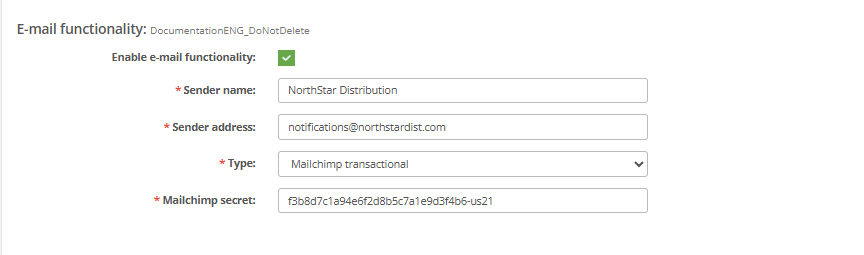
- Enable the function using Enable mail.
- Enter the sender details:
- From name
- From address
- Select the Mail type. The page provides these options:
- SMTP
- Sendgrid
- Mailgun
- SparkPost
- Mailchimp transactional
- If SMTP is selected, complete:
- SMTP host
- SMTP port
- Mail encryption (TLS or SSL)
- SMTP username
- SMTP password
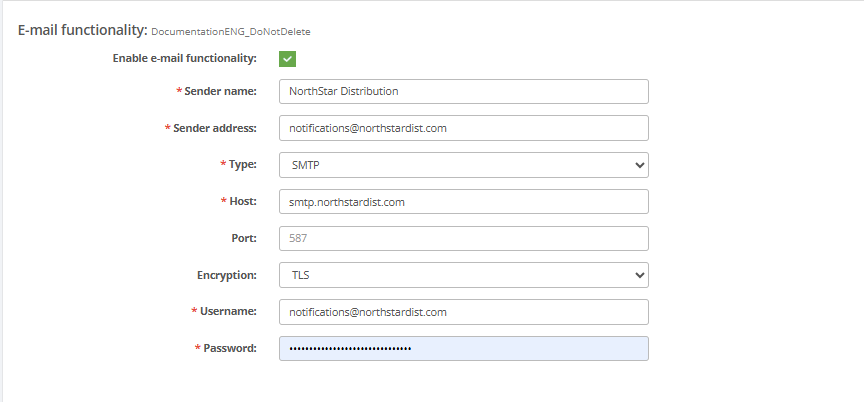
6. If Sendgrid is selected, enter:
- Sendgrid API key
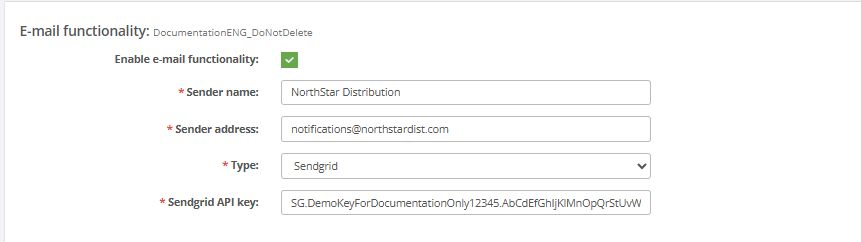
7. If Mailgun is selected, enter:
- Mailgun domain
- Mailgun secret
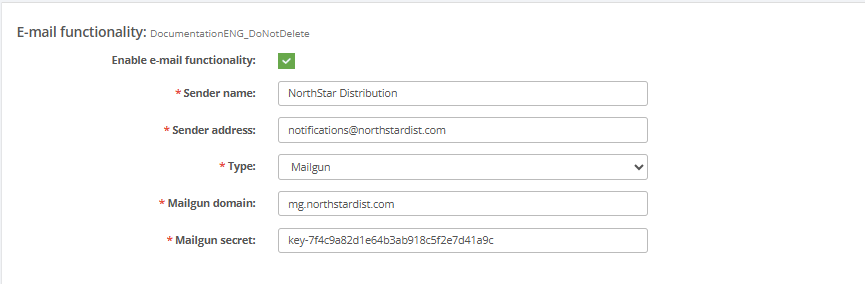
8. If SparkPost is selected, enter:
- SparkPost secret
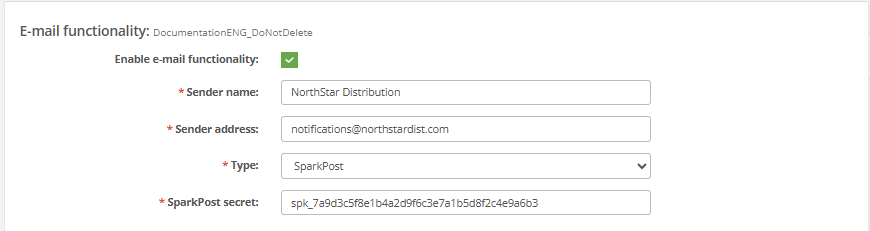
9. If Mailchimp transactional is selected, enter:
- Mailchimp secret
10 . In the Mail templates section, maintain the default order mail template:
- Subject
- Text
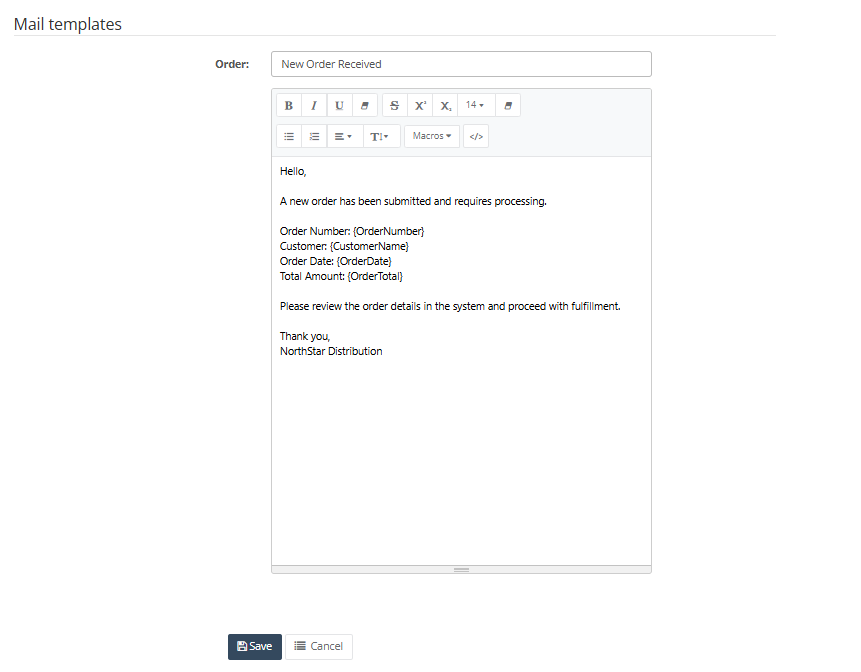
- Click Save to apply the setup.
- If the user has permission to send tests, click Test to test the e-mail configuration.
- Use Cancel to leave the page without saving.
Required fields
- Enable mail must be enabled when the client uses outgoing e-mail.
- From name
- From address
- Mail type
- The credentials required for the selected provider
- Subject and Text in the order mail template if the client uses the default template from this page
Validation rules
- From name and From address are mandatory fields.
- Mail type must be selected from the available provider list.
- For each provider, only the corresponding provider-specific fields are relevant.
- SMTP port should be numeric.
- Mail encryption must be selected from the values available on the page when SMTP is used.
- The default order template requires a subject and message text if it will be used as the standard outgoing template.
Exceptions
- The visible provider list does not currently show Gmail, even though Gmail-related fields exist in code.
- The Test button appears only when the user has the required permission.
- The page stores one order mail template block; additional document-specific mail templates are not shown on this screen.
Common errors
- The wrong mail provider is selected, so the entered credentials do not match the active integration.
- Incorrect sender address or credentials prevent outgoing messages from being sent.
- SMTP settings are incomplete, for example missing host, username or password.
- Users save the configuration but do not run a test, so delivery problems are discovered only later.
- The order template subject or text is left empty, producing incomplete outgoing messages.
Troubleshooting
- If outgoing mail does not work, first verify the selected Mail type and confirm that the matching credentials were entered.
- If SMTP is used, review the host, port, encryption, username and password together.
- If provider API mail is used, check the API key / secret values carefully for typing errors.
- Use the Test function when available after every configuration change.
- If the message content is incorrect, review the Mail templates section and test with a sample order message.
Questions / Gaps
- The exact delivery logging and retry behavior is not visible on this page and should be confirmed in the production setup.
- It should also be confirmed whether the order mail template on this page is used for all order-related outgoing messages or only for one specific order flow.