
Overview
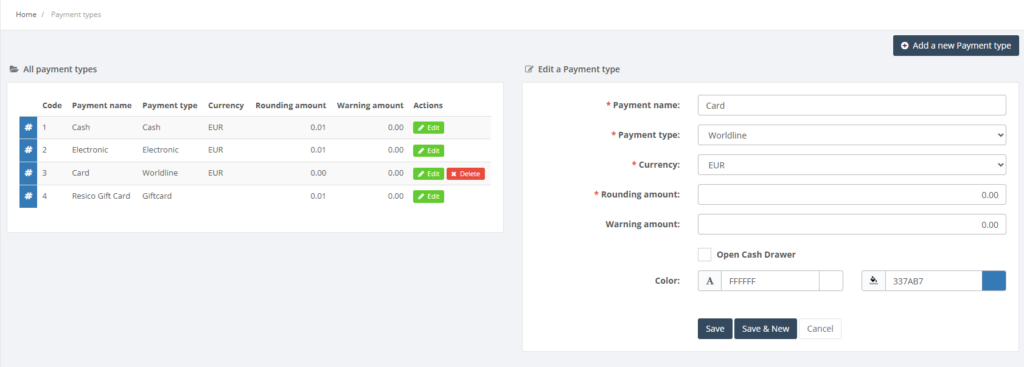
Payment types define how customers pay for purchases. Examples include cash, bank cards, gift cards or coupons. The Payment Types page lists all available payment methods and allows administrators to add new ones. Each payment type can have a warning amount, rounding rules and a colour for the POS button.
Who Can Use This
Users with retail setup and financial configuration rights manage payment types. Cashiers and sales operators select from the available payment types when finalising a sale.
Preconditions
- You must have permission to configure payments.
- Required currencies should already be set up in the POS Currencies section.
Navigation
Navigate to Retail Setup → Payment Types.
Step‑by‑Step Process
- Open the Payment Types page. The table lists existing payment types with columns for Payment name, Payment type, Currency, Rounding amount and Warning amount.
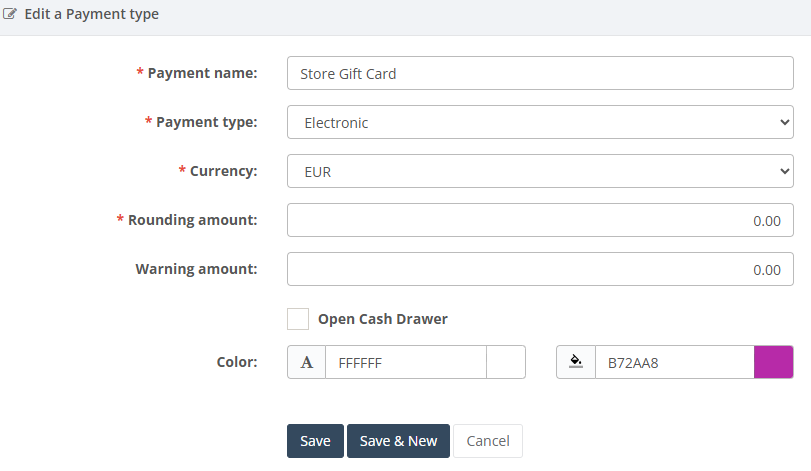
- To add a payment type, fill in the form on the right:
- Payment name – descriptive name for the payment (required).
- Payment type – select from predefined types such as Cash, Card, Gift card, Coupon, etc. (required).
- Currency – choose which currency is used (required).
- Rounding amount – optional; if set, the POS rounds change to the nearest amount.
- Warning amount – optional; triggers a warning when a large payment is entered.
- Open Cash Drawer – tick if this payment method should trigger the cash drawer.
- Colour – choose a button colour to identify the payment type on the POS.
- Click Add to save. The new payment type appears in the table.
- Edit or delete existing payment types using the actions in the table.
Required Fields
- Payment name, Payment type and Currency are mandatory.
Validation Rules
- Payment names must be unique.
- If a rounding amount is entered, it must be a positive numeric value.
Common Errors
- Missing mandatory fields: ensure name, type and currency are selected.
- Unsupported currency: make sure the currency is defined in POS Currencies.
Troubleshooting
- If the cash drawer does not open, check that the Open Cash Drawer option is enabled and that hardware connections are configured.
- Review rounding and warning amounts if customers receive incorrect change.
Related Pages
- POS Currencies – defines which currencies are accepted.