
Overview
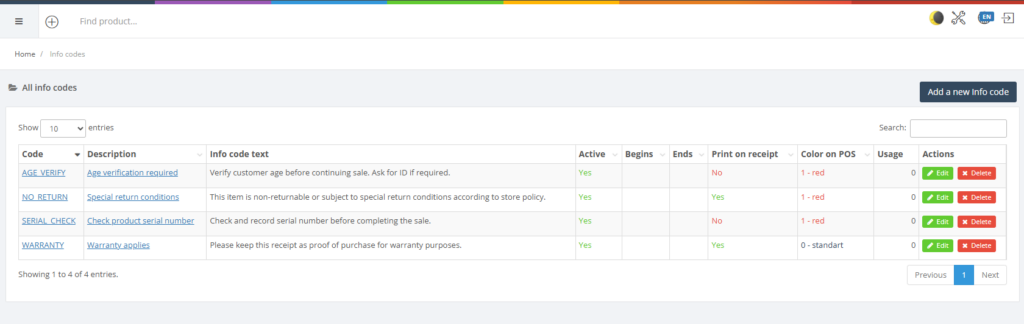
Info codes are prompts that appear at the POS to collect additional information during a transaction. For example, an info code might ask for a customer’s age when selling age‑restricted products. The Info Codes page lists existing codes and includes a form to add new ones.
Who Can Use This
Administrators and POS configuration specialists can create and manage info codes. Cashiers encounter the prompts during sales when a product triggers an info code.
Preconditions
- You must have rights to view and/or edit info codes
Navigation
Go to Retail Setup → Info Codes.
Step‑by‑Step Process
- Open the Info Codes page. The table lists existing codes with columns for Code, Description, Info code text, Active, etc.
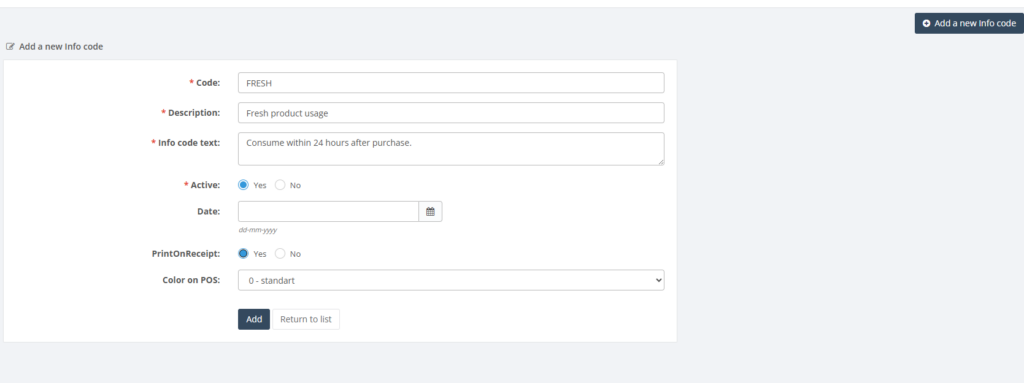
- To add a new info code, fill out the form:
- Code – a unique identifier for the info code (required).
- Description – descriptive text about what the info code does (required).
- Info code text – the question or prompt displayed at the POS (required).
- Active – tick if the info code is active.
- Date – specify a start date if the code should only be active from a certain date.
- Print on receipt – tick if the answer should be printed on the customer’s receipt.
- Colour on POS – choose a colour to highlight the prompt on the POS.
- Click Add to save. The new info code appears in the list and can be linked to categories or products.
- Use the actions column to edit or delete existing codes.
Required Fields
- Code, Description and Info code text are mandatory.
Validation Rules
- Codes must be unique.
- Info code text should be clear and concise since it appears on screen.
Common Errors
- Missing mandatory fields: ensure all required fields are filled in before saving.
- Code already exists: choose a different code if a duplicate error occurs.
Troubleshooting
- If a prompt does not appear at the POS, verify that the info code is active and linked to a product or category.
Related Pages
- Product Categories – info codes can be attached to categories.
- Product Card – info codes can also be linked directly to products.