
Overview
A linked product, also referred to as an additional product, is a product that is connected to another product. When the main product is added to a sales transaction, RESICO can automatically add the linked product as a separate sales line.
Linked products can be used for:
- a bottle or packaging deposit;
- packaging that must be sold together with a product;
- a mandatory accessory;
- an environmental or recycling charge;
- another product that must be included when the main product is sold.
The relationship is configured on the Product Card of the main product. A quantity must be specified for every linked product. During the sale, RESICO applies the configured quantity according to the quantity of the main product.
A deposit can be configured as a linked product even when the deposit is not purchased from a vendor or tracked in inventory.
Important: The linked product uses the price, VAT group, unit of measure and other sales settings from its own Product Card.
Who Can Use This
Only users with permission to edit products can add, change or remove linked products. Users with view rights can open the Product Card and review the configuration in read-only mode.
Typical roles include:
- product administrators;
- purchasing managers;
- inventory controllers;
- sales administrators;
- system administrators.
Preconditions
Before adding a linked product, make sure that:
- You have permission to edit products in Products → Product List.
- The main product already exists or is being created.
- The product that will be used as the linked product has its own Product Card.
- Both the main product and the linked product are active for use in sales.
- The linked product has the required master data:
- Product number;
- Type;
- Description;
- Sales price;
- VAT group;
- Unit of measure.
- The required linked-product quantity is known.
- If the linked product is a deposit that should not affect inventory, its Product Card is configured according to the company-approved non-inventory setup.
Navigation
To configure a linked product:
- Go to Products → Product List.
- Open the Product Card of the main product to which the additional product must be assigned.
- Open the Linked products tab.
- Add the required linked product.
- Specify the linked-product quantity.
- Save the Product Card.
Important: Configure the relationship on the Product Card of the main product. For example, if a bottle deposit must be added when a beverage is sold, open the beverage Product Card and link the deposit product to it.
Step-by-Step Process
1. Create or Verify the Additional Product
The additional product must have its own Product Card before it can be linked to a main product.
- Go to Products → Product List.
- Search for the product that will be used as the additional product.
- If the product does not exist, click Add new product.
- Complete the required fields:
- Product number
- Type
- Description
- Sales price
- VAT group
- Unit of measure
- Configure the product according to its intended use.
- Click Save.
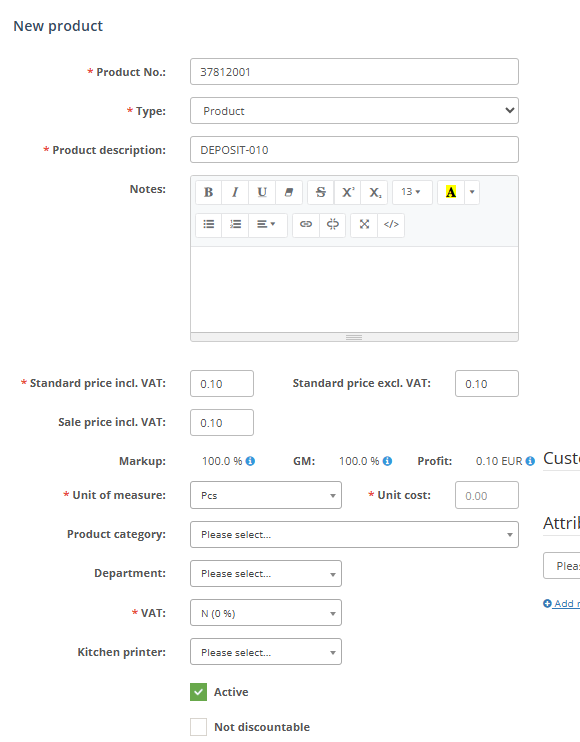
For a deposit product, clear naming is recommended. For example:
- Product number:
DEPOSIT-010 - Description:
Deposit 0.10 - Unit of measure:
PC - Sales price:
0.10
Select the product type, VAT group and accounting settings according to the company’s approved configuration.
Important: Confirm the VAT and accounting setup for deposits with the responsible accountant or system administrator. The linked-product setup controls how the deposit is added to a sale, but it does not replace the required accounting configuration.
Example of a Product Card configured for a deposit product.
2. Open the Main Product
- Go to Products → Product List.
- Search for the main product.
- Click the product number or the Edit icon.
- Verify that the correct Product Card is open.
The main product is the product whose sale must trigger the additional product.
For example:
- Main product: Bottled beverage
- Linked product: Bottle deposit
3. Open the Linked Products Tab
On the Product Card of the main product:
- Open the Linked products tab.
- Review any products that are already linked.
- Select the option to add a new linked product.
Open the Linked products tab on the Product Card of the main product.
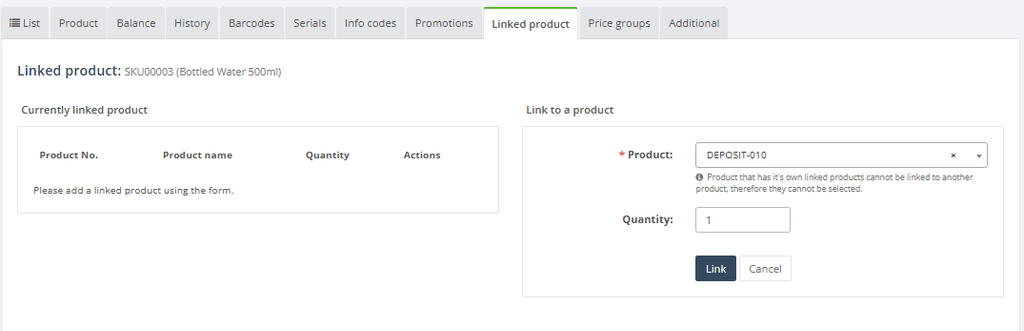
4. Add the Linked Product
In the Linked products tab:
- Add a new line.
- Select the required additional product.
- Verify that the correct product number and description are displayed.
- Enter the required linked-product quantity.
- Save the Product Card.
The additional product must already exist in the Product List before it can be selected.
| Main product | Linked product | Quantity |
|---|---|---|
| Bottled beverage | Deposit 0.10 | 1 |
| Beverage multipack | Deposit 0.10 | 6 |
Select the additional product and specify the quantity that must be added for one unit of the main product.
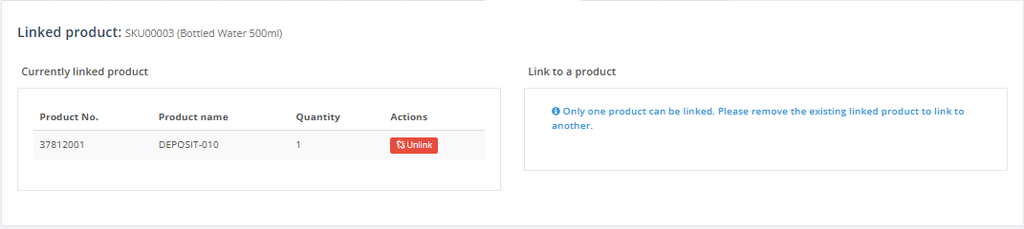
5. Specify the Linked-Product Quantity
A quantity must be specified for every linked-product relationship. The quantity defines how many units of the additional product are applied to one unit of the main product.
Examples:
- If one bottle requires one deposit, enter a linked-product quantity of
1. - If one package contains six bottles and requires six deposits, enter a linked-product quantity of
6. - If two packaging units must be added for each main product, enter a linked-product quantity of
2.
How the Quantity Is Applied During Sale
When the main product is added to a sales transaction, the linked-product quantity is calculated using the following logic:
Linked-product sales quantity =
Main-product sales quantity × Configured linked-product quantity
Example 1: One Deposit per Product
Configuration:
- Main product: Bottled beverage
- Linked product: Deposit
- Linked-product quantity:
1
Sale:
- Bottled beverage quantity:
3
Result:
Deposit quantity = 3 × 1 = 3Example 2: Six Deposits per Multipack
Configuration:
- Main product: Beverage multipack
- Linked product: Deposit
- Linked-product quantity:
6
Sale:
- Beverage multipack quantity:
2
Result:
Deposit quantity = 2 × 6 = 12The linked product is added as a separate sales line. Its price, VAT group, unit of measure and other sales properties are taken from the linked product’s own Product Card.
If the quantity of the main product is changed during the sale, verify that the linked product quantity is recalculated according to the configured ratio.During sale, RESICO adds the linked product as a separate line and applies the configured quantity.
Using a Linked Product for Deposit Accounting
Overview
A deposit can be created as a separate product and linked to the product for which the deposit must be charged.
This setup allows the deposit to:
- be automatically added during the sale;
- appear as a separate sales line;
- have its own sales price;
- use its own VAT and accounting configuration;
- be reported separately from the main product;
- be excluded from purchasing and inventory when stock tracking is not required.
Deposit Setup Example
In this example, a deposit of 0.10 must be added when one bottled beverage is sold.
Deposit Product Card
Create a separate Product Card with values similar to the following:
| Field | Example value |
|---|---|
| Product number | DEPOSIT-010 |
| Type | Non-inventory type supported by the company’s setup |
| Description | Deposit 0.10 |
| Sales price | 0.10 |
| Unit of measure | PC |
| VAT group | According to the company’s accounting setup |
| Active | Enabled |
| Vendor | Not required if the deposit is not purchased |
| Safety stock | Not required |
| Order rounding | Not required |
Main Product Card
On the bottled beverage Product Card, add the following linked-product configuration:
| Field | Example value |
|---|---|
| Linked product | DEPOSIT-010 |
| Quantity | 1 |
When one bottled beverage is sold, one unit of DEPOSIT-010 is added to the sale. When five bottled beverages are sold, five units of DEPOSIT-010 are added.
Deposit Without Purchasing and Inventory Tracking
A deposit can be used as a linked product without being included in purchasing or inventory processes.
This configuration is appropriate when the deposit is used only as a sales and accounting line and no physical stock balance must be maintained for it.
For this setup:
- Create the deposit as a separate Product Card.
- Select the company-approved product type or configuration that does not create inventory movements.
- Do not assign a vendor unless required by the company’s internal process.
- Do not set replenishment values that are not required, such as:
- Safety stock;
- Order rounding;
- Minimum stock;
- Maximum stock.
- Do not include the deposit product in purchase orders.
- Link the deposit to the main product.
- Specify the required linked-product quantity.
- Save the Product Card.
- Test the configuration in a sales transaction.
Important: The exact method for excluding a product from inventory can depend on the enabled RESICO modules and the company’s product configuration. Before using the setup in production, verify that selling the deposit does not reduce inventory or create an unwanted stock movement.
A deposit that is not tracked in inventory can still:
- have a sales price;
- appear on the receipt or invoice;
- use its own VAT group;
- be assigned to a category or department;
- be included in sales and accounting reports.
Example of a deposit product configured without purchasing and inventory tracking. Show the product Type and any relevant settings that determine whether inventory movements are created.
Required Fields
A linked-product entry requires:
- Linked product: the additional product that must be added during the sale.
- Quantity: the number of linked-product units applied to one unit of the main product.
The linked product itself must have a valid Product Card with all mandatory product fields completed.
Validation Rules
- The selected linked product must already exist in the Product List.
- The linked product must be active for use in sales.
- A linked-product quantity must be specified.
- The quantity must be a positive number.
- The linked product must have a valid sales price, VAT group and unit of measure.
- The linked-product relationship must be saved on the Product Card of the main product.
- The linked product should not be the same product as the main product.
- Avoid circular relationships where two products are configured to automatically add each other.
- If the deposit must not affect stock, its product configuration must not create inventory movements.
Common Errors
The Linked Product Is Not Added During Sale
Possible reasons include:
- the linked-product relationship was not saved;
- the linked product is inactive;
- the quantity is empty or invalid;
- the linked product was added to the wrong main Product Card;
- the sale was started before the latest product configuration was loaded;
- the selected sales channel does not use the linked-product functionality.
Open the main Product Card and verify the configuration in the Linked products tab.
The Linked-Product Quantity Is Incorrect
Check:
- the quantity configured on the main Product Card;
- the quantity of the main product in the sales transaction;
- whether the main product represents one unit or a multipack;
- whether another linked-product relationship has also been configured.
Use the following calculation:
Main-product quantity × Linked-product quantityThe Deposit Changes Inventory
The deposit may be configured as an inventory-tracked product. Review:
- the product Type;
- inventory-related settings;
- purchase and replenishment settings;
- the product Balance tab;
- the product History tab after the test sale.
If the deposit should not be tracked in stock, use the company-approved non-inventory configuration.
The Deposit Is Included in Purchasing Suggestions
Check whether the deposit product has:
- a vendor;
- safety stock;
- minimum or maximum stock values;
- order rounding;
- other replenishment settings;
- an inventory-tracked product type.
Remove purchasing and replenishment settings that are not required for the deposit.
The Linked Product Has an Incorrect Price or VAT Group
The linked product uses the values from its own Product Card. Open the linked product’s Product Card and verify:
- Sales price;
- Discount price;
- VAT group;
- Unit of measure;
- price-group settings;
- Active status.
The Linked Product Is Added More Than Once
Check whether:
- the same product has been added more than once in the Linked products tab;
- multiple linked-product rules refer to the same product;
- the main product is also part of a BOM or another product configuration;
- another sales or POS configuration adds the same product.
Troubleshooting
- If the linked product is not available for selection, verify that its Product Card exists and is active.
- If the setup cannot be saved, check that both the linked product and quantity are completed.
- If the quantity is incorrect, compare the configured ratio with the main-product quantity in the sales transaction.
- If a deposit affects inventory, review the deposit product type and inventory configuration.
- If the price or VAT is incorrect, review the deposit Product Card rather than the main Product Card.
- If configuration changes are not visible at the POS, refresh or synchronize the product data according to the company’s standard procedure.
If the behaviour remains unexpected, record the following information:
- main product number;
- linked product number;
- configured linked-product quantity;
- sales document or receipt number;
- location;
- user;
- date and time;
- screenshot of the transaction.
Provide this information to the system administrator or support team.
FAQ
What is a linked product?
A linked product is an additional product connected to a main product. It is added to the sales transaction when the main product is sold.
Where do I add an additional product?
Open the Product Card of the main product and use the Linked products tab.
Does the linked product need its own Product Card?
Yes. The linked product must exist as a separate product before it can be linked to the main product.
Is the linked-product quantity mandatory?
Yes. The quantity defines how many units of the linked product must be applied to one unit of the main product.
How is the linked-product quantity calculated during sale?
The quantity of the main product is multiplied by the quantity configured in the linked-product relationship.
For example, if the linked-product quantity is 2 and three units of the main product are sold, six units of the linked product are applied.
Can one product have multiple linked products?
If supported by the configured RESICO version, multiple additional products can be added in the Linked products tab. Each linked product must have its own quantity.
Can I use a linked product for a deposit?
Yes. A deposit can be created as a separate product and linked to the relevant beverage, package or other main product.
Can the deposit have its own price?
Yes. The deposit price is specified on the deposit Product Card.
Can the deposit use a different VAT group?
Yes. The linked product uses the VAT group from its own Product Card. Select the correct VAT treatment according to the company’s accounting configuration.
Does a deposit need to be purchased?
Not necessarily. A deposit can be configured as a linked product that is not used in purchasing.
Does a deposit need to be tracked in inventory?
Not necessarily. If no physical stock balance must be maintained, the deposit can use a company-approved non-inventory configuration.
Can a deposit appear on a receipt without affecting inventory?
Yes, provided that the deposit is configured as a sales product that does not create inventory movements.
Which Product Card should contain the link?
The link must be configured on the main Product Card. For example, the beverage Product Card must contain the link to the deposit product.
What happens if I sell several units of the main product?
The linked-product quantity is multiplied by the quantity of the main product.
Can the same deposit product be linked to several main products?
Yes. The same deposit Product Card can be linked to multiple main products if they use the same deposit value and accounting configuration.
What should I do if different products have different deposit amounts?
Create separate deposit products for each required amount and link the appropriate deposit product to each main product.
For example:
DEPOSIT-010DEPOSIT-015DEPOSIT-025
Where can I review linked-product sales?
Open the linked product’s History tab or use the relevant sales and accounting reports. The available information depends on the company’s enabled reports and configuration.