
Overview
The Workers section manages POS staff who can log in and perform transactions. Each worker has a unique ID, name, surname, optional card ID for quick login, a POS password and a list of granted permissions. The list page shows existing workers and provides a form to add new staff.
Who Can Use This
Only administrators or managers with staff administration rights can create, edit and deactivate workers. POS clerks cannot view or modify worker settings.
Preconditions
- Make sure you know the required permissions for each worker role (e.g., cashier, supervisor).
- You must have the appropriate access rights to manage workers.
Navigation
Navigate to Retail Setup → Workers.
Step‑by‑Step Process
- Open the Workers page. The table lists workers with columns such as Worker ID, Name, Surname, Locations and Card ID.
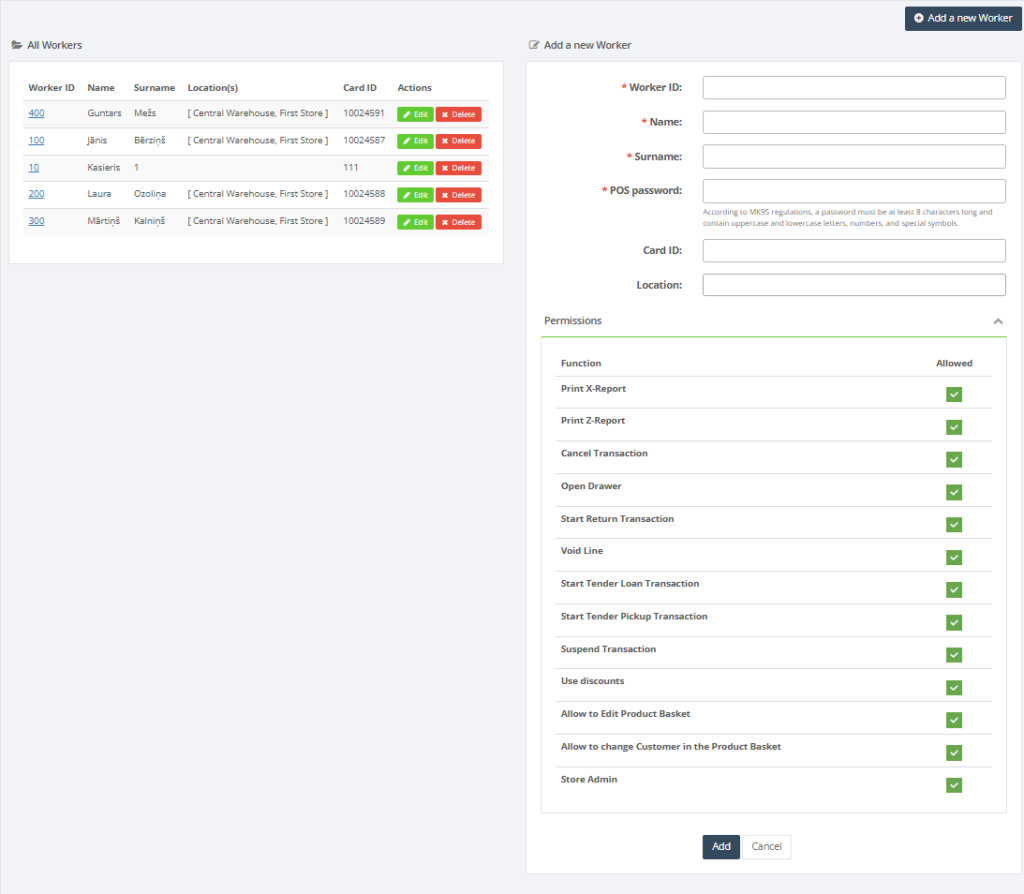
2. To create a worker, enter the following fields in the form on the right:
- Worker ID (required) – unique identifier used for login.
- Name and Surname (required).
- POS password (required) – numeric password for POS log‑in.
- Card ID – optional; used for scanning a magnetic or RFID card.
- Location – assign the worker to a default location or leave blank for all locations.
- Permissions – tick the checkboxes for rights such as Print X‑Report, Print Z‑Report, Cancel transaction, Override discount, etc. Each permission grants or restricts actions at the POS.
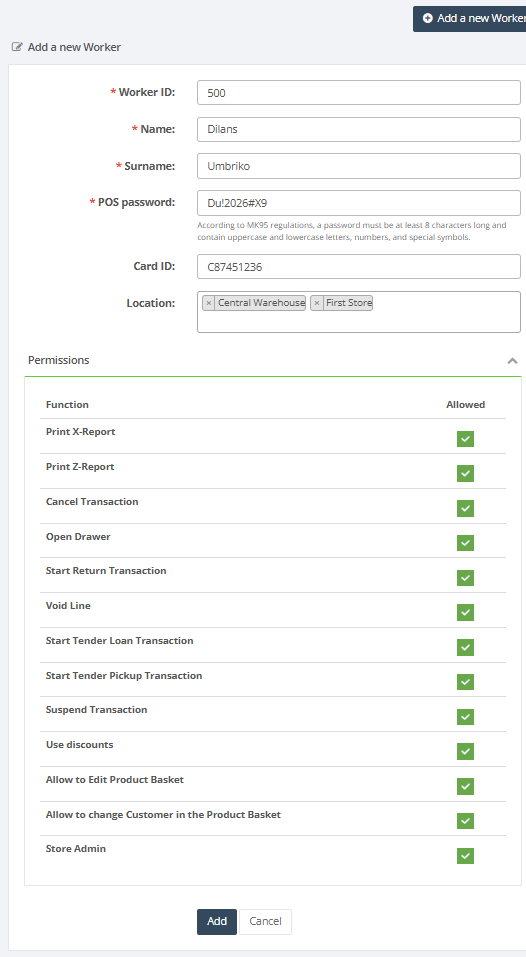
3. Click Add to save. The new worker appears in the list.
4 .Use the edit and delete buttons to modify worker details or deactivate them.
Required Fields
- Worker ID, Name, Surname and POS password are mandatory.
Validation Rules
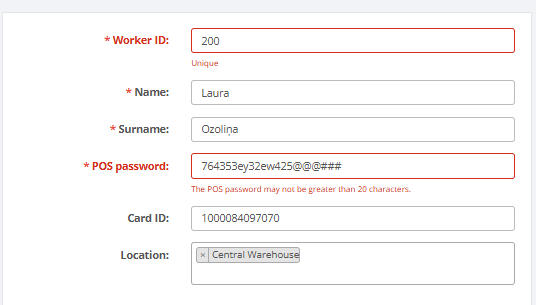
- Worker IDs must be unique.
- Passwords should be numeric and conform to company security policies.
Common Errors
- Duplicate Worker ID: you cannot create two workers with the same ID.
- Missing mandatory fields: all required fields must be provided.
Troubleshooting
- If a worker cannot log in, verify that their Worker ID, password and card ID (if used) are correct and that they have appropriate permissions.
- For rights issues, revisit the permissions and ensure the correct checkboxes are selected.
Related Pages
- Administration – Users – the system’s user accounts section for back‑office users.
- Payment Types – workers may need rights to perform certain payment actions.