
Overview
Product categories organise your products into logical groups for reporting and promotions. Examples might include Food, Beverages or Toys.
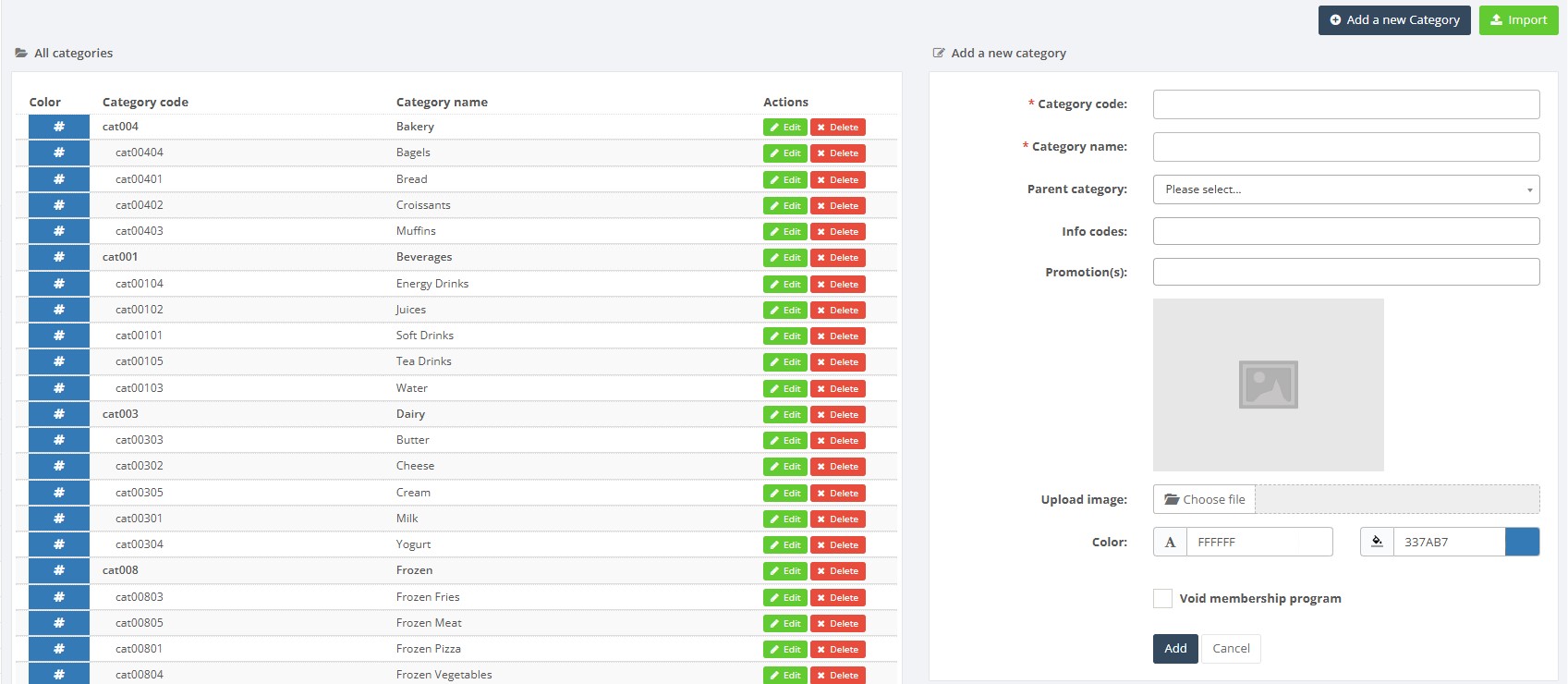
The Product Categories page displays all categories and provides a form to add new categories.
Categories can be nested, assigned to info codes or promotions, and have their own colour and image.
Who Can Use This
Users with product management or retail setup rights can create, edit and import categories. POS operators and standard users can only view categories when selecting products.
Preconditions
- You must have rights to manage product categories.
- Ensure that any parent categories or info codes you need are already set up.
Navigation
Go to Retail Setup → Product Categories.
Step-by-Step Process
- Open the Product Categories page. A table lists existing categories with columns for Category code, Category name and an action column with edit buttons.
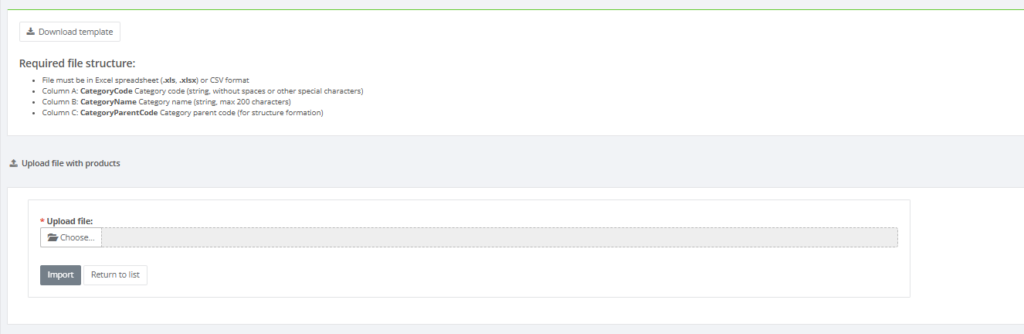
- To import categories in bulk, click the Import button and follow the on-screen instructions to upload a CSV file.
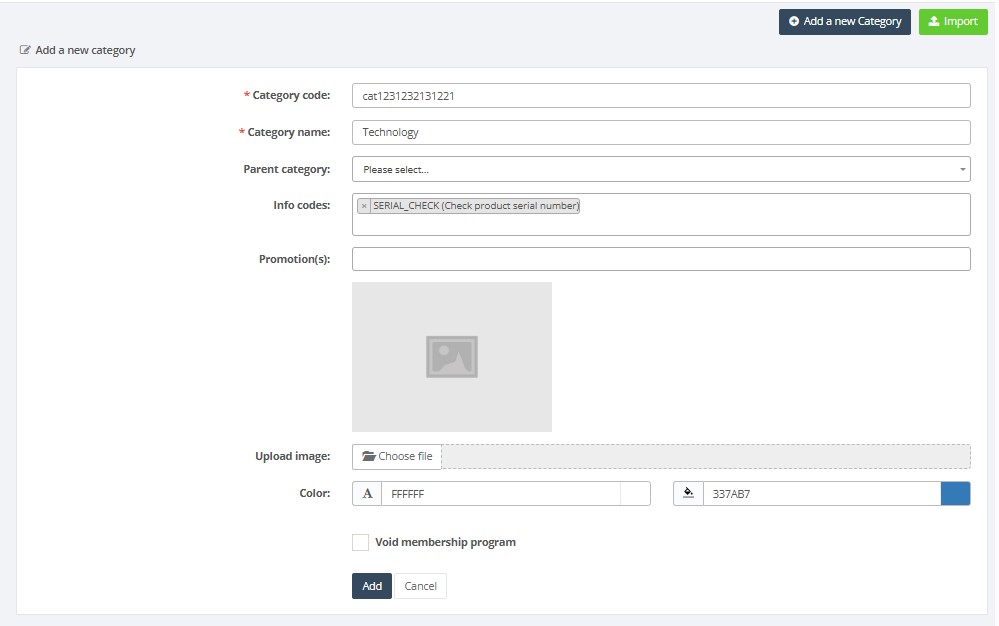
3. To add a new category, fill out the form on the right:
- Category code (required) – a short unique code for the category.
- Category name (required) – the name that appears in the POS and reports.
- Parent category – optional; choose another category to create a hierarchy.
- Info codes – optional; link an info code for additional POS prompts.
- Promotions – optional; assign promotion(s) that apply to this category.
- Image – optional; upload a picture to represent the category.
- Color – optional; choose a colour for the category button.
4. Click Add a new Category to save it. The category appears in the list and is available when creating products.
5. Use the Edit button to modify or delete a category. Be cautious: changing a category may affect reports and promotions.
Required Fields
- Category code and Category name are mandatory.
Validation Rules
- Category codes must be unique.
- If a parent category is selected, it must already exist.
Common Errors
- Duplicate category code: cannot create two categories with the same code.
- Missing mandatory fields: the system will not save if code or name is blank.
Troubleshooting
- If categories are not appearing at the POS, verify that the category is active and assigned to the correct products.
Related Pages
- Info Codes – categories can trigger info code prompts.
- Product Departments – departments group categories for accounting.