
Overview
Product attributes allow you to store additional characteristics for products beyond standard fields like category or VAT group. Examples include Color, Size or ISBN. Attributes can be used for filtering, search and labelling. The Product Attributes page lists existing attributes and provides a form to add new ones.
Who Can Use This
Users with product management or retail setup rights can create and manage attributes. Sales staff and customers use attributes when searching for products or printing labels.
Preconditions
- You must have permissions to edit product settings.
Navigation
Go to Retail Setup → Product Attributes.
Step‑by‑Step Process
- Open the Product Attributes page. The table lists attributes with columns for Product attribute code and Product attribute name.
- To add a new attribute, enter a unique Product attribute code (required) and Product attribute name (required) in the form on the right.
- Click Add to save the attribute. It appears in the list and can be assigned to products.
- Use the edit and delete buttons in the Actions column to modify or remove attributes.
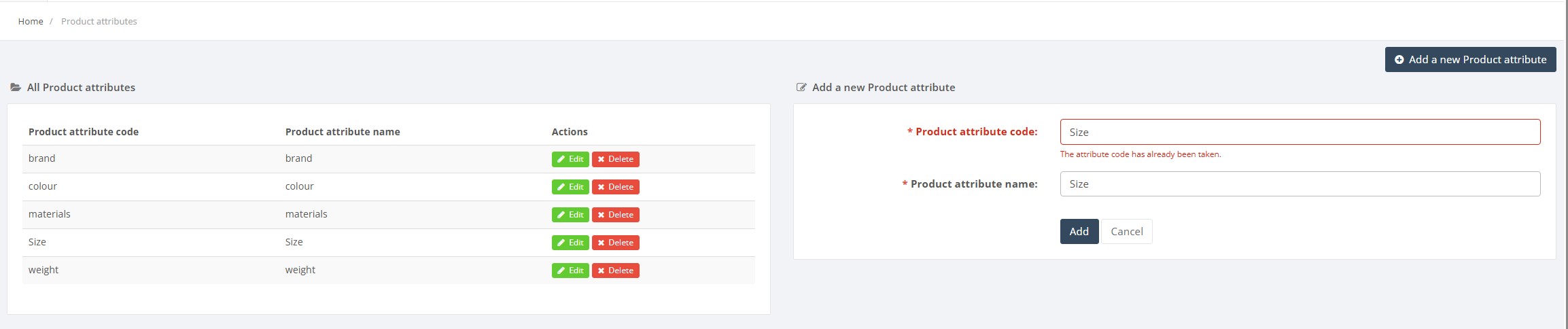
Required Fields
- Product attribute code and Product attribute name are mandatory.
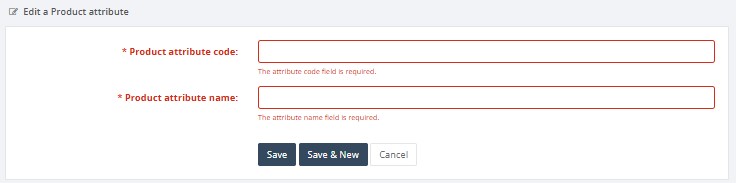
Validation Rules
- Attribute codes must be unique.
- Names should clearly describe the attribute.
Common Errors
- Duplicate code: you cannot create two attributes with the same code.

Troubleshooting
- If an attribute does not appear when editing a product, verify that it is active and not deleted.
Related Pages
- Product Card – attributes are assigned to products on their card.
- Units of Measure – attributes may influence packaging or labelling requirements.