
Overview
Price groups allow you to apply different price levels to products based on customer groups, locations or promotions.
For example, you might have Retail, Wholesale and Employee price groups. The Price Groups page displays existing groups and lets you create new ones.
Who Can Use This
Administrators and pricing managers can create and maintain price groups. Sales and product managers can assign price groups to products and customers.
Preconditions
- You must have the rights to edit or view Price Groups.
Navigation
Navigate to Retail Setup → Price Groups.
Step‑by‑Step Process
- Open the Price Groups page. A table lists existing groups with columns for Price group code and Price group name.
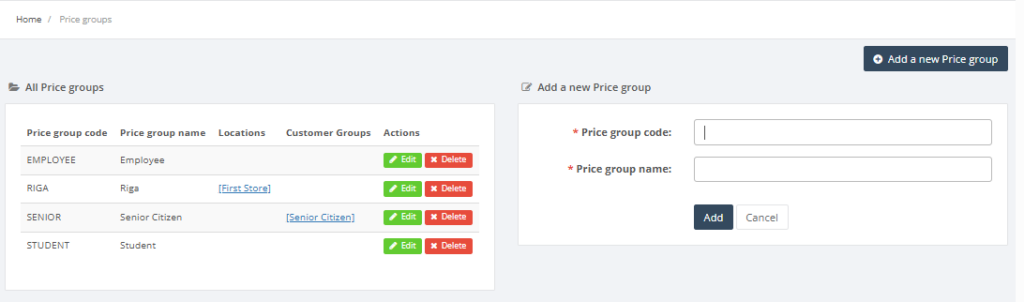
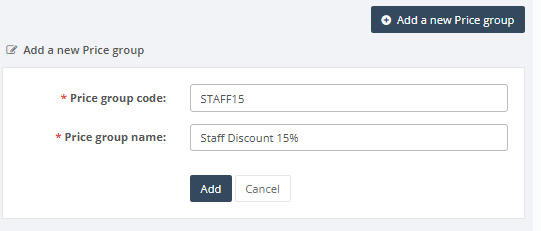
2. To add a price group, enter a unique Price group code and a Price group name in the form on the right.
3. Click Add to save. The new group appears in the list.
4. Edit or delete groups using the actions in the table (if allowed).
Required Fields
- Price group code and Price group name are required.
Validation Rules
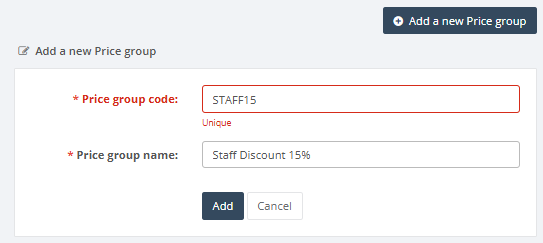
- Price group codes must be unique.
- Group names should be descriptive and not duplicated.
Common Errors
- Duplicate code: cannot create two price groups with the same code.
Troubleshooting
- If customers are charged the wrong price, verify the price group assigned to the product and that the customer is linked to the correct group.
Related Pages
- Customer Groups – price groups can be associated with customer groups.
- Product Categories – categories may inherit price groups for promotions.