
Purpose
Use the Shopify page to view information about the client’s Shopify integration with Resico ERP.
The Shopify integration is used to exchange data between Resico ERP and the client’s Shopify store. The connection is established by connecting and authorizing the Resico integration application for the client’s Shopify store.
For the initial connection, access to the client’s Shopify store is required. After the integration is connected, all related synchronization and data exchange settings are available in the client’s Shopify tab in Resico.
Important: Shopify integration settings can be changed only by IBSC support employees or authorized implementation specialists. The user may see the configuration, but cannot change it.
- This page displays:
- Whether Shopify integration is enabled.
- Shopify connection information.
- API settings used by the integration.
- Default tax, unit and sales location settings.
- Shopify and Resico stock location mappings.
- Product, customer, invoice and stock synchronization options.
- API request logging and troubleshooting options.
- Import, export and stock export actions.
- Last import and export execution information.
Note: Shopify integration settings are managed by SIA IBSC. To request setup changes, contact customer support.
Roles involved
- System administrator
- E-commerce manager
- Integration / support team
- IBSC support team
- Shopify store administrator
Preconditions
- Shopify integration must be configured by support or implementation specialists.
- A Shopify store must exist before integration can be established.
- Initial Shopify store access must be provided so that the integration application can be installed.
- The required Resico tax, unit of measure and stock location values must already be defined in Resico ERP.
- Shopify synchronization options must be agreed before configuration.
- IBSC support must confirm which data should be sent from Resico to Shopify and which data should be imported from Shopify to Resico.
Navigation path
Client profile → Shopify
Access and permission rules
The Shopify tab is primarily intended for viewing integration status and configuration. For IBSC clients, the configuration is managed by IBSC support.
- Clients can view the Shopify integration settings if they have access to the page.
- Clients cannot change Shopify integration parameters themselves.
- Only IBSC support employees or authorized implementation specialists may change Shopify integration settings.
- Any setup changes must be requested through support.
- Configuration changes may affect product synchronization, stock balances, customer records and order processing.
Initial connection process
The Shopify integration is connected by authorizing the Resico integration application for the client’s Shopify store. IBSC support coordinates the setup and the Connect with Shopify authorization process.
- The client provides Shopify store access to IBSC support or the implementation specialist.
- IBSC support coordinates installation or authorization of the required Resico integration application using the connection process available for the client.
- API connection data is configured in the client’s Shopify tab in Resico.
- Default tax, unit and sales location settings are selected from existing Resico setup values.
- Stock location mappings and synchronization options are configured according to the client’s operational process.
- Import, export and stock synchronization are tested.
- After successful testing, the integration can be used for regular data exchange.
Page Overview
The Shopify page displays the current configuration of the Shopify connection and the rules used for data exchange between Shopify and Resico ERP.
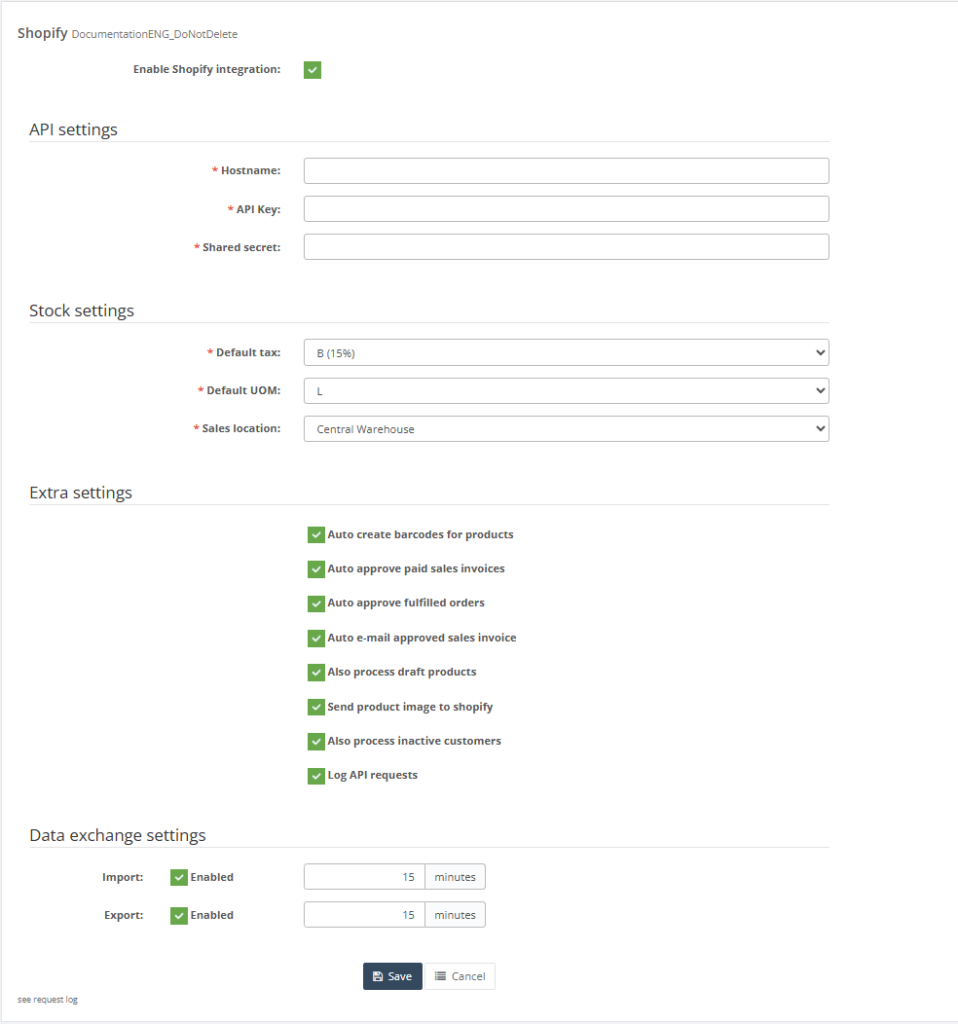
Enable Shopify Integration
Enable Shopify Integration indicates whether the Shopify integration is active for the selected client.
Possible values:
- Enabled – Shopify integration is active.
- Disabled – Shopify integration is not active.
If the integration is disabled, regular data exchange between Shopify and Resico ERP will not take place.
Re-connect with Shopify
The Re-connect with Shopify action is used when the Shopify connection must be refreshed or re-established.
This action should be used only by IBSC support or authorized specialists, for example when the Shopify store connection has changed, the integration application has been reinstalled or authorization must be renewed.
API Settings
API Settings contain the technical connection details used to communicate with the client’s Shopify store.
These settings should not be changed unless the Shopify store itself changes or the integration connection must be reconfigured.
- Hostname – Displays the Shopify store address configured for the integration.
- API key – Displays the API key used for communication with Shopify.
- Shared secret – Displays the authorization value used by the integration.
Important: API settings are technical integration parameters. Incorrect changes may stop data exchange between Shopify and Resico ERP.
Stock Settings
Stock Settings define the default Resico ERP values that are used when Shopify data is received and processed in Resico.
- Default tax – The default tax rate used when creating documents from Shopify data. The tax rate must already be defined in Resico ERP.
- Default UOM – The default unit of measure used when receiving product or invoice data. The unit must already be defined in Resico ERP.
- Sales location – The Resico location where Shopify sales and related operations are registered.
The selected sales location affects where stock is deducted and where related actions are processed, for example BOM production if the sold product uses BOM logic.
Balance Mapping
Balance Mapping defines how Shopify locations are linked to Resico stock balance locations.
The page may display a list of locations defined in Shopify. For each Shopify location, IBSC support can define whether Resico stock should be sent to that location and which Resico stock location should be used as the source.
It is normal that Resico stock is sent only to one Shopify location even if several Shopify locations are displayed. In some projects, Resico may not send stock to Shopify at all, because the client may use another inventory solution for stock management.
- If a Shopify location is mapped to a Resico location, Resico can send stock balance data to that Shopify location.
- If no Resico location is selected, stock may not be sent to that Shopify location.
- Several Shopify locations may exist even if only one of them receives Resico stock.
- The mapping must match the client’s real warehouse and e-commerce stock process.
Extra Settings
Extra Settings control additional synchronization behavior for products, invoices, customers, images and diagnostic logging.
- Auto create barcodes – Automatically generates barcodes for products that do not already have barcodes.
- Auto Approve Paid Sales Invoices – Automatically approves sales invoices created from Shopify orders with the required paid status.
- Auto Approve Fulfilled Orders – Automatically approves sales invoices created from Shopify orders when the corresponding Shopify order status indicates that the order is fulfilled or completed.
- Auto Email Approved Sales Invoice – Sends the approved sales invoice to the customer by e-mail, if the client has e-mail functionality configured and an e-mail address is available.
- Including draft products – Includes Shopify draft products in synchronization.
- Send product image to Shopify – Sends product images from Resico ERP to Shopify.
- Also Process Inactive Customers – Includes inactive Shopify customers in synchronization.
- Log API requests – Registers API requests for troubleshooting and diagnostics.
Auto create barcodes
If this option is enabled, products without barcodes will receive automatically generated barcodes.
This can help maintain complete product data in Resico ERP, especially when products are imported from Shopify and do not yet have valid barcode values.
Automatic invoice approval
Depending on the configured Shopify order statuses, invoices can be approved automatically when the order is paid or fulfilled.
- Paid – The order has been paid in Shopify.
- Fulfilled / Completed – The order has been completed or fulfilled in Shopify.
Automatic approval should be enabled only if the client’s order processing process allows Resico ERP invoices to be approved without manual review.
Send approved invoices by e-mail
If this option is enabled, approved sales invoices can be sent to customers by e-mail.
This option requires that e-mail functionality is configured for the client in Resico ERP. If e-mail functionality is not configured, invoices will not be sent automatically even if the setting is enabled.
Including draft products
This setting controls whether Shopify draft products are processed by the integration.
By default, draft products are usually not imported because the product may not yet be fully prepared in Shopify. For example, the client may still be adding variants, images, descriptions or other product information.
However, in some cases draft products may need to be imported into Resico ERP so that product data and stock balances can be prepared before the product is published in Shopify.
Send product image to Shopify
This setting controls whether product images from Resico ERP are sent to Shopify.
In many projects, this option is not required because the images used in POS, internal systems and the online store may be different. Shopify may use separate product images optimized for the online store.
Before enabling this option, confirm whether Shopify images are managed in Resico ERP or directly in Shopify.
Also Process Inactive Customers
This setting controls whether inactive Shopify customers are imported and processed.
In most cases, this option can remain disabled. If enabled without a specific reason, Resico ERP may import thousands of Shopify customer records that have never placed an order.
This option may be required in special cases, for example when the client uses loyalty programs or other customer-related Shopify solutions.
Log API requests
This option registers API requests made by the integration.
It is recommended to keep this option enabled because API request logs are useful for troubleshooting synchronization issues, API errors and unexpected integration behavior.
Recommendation: Do not disable API request logging unless there is a specific support-approved reason.
Product and Variation Lifecycle
Product identification
Products are identified using their existing system links and identifiers, rather than the product name. Relevant identifiers include Shopify Product ID, Shopify Variant ID, SKU, barcode and the Resico ERP product code. Changing the name alone does not change these identifiers.
Each variant must have a unique SKU and, where barcodes are used, a unique barcode. Use the complete SKU of the specific variant, including any size or colour suffix. Do not reuse an identifier for a different item. Before creating a new product, search the existing catalogue, including Draft and Archived products, to avoid duplicates.
Product changes
Changes to product names, prices, descriptions and other supported fields are processed according to the configured import and export settings. Import means Shopify → Resico ERP; export means Resico ERP → Shopify. Not every field is necessarily synchronized in both directions. Maintain product information in the system agreed during integration setup.
Names and descriptions are product content; SKU, barcode and system IDs are identification data. Keep the existing links when correcting product content. Before changing the SKU, barcode or variant structure of an already synchronized item, submit a support ticket to IBSC with the existing identifiers and intended change.
Stock balances are sent from the mapped Resico ERP stock location to the corresponding Shopify location when stock export is configured. Compare the same variant and mapped locations in both systems. Product image export is controlled by Send product image to Shopify. Draft product processing is controlled by Including draft products.
Product without variants → Product with variants
When adding size, colour or other variants, assign a separate unique SKU and, where used, barcode to each variant. Do not copy the same identifiers to all variants.
Before changing the structure of an already synchronized product, submit a support ticket to IBSC. Include the Shopify Product ID, existing Variant ID, SKU, barcode, Resico ERP product code and planned variants. Support will review how the existing record, stock and historical documents should be handled. After the change, verify the variant links and balances in both systems.
Product with variants → Product without variants
Before removing the variant structure of a synchronized product, submit a support ticket to IBSC with the product and variant identifiers and specify which item should remain. Existing variants may have separate stock balances and document history. Do not assume that these balances or historical links will automatically merge into the remaining item.
Deleting a variant in Shopify
Before deleting a synchronized Shopify variant, submit a support ticket to IBSC with its Variant ID, SKU, barcode and Resico ERP product code. Review remaining stock and open documents before deletion. Deleting a variant in Shopify must not be assumed to delete or deactivate its corresponding Resico ERP record. Do not reuse the deleted variant’s SKU or barcode for a different item.
Deleting a product in Shopify
Before deleting a synchronized Shopify product, submit a support ticket to IBSC with the Product ID and relevant variant identifiers. Confirm how the corresponding Resico ERP records and configured synchronization should be handled. Shopify deletion must not be assumed to delete or deactivate Resico ERP records.
If a product is temporarily unavailable or discontinued, consider Draft or Archived status instead of permanent deletion, according to the business process. Draft import depends on Including draft products; changing the Shopify status must not be assumed to deactivate the corresponding Resico ERP record.
Delete vs Deactivate in Resico ERP
Deactivate retains the product record while marking it inactive. Consider this for discontinued items whose historical information must remain available.
Delete permanently removes a record where the system allows this. Review stock, document references and integration links before deletion. For a product or variant linked to Shopify, submit a support ticket to IBSC before deletion or deactivation to confirm the effect on synchronization and existing records.
Historical data and stock balances
Product and variant records may be referenced by sales invoices, stock movements and other historical documents. These references must remain consistent when an item is no longer sold. Product structure changes, deletion and deactivation do not replace the stock operations needed to transfer, adjust or write off remaining stock.
Reporting a product or variant change
For SKU, barcode or structure changes, deletion and deactivation of linked items, include the following in the IBSC support ticket:
- Shopify Product ID and relevant Variant IDs.
- Existing SKUs and barcodes.
- Corresponding Resico ERP product codes.
- The intended change and which items should remain.
- Relevant stock locations, balances and open documents.
Data Exchange Settings
Data Exchange Settings display import and export configuration for Shopify synchronization.
- Import – Indicates whether data import from Shopify to Resico ERP is enabled.
- Export – Indicates whether data export from Resico ERP to Shopify is enabled.
- Import Frequency – Shows the configured import interval in minutes.
- Export Frequency – Shows the configured export interval in minutes.
- Last import – Shows when the last import was executed.
- Last export – Shows when the last export was executed.
The displayed import and export intervals are not always critical because most data exchange normally happens close to real time. The actual delay depends mainly on the number of operations waiting in the processing queue.
For special cases, the page may provide manual actions such as Export, Export stock and Import.
Manual import and export actions
- Export – Manually triggers export of configured data from Resico ERP to Shopify.
- Export stock – Manually triggers stock balance export from Resico ERP to Shopify.
- Import – Manually triggers import from Shopify to Resico ERP.
Manual actions should be used carefully and only by IBSC support or authorized specialists, especially when large product or stock data volumes are involved.
Typical synchronization logic
The exact synchronization process depends on the client’s Shopify configuration, Resico setup and enabled integration options. A typical setup may include the following logic:
- Shopify orders are imported into Resico ERP.
- Sales invoices are created in Resico ERP based on Shopify order data.
- Invoices may be approved automatically if the required Shopify order status is reached.
- Product data may be imported from Shopify or exported from Resico depending on the agreed setup.
- Stock balances may be sent from selected Resico locations to selected Shopify locations.
- Product images may or may not be sent to Shopify depending on the client’s content management process.
- Customers may be imported only when needed, usually based on orders or special customer-related processes.
Information That May Need to Be Provided to Support
When requesting Shopify integration setup, changes or troubleshooting, support may require:
- Shopify store URL.
- Shopify store access for initial integration setup or reconnection.
- Information about the Shopify store that must be connected.
- Preferred Resico sales location.
- Default tax configuration.
- Default unit of measure.
- Warehouse or stock locations used for Shopify stock synchronization.
- Information about Shopify locations and which locations should receive Resico stock.
- Whether draft products should be synchronized.
- Whether product images should be synchronized from Resico ERP to Shopify.
- Whether inactive customers should be included.
- Whether automatic invoice approval should be enabled.
- Whether automatic invoice emailing should be enabled.
- Examples of affected products, customers, orders or invoices if an issue is reported.
- Screenshots of visible errors or unexpected behavior.
- Approximate time when the issue occurred.
Validation rules
- Hostname, API key and Shared secret must match the target Shopify environment.
- Default tax, Default UOM and Sales location must be selected from configured Resico setup values.
- Import frequency and Export frequency must be numeric values in minutes.
- If Shopify locations are shown, each active location mapping should use a valid Resico stock location.
- Stock should be sent only to Shopify locations that are intended to receive Resico stock balances.
- Extra settings should be enabled only when the related operational behavior is intended for the client.
- API request logging should normally remain enabled for diagnostics.
- Automatic invoice approval should be enabled only if the client’s process allows invoices to be approved without manual review.
Exceptions
- Shopify integration settings are managed exclusively by SIA IBSC or authorized support personnel.
- Clients may see Shopify integration settings but cannot change them.
- Some information and actions may only be visible when Shopify integration has already been configured for the client.
- The Shopify API information panel may be displayed when additional Shopify integration information is available.
- Import, export and synchronization processes may run in the background and may not produce immediate visible changes on the page.
- The configured import and export interval does not always represent the exact data exchange time because real processing depends on the operation queue.
- Resico may send stock only to selected Shopify locations or may not send stock to Shopify at all, depending on the client’s setup.
- Available information and actions may vary depending on the client’s integration setup and user permissions.
Common errors
- Shopify integration is not functioning as expected.
- Products, stock balances, customers or orders are not synchronizing correctly.
- Incorrect stock quantities are displayed in the Shopify store.
- Product images are missing or not synchronized.
- Imported data differs from the information available in Resico ERP.
- Invoices are created but not approved automatically.
- Draft products are not imported into Resico ERP.
- Too many inactive customers are imported into Resico ERP.
- Synchronization changes are not visible immediately because operations are still waiting in the processing queue.
- Integration information displayed on the page does not match the expected Shopify configuration.
Troubleshooting
Integration is not working
If the Shopify integration is not working, check the following:
- Verify that Enable Shopify Integration is enabled.
- Check whether the Shopify store connection has changed.
- Verify that API settings match the connected Shopify store.
- Check whether the integration application is still installed in Shopify.
- Check whether API request logging is enabled.
- Review recent API request logs and visible error messages.
- Use Re-connect with Shopify only if reconnection is required and the action is performed by IBSC support.
If the issue cannot be resolved, contact support and provide screenshots, error messages and the approximate time when the issue occurred.
Extra or Unexpected Products
If unexpected products appear in Resico ERP or Shopify:
- For recently created products, provide support with identifiable product information such as:
- SKU
- Product code
- Shopify product ID
- Resico product ID
- Product names alone are usually not sufficient for investigation.
- For older products that are no longer required, review stock, document history and integration links before archiving, deactivating or deleting the record. Product age alone does not determine whether deletion is appropriate.
Recommendation: If the product was created recently and appears incorrect, contact support with the product identifiers rather than screenshots of the product name only.
Data Has Not Been Imported or Updated
If expected changes are not appearing in Resico ERP or Shopify:
- Open the affected record in the source system.
- Make a small change, for example:
- Add and remove an extra space in a text field.
- Change the status to Draft and then back to its original status.
- Save the record again.
- Wait for synchronization to process the updated record.
Saving the product again may trigger a new update and can help resolve isolated synchronization issues. It does not guarantee successful processing; if the change still does not appear, provide IBSC support with the product identifiers and the time of the update.
Possible causes include:
- The external system did not send the update.
- The integration received the data but processing did not complete successfully.
- Temporary network or communication issues occurred between systems.
- Processing delays temporarily prevented immediate synchronization.
Stock Balance Differences
If stock balances differ between Shopify and Resico ERP:
- Verify the values again after allowing time for synchronization.
- Recent processing delays may cause stock information to arrive later than expected.
- In many cases, stock data has already been sent but is still waiting to be processed or displayed.
Recommendation: Before reporting a stock discrepancy, allow sufficient time for synchronization and verify whether the values correct themselves after processing completes.
Note: If the discrepancy persists after the processing queue has cleared, check the variant identifiers, location mapping and integration logs. API errors, including rate limits, may also prevent a stock update from being saved.
Product synchronization issues
If products are not synchronizing correctly, provide support with:
- Product code or SKU.
- Product name.
- Information whether the product is active or draft in Shopify.
- Expected result.
- Actual result.
- Relevant screenshots from Shopify and Resico ERP.
If draft products are not imported, verify whether Including draft products is enabled.
Incorrect stock levels
If incorrect stock values are displayed in Shopify, provide support with:
- Product code or SKU.
- Shopify location where the stock value is incorrect.
- Resico stock location that should be used.
- Stock value shown in Shopify.
- Stock value shown in Resico ERP.
- Information whether another stock management solution is used in Shopify.
Also verify whether Resico is configured to send stock to the relevant Shopify location. It is possible that only selected Shopify locations receive stock from Resico.
Order import issues
If Shopify orders are not imported into Resico ERP, provide support with:
- Shopify order number.
- Order date and time.
- Order payment status.
- Order fulfillment status.
- Screenshot of the order in Shopify.
- Description of the issue.
- Information whether the order contains custom products, discounts, third-party items or other special elements.
Invoices are not approved automatically
If invoices are created but not approved automatically, check whether the relevant automatic approval option is enabled.
- For paid Shopify orders, check Auto Approve Paid Sales Invoices.
- For fulfilled or completed Shopify orders, check Auto Approve Fulfilled Orders.
- Verify that the Shopify order status matches the configured approval logic.
- Check whether the invoice contains unsupported or incomplete data.
Product images are not synchronized
If product images are not sent to Shopify, check whether Send product image to Shopify is enabled.
If the option is disabled, this may be intentional. In many cases, Shopify images are managed separately because online store images may differ from POS or internal product images.
Too many customers are imported
If many customer records are imported into Resico ERP, check whether Also Process Inactive Customers is enabled.
This option should normally remain disabled unless the client specifically needs inactive Shopify customers in Resico ERP, for example for loyalty programs or similar customer-related processes.
FAQ
Can the client change Shopify integration settings?
No. For IBSC clients, Shopify integration settings are changed only by IBSC support employees or authorized specialists. The client may see the settings, but cannot change them.
When should API settings be changed?
API settings should not be changed during normal use. They should be changed only if the Shopify store changes, the integration application is reconfigured or IBSC support performs reconnection.
Why does only one Shopify location receive stock from Resico?
This can be normal. A Shopify store may have several locations, but Resico may be configured to send stock only to one selected location. Some clients may also use a different stock management solution in Shopify, in which case Resico may not send stock at all.
Why are draft products not imported?
Draft products are usually not imported by default because they may not be fully prepared in Shopify. If the client wants to prepare stock or product data in Resico before the product is published, support can enable draft product processing.
Should inactive customers be imported?
Usually no. Importing inactive customers may create a large number of customer records in Resico ERP. This option should be enabled only when the client has a clear business requirement, such as loyalty program processing.
Should API request logging be enabled?
Yes. API request logging should normally remain enabled because it helps support diagnose synchronization problems and API errors.
Are import and export times exact synchronization times?
Not always. In most cases, data exchange happens close to real time. The visible interval values are less important than the actual processing queue. Synchronization delay depends on how many operations are waiting to be processed.
When should manual Export, Export stock or Import be used?
Manual actions should be used in special cases, for example during setup, testing or troubleshooting. They should be performed only by IBSC support or authorized specialists.
Notes
- This page is primarily informational for clients.
- Shopify integration settings are managed by SIA IBSC.
- Clients cannot change Shopify integration settings themselves.
- Integration configuration changes must be requested through IBSC support
- API settings should not be changed unless the Shopify store or integration application changes.
- Default tax, unit and sales location settings must exist in Resico ERP before they can be selected.
- Stock synchronization depends on Shopify location mapping and the client’s chosen inventory management process.
- API request logging should normally remain enabled because it helps with troubleshooting.
- Manual import and export actions should be used only when required by setup or support processes.
- Configuration changes may affect product synchronization, stock balances, customer records, invoice creation and order processing.