
Overview
Units of measure define how quantities are recorded and sold. Examples include pieces (pcs), kilograms (kg), litres (l) and metres.
The Units of Measure page lists existing units and allows you to add new ones.
Each unit has a code, a descriptive name and options to indicate whether it is a weight unit or whether the system should automatically calculate weight.
Who Can Use This
Administrators or users with retail setup permissions can manage units. POS clerks and standard users reference units when entering transactions but cannot modify them.
Preconditions
- The user must have rights to modify retail setup.
Navigation
Navigate to Retail Setup → Units.
Step‑by‑Step Process
- Open the Units page. The table displays units with columns: Unit of measure, Unit of measure name, Weight unit (checkbox), Auto weight (checkbox) and Actions.
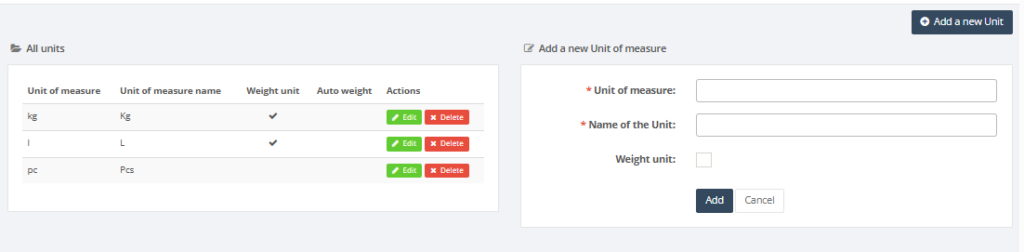
2. To add a new unit, enter the Unit of measure code (e.g., PCS, KG) and the Name of the Unit in the form on the right. Both fields are required.
3. If the unit represents weight, tick the Weight unit checkbox. If you want the system to calculate weight automatically based on scale input, tick Auto weight.
4. Click Add to save the unit. The new unit appears in the list.
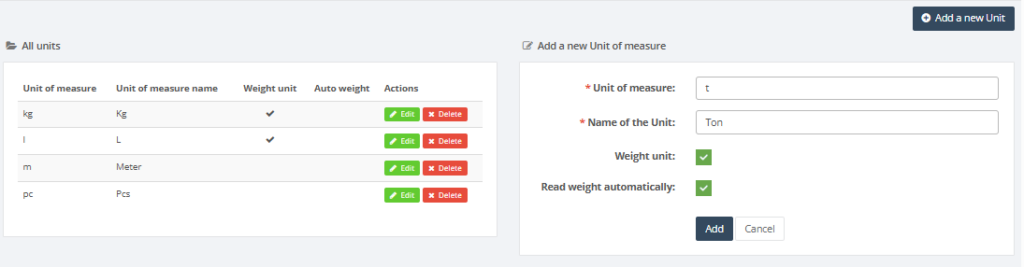
5. Use the Edit or Delete buttons in the Actions column to modify or remove existing units.
Required Fields
- Unit of measure: a short code used throughout the system.
- Name of the Unit: descriptive text for the unit.
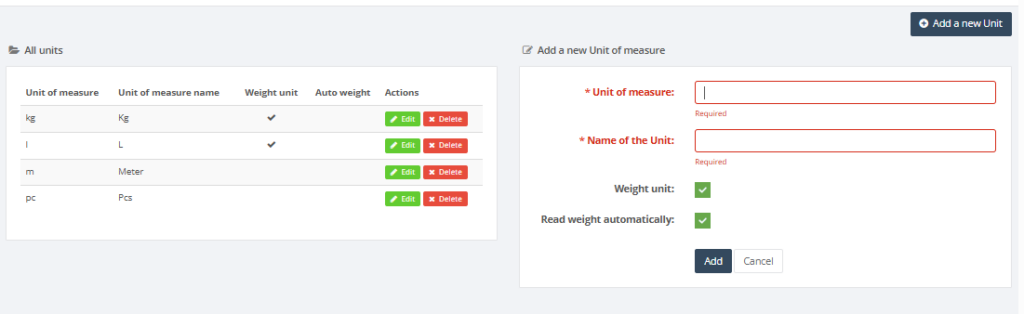
Validation Rules
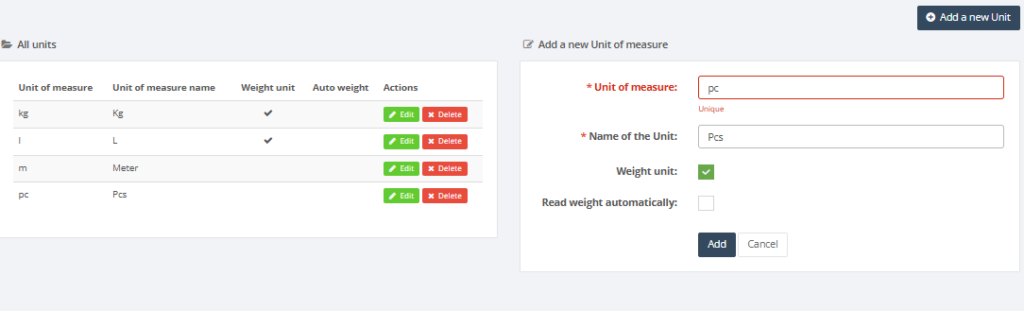
- Unit codes must be unique.
- If Auto weight is selected, Weight unit must also be checked.
Common Errors
- Duplicate unit code: cannot create two units with the same code.
- Auto weight without weight unit: ensure both checkboxes are selected if the unit uses weight scales.
Troubleshooting
- If weights at the POS are incorrect, verify that the unit has been configured as a weight unit and that the scale is calibrated.
Related Pages
- VAT Groups – each product references a VAT group and a unit.
- Product Card – units are selected when creating or editing products.