
Purpose
The Gift Cards Batch functionality allows you to generate multiple gift cards in one operation. You can specify the card type (fixed or dynamic amount), the quantity of cards to create, the denomination, validity period and an optional note describing the batch. Once created, each card receives a unique number and can be sold or redeemed later via the POS or API.
Roles involved
- Sales and marketing managers – plan promotional campaigns and generate batches of gift cards for sale or marketing purposes.
- Finance or accounting staff – manage the monetary value, ensure batches are accounted for and reconcile sales.
- IT administrators – configure default values and ensure card types and validity periods match business policies.
- Users must have the rights “view gift cards”, “create gift cards” and “approve gift card batches”. Without create rights the batch page is read‑only.
Preconditions
- Gift card types (fixed and dynamic amount) and validity period options should be configured in the system if they differ from the default options.
- The user must know the monetary value and quantity of cards required.
- If cards are going to be sold in specific locations, those location codes should be defined in the system.
Navigation path
From the main menu go to:
Gift Cards → Create
This opens the Create gift card form.
Step‑by‑step procedure
- Open the form – Navigate to Gift Cards → Create. The header shows “Create gift card” and displays input fields for batch creation.
- Select card type – Use the Card type drop‑down to choose between Fixed amount or Dynamic amount. A fixed card has a predetermined value; a dynamic card allows the amount to be assigned at sale.
- Enable partial redemption (optional) – Tick Redeem is Partial if the card can be used across multiple transactions. Leave unchecked if it must be redeemed in full.
- Enter quantity – In the Qty field specify how many cards to create. The quantity must be a positive integer.
- Enter amount – For fixed amount cards, enter the monetary value in the Amount field. The default is 10 (system currency). For dynamic amount cards, this field may not be used.
- Set validity period – Choose the expiry period from the Validity period drop‑down: options include infinite, 3 months, 6 months, 8 months, 12 months, 18 months or 24 months. “Infinite” means the card will never expire.
- Add a batch note (optional) – Use the Batch Note text area to describe the purpose of this batch, e.g., “Holiday promotion”. This note appears in the gift card journal.
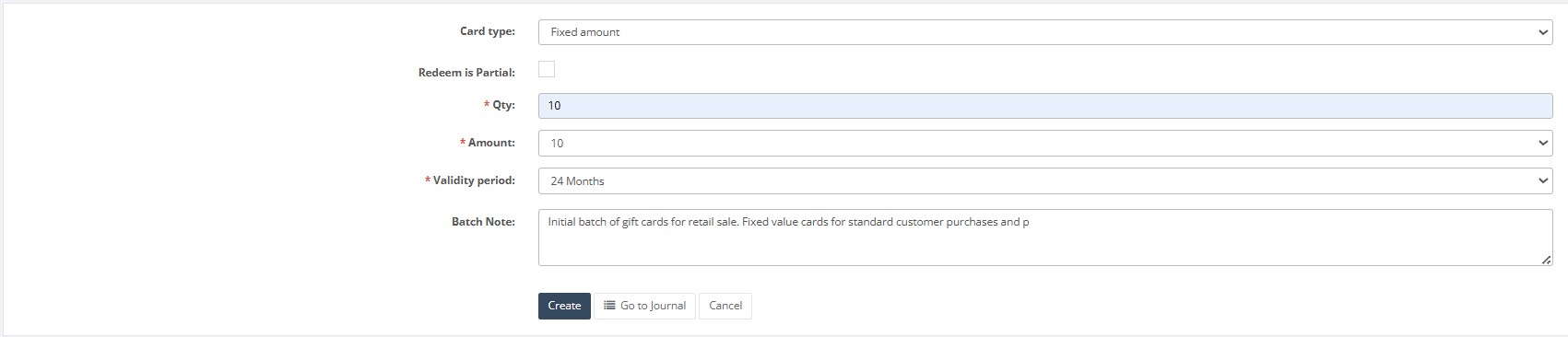
- Create the batch – Click Create to generate the gift cards. The system assigns unique card numbers and records the batch with its creation date. A confirmation message appears with the number of cards created and a link to the journal.
- Go to journal – To view the cards immediately after creation, click Go to Journal. This opens the Gift Card Journal filtered by the newly created batch.
- Cancel – Use Cancel to abort without creating any cards.
Required fields
- Card type – must be selected.
- Qty – the number of cards to create (positive integer).
- Amount – required for fixed amount cards (decimal with two digits after the separator).
- Validity period – choose a value from the drop‑down.
Validation rules
- Quantity must be greater than zero; non‑numeric values are rejected.
- Amount must be a valid decimal number with two decimal places; negative values are not allowed.
- Card type selection must match available options; unknown values cause an error.
- If Redeem is Partial is unchecked, the system ensures the card is redeemed fully in one transaction.
Exceptions
- Creating a batch fails if the user lacks create rights or if system configuration for gift cards is incomplete.
- If dynamic amount cards are not supported by your POS or API, the system may restrict selection to fixed amount cards.
Common errors
- Leaving mandatory fields blank results in validation messages highlighting the missing fields.
- Entering non‑numeric characters in Qty or Amount triggers an error.
- Selecting a validity period that is not configured results in an invalid value error.
Troubleshooting
- If the Create button is disabled, ensure you have filled in all required fields and have appropriate permissions.
- To verify that cards were created, open the Gift Card Journal and search by batch note or creation date.
- For issues with card numbers or duplicates, contact IT support to review the numbering sequence.