
Purpose
Prepayment invoices are used to record customer deposits or advances before goods or services are delivered. The document registers the prepayment amount and customer details but does not update stock until the prepayment is applied to a regular sales invoice. Prepayment invoices can later be linked to full invoices to reduce the outstanding balance.
Roles involved
The following roles typically work with prepayment invoices:
- Sales clerks – create prepayment invoices when receiving deposits from customers.
- Store or location managers – approve prepayment invoices and ensure deposits are recorded against the correct location.
- Accounts receivable staff – apply prepayments to sales invoices and track outstanding balances.
- Administrators – configure numbering sequences, payment methods and user permissions.
Preconditions
- Customers and products are set up in the system.
- VAT groups, units of measure and payment methods have been defined.
- A prepayment invoice number sequence exists for the current year; numbers are assigned automatically when saving.
Navigation path
Select Sales invoices → Prepayment invoices from the side menu to open the list of prepayment invoices. The list page displays existing prepayment documents along with filters for status and payment state.

Step‑by‑step procedure
- View existing prepayment invoices. The list shows columns such as Invoice number, Customer, Creation date, Lines, Total (incl./excl. VAT), VAT amount, Currency, Location, Status, Sales invoice number and Modified by. Use the search box or filters to locate specific documents.
- Create a new prepayment invoice. Click Create a new Prepayment invoice to open a blank form. Enter the Customer and Location, then complete the details section with Approve Date, Currency, Payment method and any notes or shipment dates.
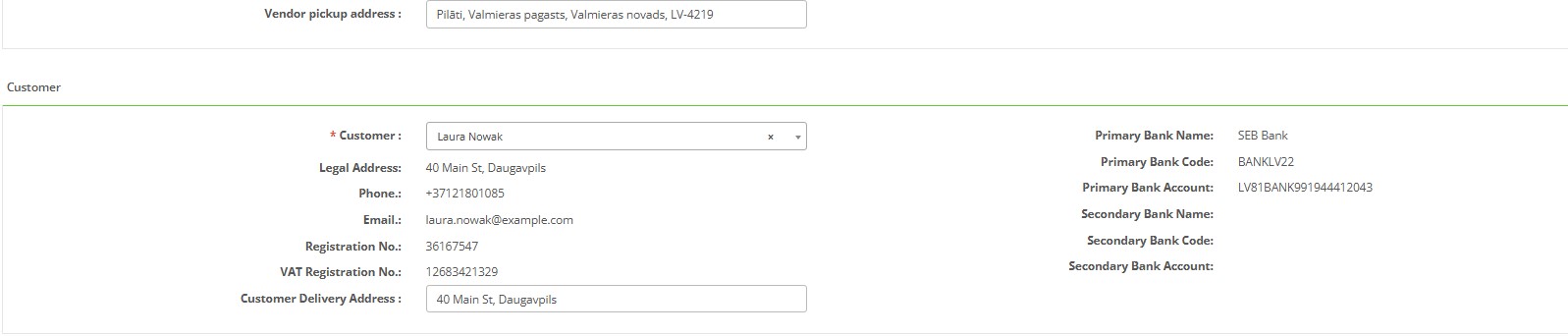
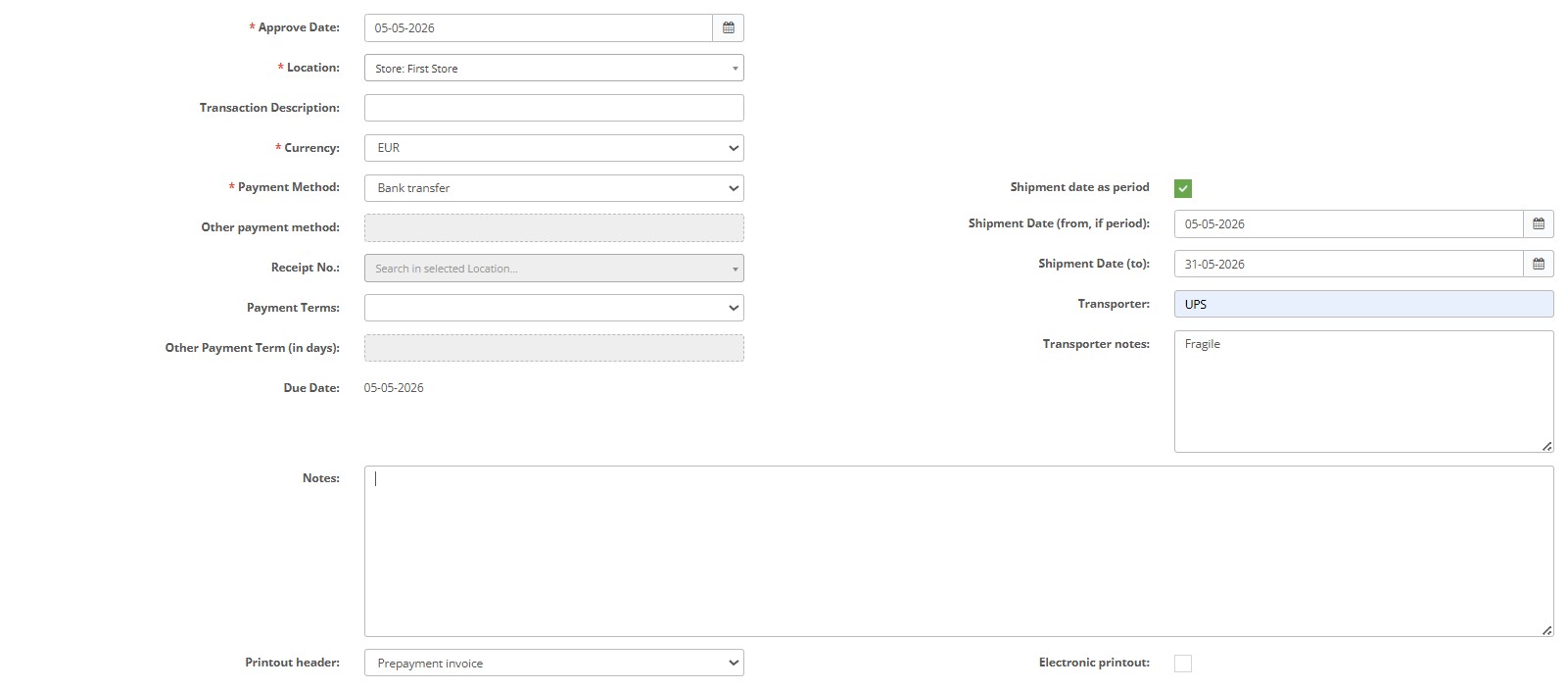 Optional fields include Payment terms, Other payment method and Due date. Save the document to generate the prepayment invoice number.
 - Add lines. After saving, the lines tab becomes editable. Click Add new line to add products. Each line requires a Product No., Quantity, Unit of measure and Unit price. Serial and batch numbers can be recorded when applicable. Use the Import/Export menu to import lines from a CSV template or download existing lines for review.
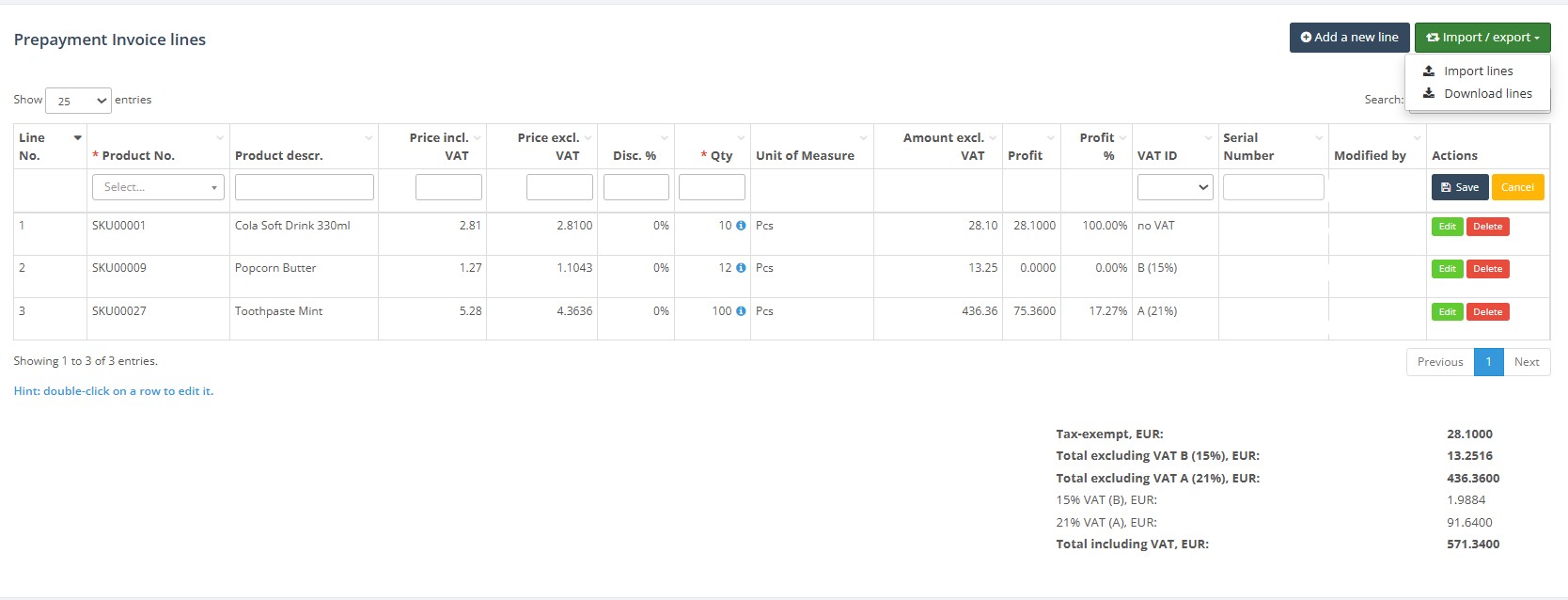
- Save and approve. Click Save to store changes. When the prepayment invoice is correct, click Create Sales Invoice to lock the document.
- Actions on approved invoices. Approved prepayment invoices are read‑only. Buttons at the top allow you to:
- Return to list – go back to the prepayment invoice list.
- Undo approve – reopen the invoice for editing; use with caution.
- Download – export the document in DOCX, PDF or XML format for printing or archiving.
- Use as Template – allows you to copy lines from one prepayment invoice to a new one. This is useful when receiving repeat deposits from the same customer.
- Apply prepayment to a sales invoice. When you create a sales invoice, you can link an approved prepayment invoice to reduce the customer’s payable balance. The system matches the prepayment invoice number and deducts the prepayment amount from the final invoice.
Required fields
- Customer – the customer making the deposit.
- Location – the store or warehouse associated with the prepayment.
- Approve Date – date when the prepayment is recorded.
- Currency and, if not EUR, the Exchange rate.
- Payment method – method used to collect the deposit (e.g., cash, bank transfer).
- Lines – each line needs Product No., Quantity, Unit of measure and Unit price.
Validation rules
- Mandatory fields (marked with a red asterisk) must be filled before saving.
- Prepayment invoice numbers are unique and automatically assigned upon saving.
- Quantities must be positive; negative values are not allowed on prepayment invoices.
- If the currency is not the default, an exchange rate must be provided.
- Lines referencing products with serial numbers must include the serial number.
Exceptions
Prepayment invoices do not update inventory. They are converted into regular sales invoices when the goods or services are delivered. If a prepayment invoice has been over‑collected, a credit note can be issued to refund the excess.
Common errors
- “Customer is required” – appears if the Customer field is empty when saving.
- “Quantity must be positive” – all line quantities must be greater than zero.
- “Exchange rate missing” – occurs when a foreign currency is chosen without entering an exchange rate.
- Import errors – ensure the import file uses valid product numbers and units of measure; download the system template if in doubt.
Troubleshooting
- If a prepayment invoice is not visible, check that no filters (Status, Paid) are applied on the list page.
- To modify an approved prepayment invoice, click Undo approve, edit the details and reapprove. Note that this will reset any links to sales invoices.
- If totals look incorrect, verify VAT group assignments on products and check the exchange rate for foreign currencies.
FAQ
Why is it showing Incorrect Delivery Address on an Invoice or Delivery Note
The system uses the delivery address from the location/warehouse specified on the document.
To correct the address, open the corresponding location card, update the address details, and save the changes.
The updated delivery address will be used automatically in all newly created documents.