
Purpose
Purchase drafts help you build suggested purchase orders based on historical sales. By selecting a vendor, location and sales period, the system analyses past sales and current stock levels and recommends quantities to order, drafts can be reviewed, adjusted and converted into purchase orders without immediately affecting stock.
Roles involved
This module is typically used by:
- Purchasing managers – review draft suggestions and convert them into purchase orders.
- Procurement specialists/buyers – generate drafts, adjust quantities and refresh data.
- Store or warehouse managers – provide input on stock levels and confirm delivery locations.
- Users require “view Purchase drafts” and “edit Purchase drafts” rights to access and modify drafts.
Preconditions
- A vendor and at least one location must be defined in the system.
- Historical sales data must exist for the selected period; drafts are based on past sales and current balances.
- Products should be set up with their vendors and costs; only products linked to the selected vendor are suggested.
Navigation path
From the main menu select:
Purchase orders → Purchase drafts
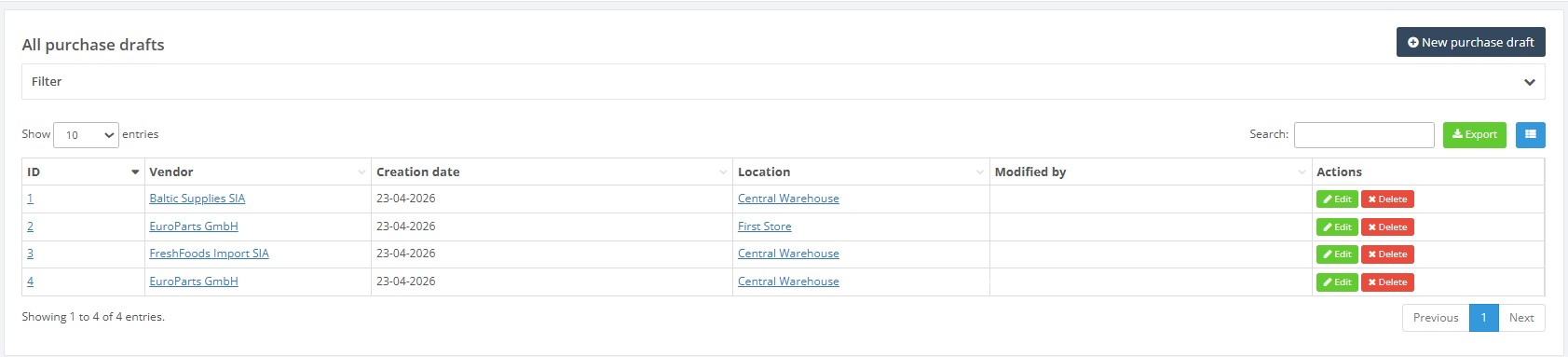
The list page displays all existing drafts with columns for ID, vendor, creation date, location and modified by. You can filter, search, configure columns or export the list.
Step‑by‑step procedure
- Open the list – Navigate to Purchase drafts. Use quick filters or search to find drafts. Click the export button to download the list if necessary.
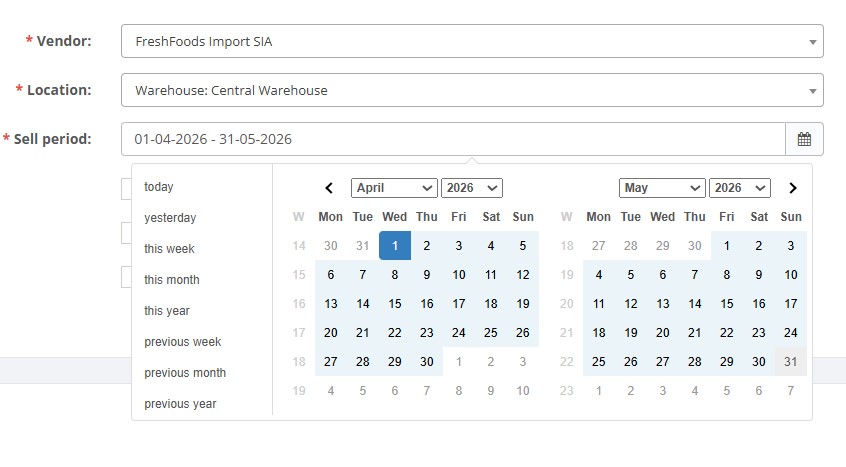
- Create a new draft – Click New purchase draft. A form appears with mandatory fields indicated by a red asterisk:
- Vendor – select the vendor whose products you want to replenish.
- Location – choose the warehouse/store receiving the goods.
- Sell period – set the start and end dates for the sales analysis using the date range picker.
- Optional flags:
- Ignore inactive products – exclude products marked inactive.
- Ignore BOM products – exclude bill‑of‑materials (kits).
- Include negative adjustments in sales – include stock reductions (e.g. shrinkage) when calculating demand.
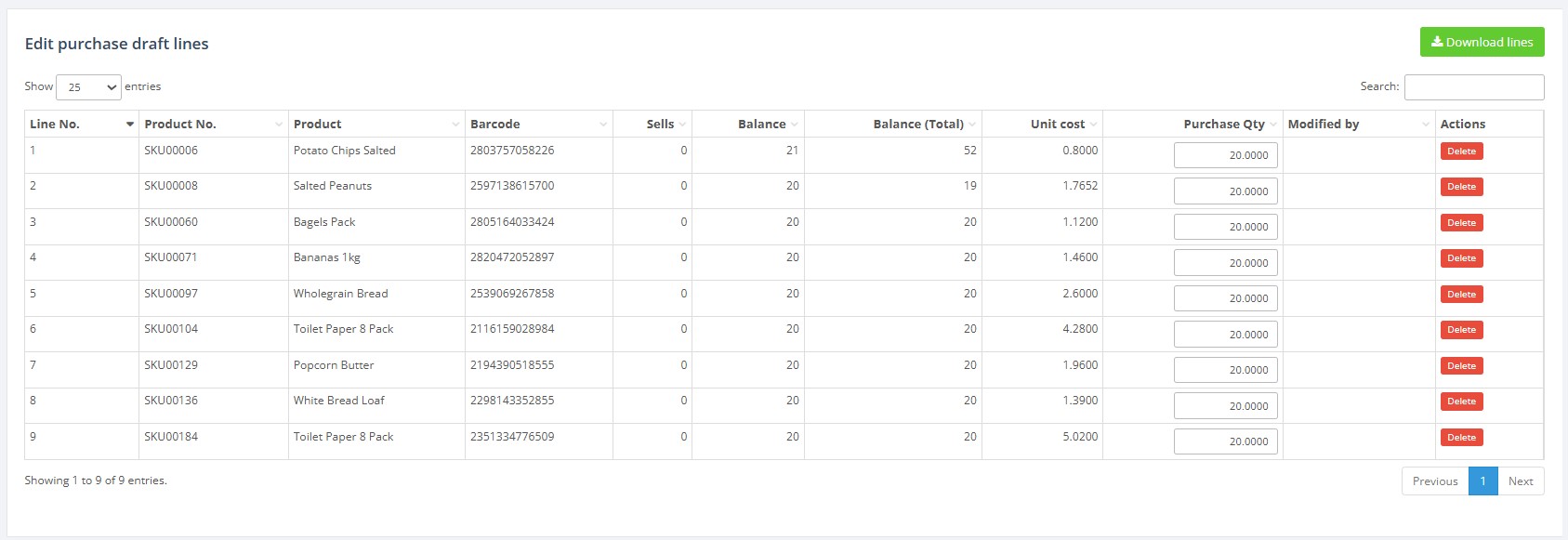
- Review and edit draft lines – The Purchase draft lines table lists suggested products with columns for line number, Product No., Product name, Barcode, Sells, Balance, Balance (Total), Unit cost and Purchase Qty. Edit the Purchase Qty column to enter the quantity you intend to order. You can delete lines using the delete buton.
- Refresh the draft – Press Refresh to recalculate recommendations using updated sales data or modified criteria. A confirmation message appears when the draft is saved.
- Download lines – Click the green Download lines button above the table to export the draft lines to Excel for offline analysis or modification.
- Create a purchase order – After reviewing and entering quantities, click Create purchase order. The system generates a purchase order populated with the draft lines and opens it in edit mode. Follow the purchase order procedure to approve it.
- Return or delete – Use Return to list to go back to the drafts list. To remove the draft entirely, click Delete button.
Required fields
- Vendor – must be selected before saving the draft.
- Location – choose the delivery location.
- Sell period – specify both start and end dates; incomplete ranges are not accepted.
- Purchase Qty – at least one line must have a quantity greater than zero before generating a purchase order.
Validation rules
- Vendor and Location are mandatory; the system prevents saving if they are blank.
- Only one draft per vendor and location can be edited at a time. If another user has the draft open, a lock message will appear.
- Purchase Qty values must be numeric. Negative quantities are allowed only when intentionally reducing stock.
Exceptions
- No products found – When the selected vendor has no products or there are no sales within the chosen period, the draft will be empty. Try widening the date range or verifying vendor-product links.
- Partial stock coverage – The draft calculates recommendations based solely on historical sales and current stock; it does not consider future demand forecasts.
- Refresh vs Save – Clicking Refresh updates recommendations and saves the draft simultaneously. Use it when you change options or date range.
Common errors
- “Please select vendor/location” – appears when mandatory fields are missing.
- No products found – the vendor has no products or no relevant sales in the selected period.
- Draft locked – another user is editing the same draft. Wait until the draft is released.
Troubleshooting
- If no lines appear after saving, ensure you selected the correct vendor, location and date range. Broaden the period or check vendor assignments.
- If the Purchase Qty column is not editable, verify your user rights for editing purchase drafts.
- If sales or balance values look incorrect, click Refresh to recalculate using current data.