
Overview
Adjustment journals are used to correct inventory quantities in Resico ERP. They record increases or decreases in stock for specific products and locations. Users can create journals, add lines for each adjustment, import or export lines, and approve the journal to update stock levels. The list page allows filtering existing journals, exporting them and configuring visible columns.
Who Can Use This
- Users with view Adjustment Journals rights can see the list of adjustment journals and open approved journals.
- Users with edit Adjustment Journals rights can create and modify open journals.
- Users with approve Adjustment Journals rights can approve journals to update stock levels.
- Users with reopen Adjustment journal rights can undo an approved journal if corrections are needed.
Preconditions
- The products to be adjusted must exist in the product list.
- The locations (stores or warehouses) must be set up in Retail Setup.
- Journal reasons (if used) should be configured in Retail Setup → Journal Reasons.
Navigation
From the main menu, navigate to:
ERP → Journals → Adjustment Journals
Step‑by‑Step Process
- Working with the list of adjustment journals:
- After opening Adjustment Journals, you see a table listing all journals with columns for journal code, name, number of lines, amount, status, approved date and modified by. The header includes a Status drop‑down (All/Approved/Open) and a Search box to quickly filter journals

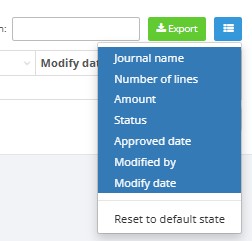
- Use the green Export button to export the list of journals to a spreadsheet

- Click the blue column‑configuration button (to the right of the Export button) to choose which columns are visible in the table
- Open an approved journal by clicking View entries. Open journals have additional Edit, Delete and Approve actions in the Actions column

- To create a new journal, click Create new adjustment journal (top right of the page)

- After opening Adjustment Journals, you see a table listing all journals with columns for journal code, name, number of lines, amount, status, approved date and modified by. The header includes a Status drop‑down (All/Approved/Open) and a Search box to quickly filter journals
- Creating a new adjustment journal:
- On the journal page, enter a unique Journal code (short identifier) and a descriptive Journal name

- Add lines by clicking Add a new journal line. For each line specify:
- Date – the adjustment date.
- Product No. – select the product to adjust.
- Location – select the warehouse or store.
- Quantity (Qty +/‑) – enter a negative number to decrease stock or a positive number (with or without ‘+’) to increase stock

- Reason – (optional) choose a reason from journal reasons.

- Use the green Import / export drop‑down to import lines from a template, export the journal’s lines or download the adjustment act as a PDF
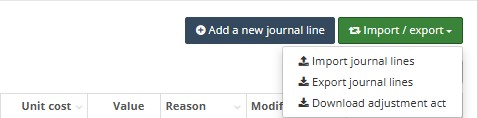 When importing, use the provided Excel template (.xlsx format) with these column headers in this order: Date, Product No., Quantity, Location Id and Reason. Dates must be in
 dd‑mm‑yyyyformat, product numbers can be up to 50 characters, quantities must be numeric (use negative values for decreases), location codes up to 20 characters and reason codes up to 20 characters. Lines with invalid data will be rejected during import. - Click Save to store the journal. Saving does not affect stock levels yet.
- When all lines are correct, click Approve journal. Approval posts the adjustments and changes stock levels
 After approval, the journal becomes read‑only.
- On the journal page, enter a unique Journal code (short identifier) and a descriptive Journal name
- Editing an open journal:
- In the list page, click Edit for an open journal.
- Modify the header (code or name) or journal lines. You can add or delete lines as needed.
- Save the changes and approve when ready.
- Viewing an approved journal:
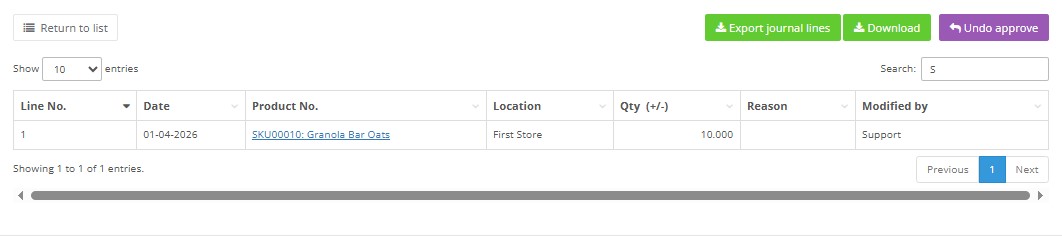
- Click View entries for an approved journal. The lines are displayed in read‑only mode with an Export journal lines button and a Download button to download the adjustment act.
- If you have permission, you may see an Undo approve button which reopens the journal for corrections
Required Fields
- Journal code – user‑defined identifier up to 40 characters; must be unique (mandatory).
- Journal name – descriptive name up to 45 characters (mandatory).
- For each line: Date (in
dd‑mm‑yyyyformat), Product No. (up to 50 characters), Location (up to 20 characters) and Quantity are mandatory.
Validation Rules
- A journal cannot be approved without at least one line.
- The quantity must be numeric; negative values decrease stock and positive values increase stock.
- Only users with approval rights can finalize a journal; others will not see the Approve journal button.
- Once approved, a journal cannot be edited unless reopened (requires reopen Adjustment journal rights).
- Journal codes must be unique and contain no more than 40 characters.
- Journal names must not exceed 45 characters.
- Product numbers must refer to existing items and may be up to 50 characters in length.
- Location codes must match existing locations and may be up to 20 characters.
- If you specify a reason, it must exist in Journal Reasons and be no more than 20 characters.
Common Errors
- Missing mandatory fields: If any header field or line field is empty, the system will highlight it in red and prevent saving.
- Attempting to approve with invalid quantities: Non‑numeric or zero quantities will trigger an error.
- Edit button disabled: Occurs when the journal status is Approved; use View entries instead.
- Import failure: Importing journal lines with an incorrect file type, wrong column order or invalid values will result in an error. Use the provided XLSX template and ensure the columns are ordered Date, Product No., Quantity, Location Id, Reason; dates must follow
dd‑mm‑yyyyformat and values must meet length and data‑type requirements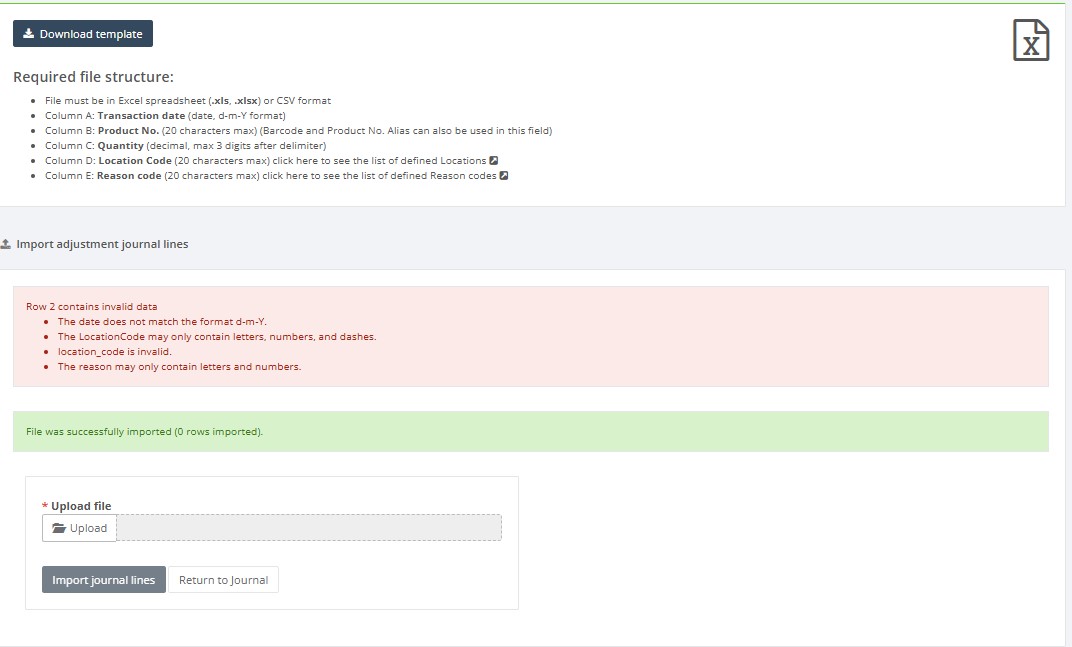
Troubleshooting
- If you cannot find a journal, verify the status filter is set to All or the appropriate status and use the search field to locate it.
- If a journal line’s product or location is missing from the drop‑down, check that the product and location are active in the respective modules.
- If stock levels have not changed after saving a journal, ensure the journal has been Approved; saving alone does not modify stock.
- To correct an incorrect approved journal, either create a new adjustment journal with opposite quantities or use the Undo approve function (subject to permissions).
FAQ
- Does saving an adjustment journal update stock levels?
No. Saving only stores the journal as an open document. Stock levels are updated only after the journal is approved. - When are inventory quantities changed?
Inventory quantities are changed when the adjustment journal is approved. Positive quantities increase stock, while negative quantities decrease stock. - Can I approve an empty adjustment journal?
No. A journal must contain at least one valid line before it can be approved. - What is the difference between an open and approved journal?
An open journal can be edited, updated or deleted depending on user permissions. An approved journal is posted to inventory and becomes read-only unless it is reopened by a user with the required rights. - Can I edit an approved adjustment journal?
No. Approved journals cannot be edited directly. If corrections are needed, use Undo approve if you have permission, or create a new adjustment journal with opposite quantities to reverse the incorrect adjustment. - What does Undo approve do?
Undo approve reopens an approved adjustment journal so that corrections can be made. This action is available only to users with reopen Adjustment journal rights. - Should I use positive or negative quantity?
Use a positive quantity to increase stock and a negative quantity to decrease stock. For example, entering 5 adds five units to inventory, while entering -5 removes five units from inventory. - Can I enter zero quantity?
No. Zero quantity should not be used because it does not create a stock movement. Enter either a positive or negative quantity depending on the required correction. - Why can’t I see the Approve journal button?
The Approve journal button is visible only to users with approve Adjustment Journals rights. If the button is missing, check your permissions or contact the system administrator. - Why can’t I edit a journal?
A journal cannot be edited if it has already been approved. Approved journals are read-only. Open the journal using View entries or reopen it if you have the required permission. - Why did my import fail?
Imports may fail if the file type is not XLSX, the column order is incorrect, required values are missing, dates are in the wrong format, quantities are not numeric, or product, location or reason codes do not exist in the system. - Which columns are required in the import file?
The import file must use the provided Excel template with the columns in this order: Date, Product No., Quantity, Location Id and Reason. Dates must use dd-mm-yyyy format. - Can I import both positive and negative quantities?
Yes. The import file can contain both positive and negative quantities. Positive quantities increase stock and negative quantities decrease stock after the journal is approved. - What should I do if a product is not available in the journal line?
Check that the product exists in the Product List and is active. Also verify that the product number in the import file matches the product number in the system. - What should I do if a location is not available?
Check that the location, store or warehouse exists in Retail Setup and that the location code used in the journal or import file is correct. - Is the Reason field mandatory?
The Reason field is optional if your setup does not require it. If a reason is entered, it must exist in Retail Setup → Journal Reasons and must match the configured reason code. - Can I delete an adjustment journal?
Open journals can usually be deleted by users with the required edit rights. Approved journals cannot be deleted because they have already affected inventory. - How do I correct stock if the wrong quantity was approved?
If reopening is allowed, use Undo approve and correct the journal. If reopening is not available, create a new adjustment journal with the opposite quantity to reverse the incorrect stock movement. - Where can I check whether the stock level changed?
After approving the journal, check the product balance, inventory reports or related stock movement reports to confirm the updated quantity. - Can adjustment journals be used to move stock between locations?
No. Adjustment journals are used to increase or decrease stock at a specific location. To move stock from one location to another, use Transfer Journals instead. - When should I use an adjustment journal instead of a stock take journal?
Use an adjustment journal for direct stock corrections, write-offs or manual increases and decreases. Use a stock take journal when recording counted inventory quantities during a stock count process.
Best Practices
- Use clear journal names that explain the purpose of the adjustment, for example “Damaged goods write-off” or “Warehouse stock correction”.
- Enter a reason for each adjustment whenever possible. This makes inventory corrections easier to review later.
- Review all quantities before approving the journal, especially negative quantities, because approval updates stock levels immediately.
- Use the import template for larger adjustments instead of entering many lines manually.
- After approval, verify the result in product balance or inventory reports.
Related Pages
- Transfer Journals – move inventory between locations.
- BOM Journals – manage Bill of Materials adjustments.
- Stock Take Journals – record results of stock counting.
- Product List – browse and filter available products.
- Product Card – create and update individual product records.
- Reports – check inventory reports after adjustments.