
Purpose
Use the Tax Report to calculate tax figures for a selected date range and one or more locations. The report supports standard and extended output modes and can generate a downloadable full report.
Roles involved
- Finance user
- Accountant
- Tax / reporting specialist
Preconditions
- The user needs permission to read the Tax Report.
- Locations and tax-related transaction data must exist.
Navigation path
Reports → Tax Report
Step-by-step procedure
- Open Reports → Tax Report.
- Select the Date range.
- Select one or more Locations.
- Choose the required output mode by using the page actions:
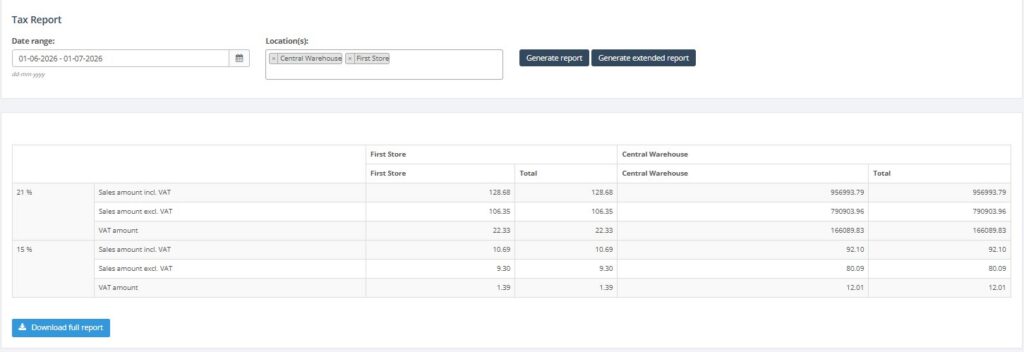
- Generate report for the standard version, or Generate extended report for the extended version.
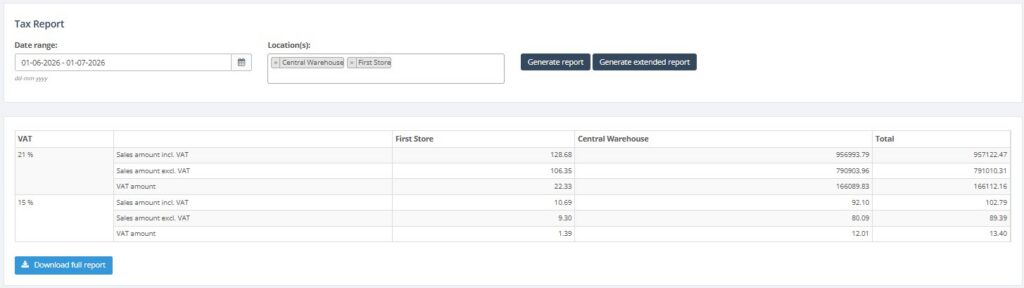
- Wait for the preview table to load.
- Review the report preview shown on the page.
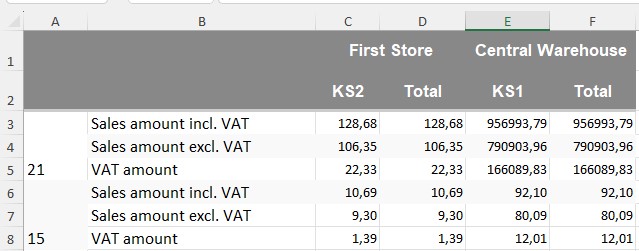
- If needed, use Download full report to export the result.
Required fields
- Date range
Validation rules
- The selected locations must exist.
- The report mode is controlled through the form actions and hidden expand_details value.
Exceptions
- The report has two output levels: simple / standard and extended.
- The preview table loads on the page; it is not the final exported full report.
Common errors
- Users generate the simple version but expect the extended details.
- Users forget to select the correct locations and compare the wrong data set.
Troubleshooting
- If the preview does not show the needed detail, rerun it with the extended option.
- If totals look wrong, compare the same period with Transactions and Sales reports.
- Use the full download when the preview is not enough for accounting review.
Questions / Gaps
- The exact content difference between standard and extended output should be confirmed in a live tenant example if needed for training.