
Purpose
Use the Stock location report to review product balances and selected product master data for stock by location. The report supports export and advanced filtering.
Roles involved
- Inventory controller
- Store manager
- Purchasing user
Preconditions
- The user needs permission to read the Stock location report.
- Products and balances must exist.
Navigation path
Reports → Stock location report
Step-by-step procedure
- Open Reports → Stock location report.
- Use the available filters such as category, type, vendor, the report includes product number, description, standart price, last unit cost, category, vendor and total balance.
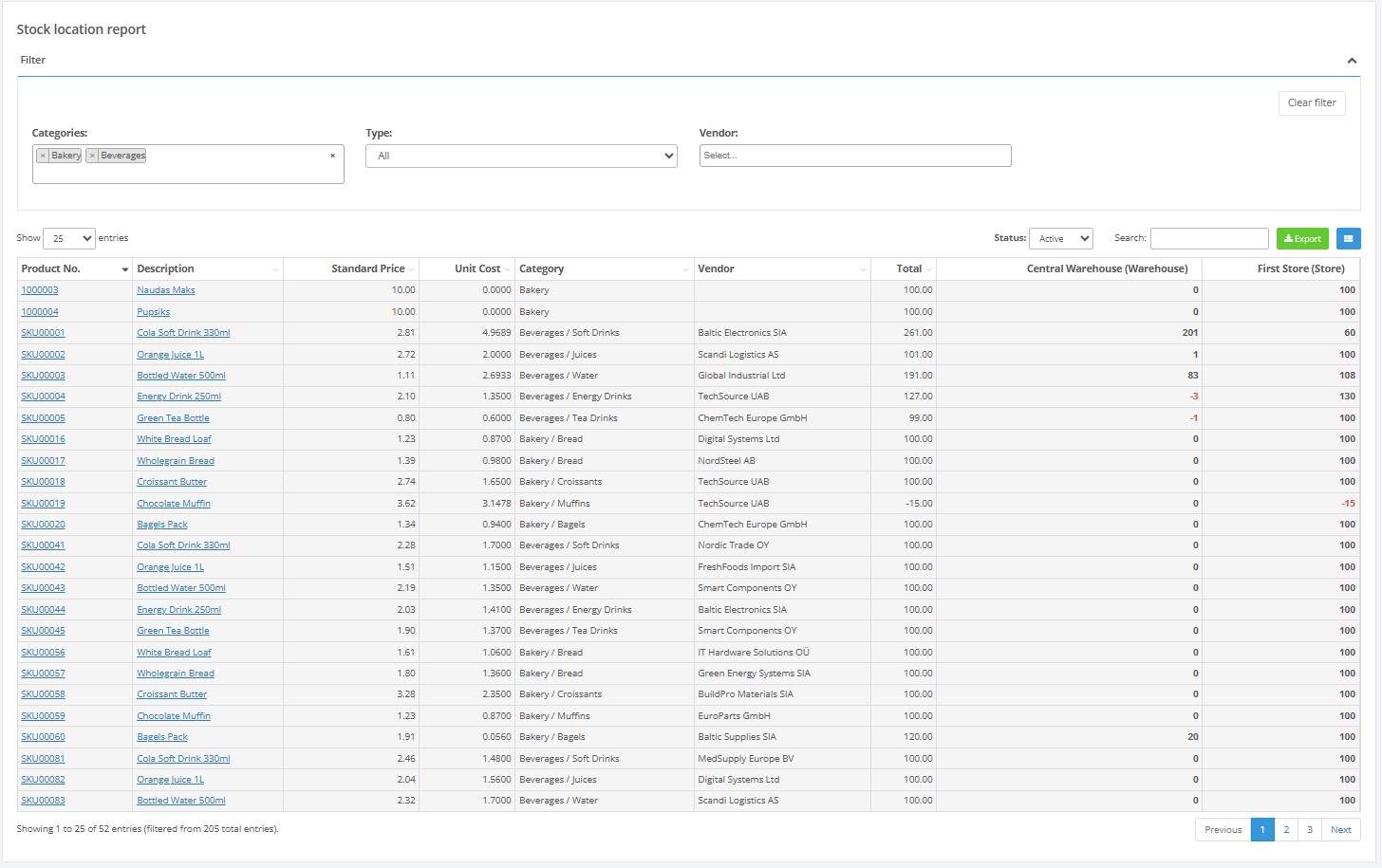
- Export the report when needed.
Required fields
- No single field is mandatory on the filter panel, but using category, type, vendor filters is recommended for large product ranges.
Validation rules
- Price columns depend on user permissions.
- Filters must use values available in setup.
Exceptions
- Some columns, such as sales price or unit cost, may be hidden if the user does not have permission to see them.
- The report structure can vary when reservation functionality is enabled.
Common errors
- Users expect all price fields but lack the permission to view them.
- Users misread the balance total without considering reservations or inactive products.
Troubleshooting
- If prices are missing, check user permissions.
- If too many products appear, narrow the list with category, vendor or status filters.
Questions / Gaps
- The exact way reservations are reflected in the displayed balance should be confirmed in the live tenant when training users.