
Purpose
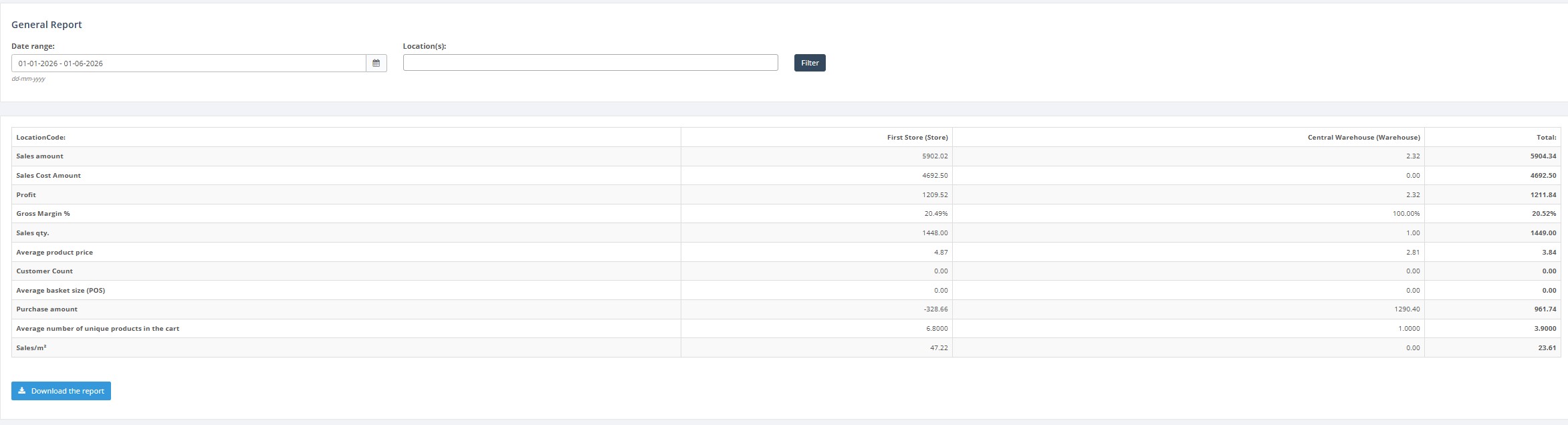
Use the General Report to compare key sales indicators by location for a selected date range. The report summarizes total sales, sales cost, sales quantity, average product price, customer count, average basket size, purchase amount, sales per m², average SKU count, margin and profit.
Roles involved
- Store manager
- Retail operations manager
- Finance / controlling user
Preconditions
- The user needs permission to read the General Report.
- Locations must already exist in the ERP.
- Sales and purchase data must exist for the selected period if you expect non-zero results.
Navigation path
Reports → General Report
Step-by-step procedure
- Open Reports → General Report.
- Select the Date range.
- Select one or more Locations.
- Click Filter to refresh the report.
- Review the result table. The columns are the selected locations plus a Total column.
- Review the calculated lines in the report, including Sales amount, Sales cost amount, Sales quantity, Average product price, Customer count, Average basket size, Purchase amount, Sales m², Margin and Profit.
- If needed, click Download report to export the result.
Required fields
- Date range
Validation rules
- At least one valid date range must be provided.
- Selected locations must exist in the location list.
Exceptions
- If no locations are selected, the system may use all available locations depending on standard report behavior.
- The report uses aggregated calculations, so individual transaction details are not shown on this screen.
Common errors
- Users choose a date range with no sales or purchase data and get an empty or zero result.
- Users expect transaction-level drilldown, but this report is summary-only.
Troubleshooting
- If all values are zero, first check the date range and selected locations.
- If totals look unexpected, compare with Transactions or Orders Summary for the same period.
- Use exported output when totals need to be reviewed outside the ERP.