
Purpose
Use the Expiration dates report to review products with purchase information, expiration dates and batch-related data, filtered by location, vendor and category.
Roles involved
- Inventory controller
- Store / warehouse manager
- Quality control user
Preconditions
- The user needs permission to read the report.
- Purchase and batch / expiration data must exist.
Navigation path
Reports → Expiration dates
Step-by-step procedure
- Open Reports → Expiration dates.
- Filter by Location, Vendors and Product category as needed.
- Enable Show with only expiredate or batchcode if you want to restrict the output to rows that have expiration date or batch code data.
- Click Filter.
- Review the report output, including purchase order-related detail where available.
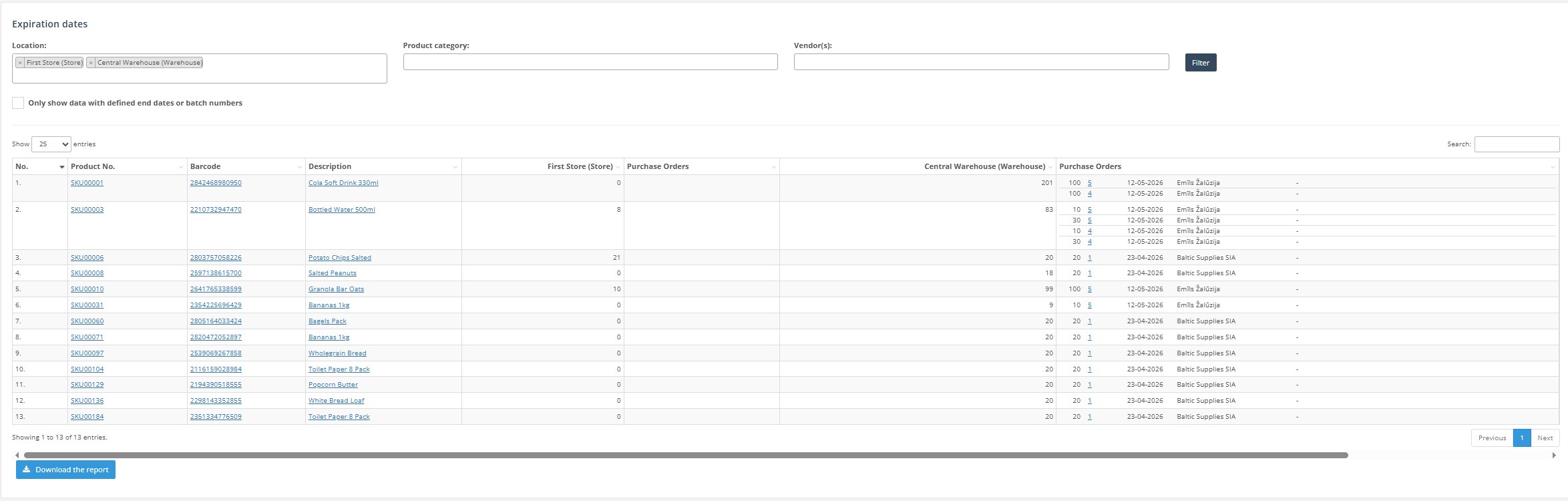
- Click Download report to export the result.
Required fields
- At least one location is recommended for practical use.
Validation rules
- Location, vendor and category filters must use existing records.
Exceptions
- The report can hide lines without expiration date or batch code when the checkbox is enabled.
Common errors
- Users expect all purchased items, but the ‘only expiredate or batchcode’ option removes many lines.
- Users forget to filter to the correct vendor or location.
Troubleshooting
- If too many results are shown, add vendor or category filters.
- If too few results are shown, clear the ‘only expiredate or batchcode’ option and rerun the report.