
Purpose
Use the EJ Report to review summarized POS/EJ information in a filterable list with totals such as sales, VAT, grand total, change, encashment and drawer balance.
Roles involved
- Store manager
- POS supervisor
- Finance user
Preconditions
- The user needs permission to read the EJ report.
- EJ / fiscal summary data must exist.
Navigation path
Reports → EJ Report
Step-by-step procedure
- Open Reports → EJ Report.
- Use the available filters such as date range, location, POS and Z number.
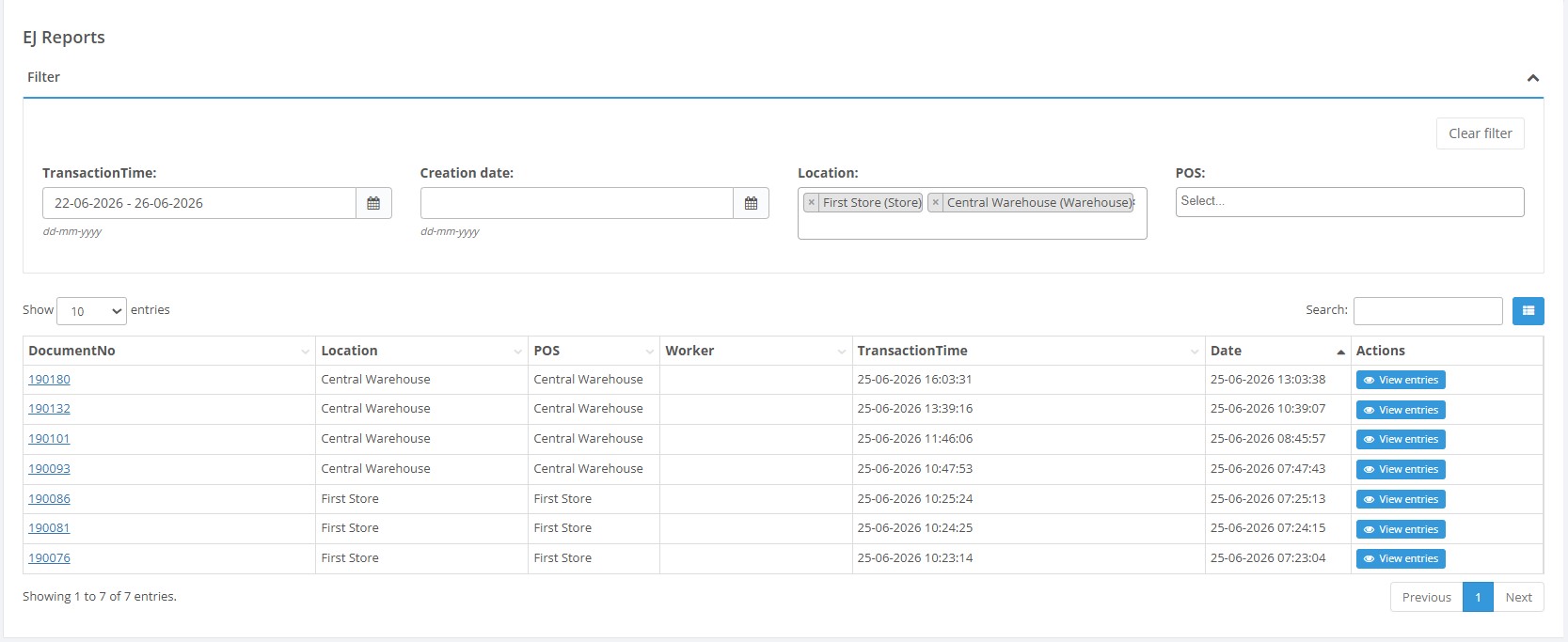
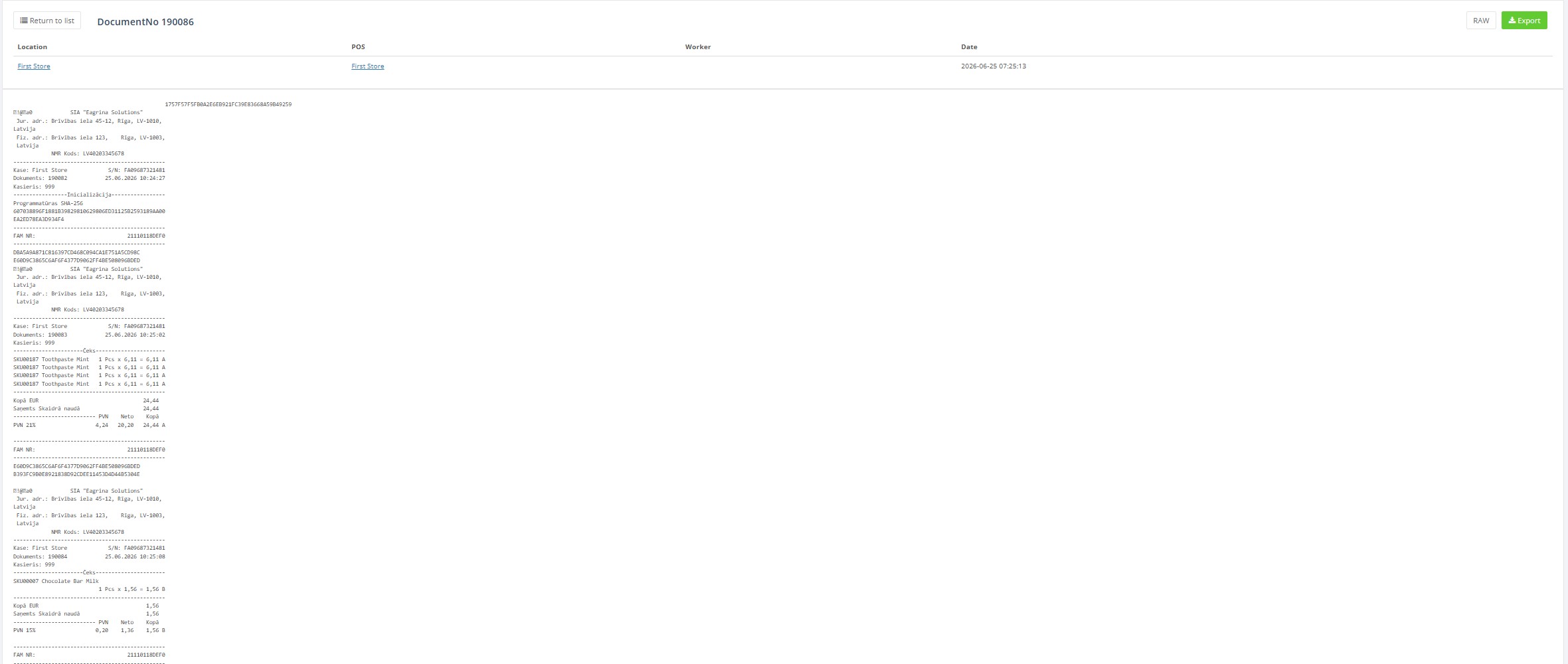
- Open a listed record when a detailed item view is needed.
- Review the result list and summary values.
- The report includes date, location, POS, Z number, sum, VAT, total with VAT, grand total, change, encashment and balance.
- Use export when you need the data in file form.
Required fields
- A meaningful date or location filter is recommended.
Validation rules
- Filter values must match configured locations and POS records.
Exceptions
- The report is a summarized EJ-style report, not a line-by-line sales list.
Common errors
- Insufficient filtering leads to large mixed-location result sets.
Troubleshooting
- Use date and POS filters to narrow the result.
- Open a listed record if you need more detail than the summary line provides.
Questions / Gaps
- The exact meaning of each EJ financial field should be confirmed in the live fiscal setup if detailed finance training is required.