
Purpose
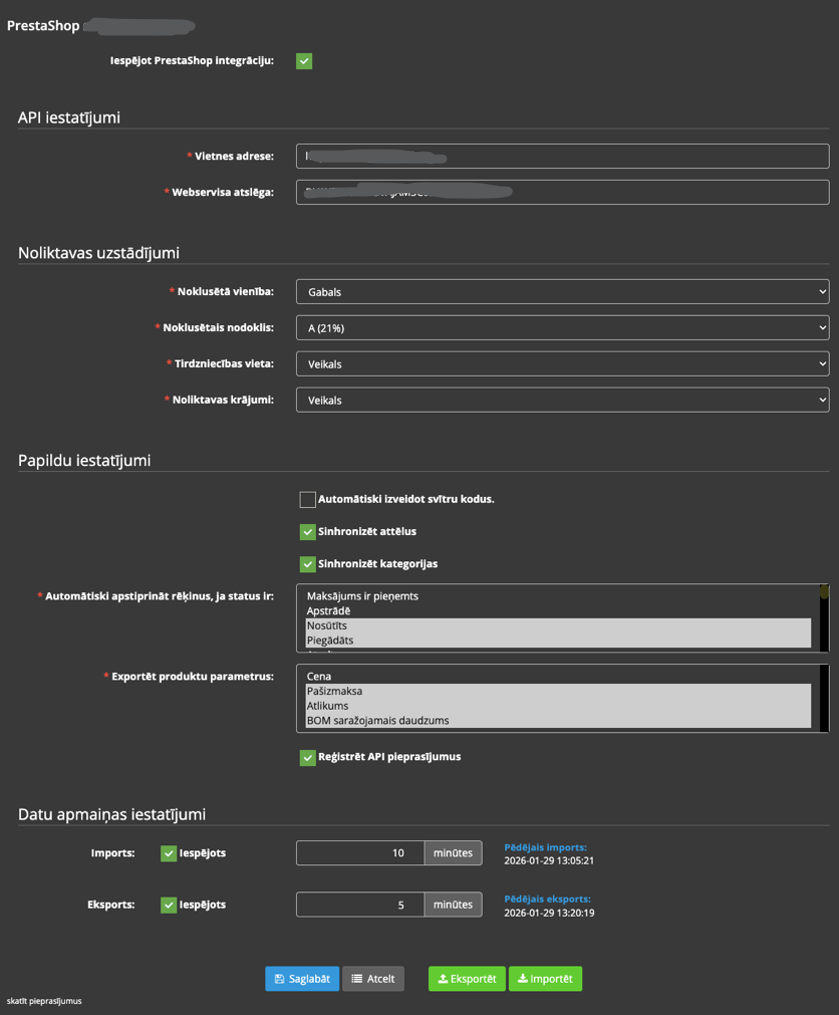
Use the PrestaShop page to view information about the client’s PrestaShop integration with Resico ERP.
The PrestaShop integration is used to exchange data between Resico ERP and the client’s PrestaShop webshop. Data exchange is performed using the PrestaShop Webservice API. No additional plugin or application must be installed in PrestaShop for this integration.
The current integration is primarily intended for an older PrestaShop environment, for example PrestaShop version 1.7.8. Compatibility with newer PrestaShop versions must be checked before setup or upgrade.
Important: For users, PrestaShop integration settings are managed by IBSC support employees or authorized implementation specialists. The client may see the settings, but cannot change them.
This page displays:
- Whether PrestaShop integration is enabled.
- PrestaShop API connection settings.
- Default unit of measure and tax settings.
- Sales location used for imported PrestaShop orders.
- Warehouse stock location used for stock synchronization.
- Product image and category synchronization options.
- Automatic invoice approval status rules.
- Product parameter export options.
- Import and export settings.
- Manual import and export actions.
- Last import and export execution information.
- API request logging for troubleshooting.
Note: These parameters are managed by SIA IBSC. To request setup changes, contact customer support.
Roles involved
- System administrator
- E-commerce manager
- Integration / support team
- IBSC support team
- PrestaShop administrator
Preconditions
Before requesting PrestaShop integration setup or modification, the following information should be prepared:
- The PrestaShop webshop that will be connected.
- The PrestaShop webshop URL.
- PrestaShop Webservice API access must be enabled in PrestaShop.
- The PrestaShop Webservice API key must be available.
- The PrestaShop version must be known. Current integration support is intended for older PrestaShop 1.7.8 type environments.
- The Resico unit of measure that should be used as the default value must already be defined.
- The Resico tax rate that should be used as the default value must already be defined.
- The Resico sales location where webshop sales should be registered must already be defined.
- The Resico warehouse or stock location used for stock export must already be defined.
- The required order statuses for automatic invoice approval must be agreed.
- The required product export parameters must be agreed.
- It must be understood that new products and product variations are created in PrestaShop, not through a full Resico product export flow.
Navigation path
Client profile → Presta
Access and permission rules
The PrestaShop tab is primarily intended for viewing integration status and configuration. For IBSC clients, the configuration is managed by IBSC support.
- Clients can view the PrestaShop integration settings if they have access to the page.
- Clients cannot change PrestaShop integration parameters themselves.
- Only IBSC support employees or authorized implementation specialists may change PrestaShop integration settings.
- Any setup changes must be requested through support.
- Configuration changes may affect product synchronization, stock balances, order import, invoice creation and tax handling.
Page Overview
The PrestaShop page displays the current configuration of the PrestaShop connection and the rules used for data exchange between PrestaShop and Resico ERP.
Enable PrestaShop Integration
Enable PrestaShop Integration indicates whether the PrestaShop integration is active for the selected client.
Possible values:
- Enabled – PrestaShop integration is active.
- Disabled – PrestaShop integration is not active.
If the integration is disabled, regular data exchange between PrestaShop and Resico ERP will not take place.
API Settings
API Settings contain the technical connection details used to communicate with the client’s PrestaShop webshop.
The PrestaShop integration uses the PrestaShop Webservice API. No additional plugin or separate application must be installed in the PrestaShop environment.
- Store address / API URL – Displays the PrestaShop webshop address or API endpoint used by Resico ERP.
- Webservice key / API Secret – Displays the API authorization key used for communication between Resico ERP and PrestaShop.
Important: API settings should not be changed unless the connected PrestaShop store or Webservice API key changes. Incorrect API information may stop synchronization completely.
Warehouse Settings
Warehouse Settings define the default Resico ERP values that are used when PrestaShop data is received and processed in Resico.
- Default UOM – The default unit of measure used when creating or processing product and invoice data. The unit must already be defined in Resico ERP.
- Default Tax – The default tax rate used when creating documents from PrestaShop data. The tax rate must already be defined in Resico ERP.
- Sales Location – The Resico location where PrestaShop sales are registered.
- Warehouse Stocks / Stock Location – The Resico stock location used when publishing stock balances to PrestaShop.
Default values are used in invoices when the API does not provide a matching value that is already defined in Resico ERP.
The selected sales location affects where stock is deducted and where related operations are processed, for example BOM production if the sold product uses BOM logic.
The selected warehouse stock setting defines which Resico stock balance is used for PrestaShop stock synchronization. In this integration, stock is taken from the selected Resico location.
Extra Settings
Extra Settings control additional synchronization behavior for barcodes, images, categories, invoice approval, product export parameters and diagnostic logging.
- Auto Create Barcodes – Automatically generates product barcodes when products do not already have barcodes.
- Synchronize Images – Enables product image synchronization between Resico ERP and PrestaShop.
- Synchronize Categories – Enables product category synchronization.
- Auto Approve if Status – Defines which PrestaShop order statuses allow imported documents to be approved automatically in Resico ERP.
- Export Product Arguments – Defines which product parameters may be exported from Resico ERP to PrestaShop.
- Log API Requests – Registers API requests for troubleshooting and diagnostics.
Auto Create Barcodes
If this option is enabled, products without barcodes will receive automatically generated barcodes.
This helps maintain complete product data in Resico ERP when products are received from PrestaShop without barcode values.
Synchronize Images and Categories
Image and category synchronization can be enabled if product images and product category structure should be exchanged between Resico ERP and PrestaShop.
These options may remain disabled if Resico/POS and the internet webshop require different images, category structure or product presentation.
Before enabling these options, confirm where the client maintains product images and category structure.
Automatic approval by PrestaShop order status
Auto Approve if Status defines which PrestaShop order statuses allow imported invoices or documents to be approved automatically in Resico ERP.
This field can accept multiple PrestaShop statuses. For example, orders with statuses such as accepted payment, sent or completed may be used for automatic approval, depending on the client’s PrestaShop configuration.
Automatic approval should be enabled only if the client’s order processing process allows documents to be approved without manual review.
If an order status is not included in the selected list, the imported document may require manual processing in Resico ERP.
Export Product Arguments
Export Product Arguments defines which product-related values may be exported from Resico ERP to PrestaShop.
This is a multi-select setting. Only the selected product parameters are exported.
Available examples may include:
- Price – Exports the product selling price.
- Wholesale price / Cost – Exports the product purchase or wholesale price, if used by the setup.
- Quantity – Exports the available stock quantity from the selected Resico stock location.
- BOM quantity – Exports calculated quantity for products managed through BOM logic.
Important: This setting does not mean that Resico performs a full product creation or full product data export to PrestaShop. It only controls selected product parameters that can be synchronized for products that already exist and can be matched.
Log API Requests
This option registers API requests made by the integration.
It is recommended to keep this option enabled because API request logs are useful for troubleshooting synchronization issues, API errors and unexpected integration behavior.
Recommendation: Do not disable API request logging unless there is a specific support-approved reason.
PrestaShop Integration Specifics
Product and variation code handling
Similar to the Mozello integration, PrestaShop product and variation codes are based on the values received from PrestaShop.
Resico does not generate product or variation codes for PrestaShop products in the same way as in some other integrations. The product code or variation code received from PrestaShop is used for matching and synchronization.
Because of this, product and variation codes in PrestaShop must be maintained carefully. Duplicate or incorrectly changed product codes can cause incorrect matching or synchronization issues in Resico ERP.
No full product export to PrestaShop
This integration does not provide a full product export flow from Resico ERP to PrestaShop.
Resico is connected mainly as a data warehouse and synchronization source for selected values, such as stock quantities, prices, selected product parameters and imported order processing.
New products and product variations must be created and maintained in PrestaShop. Resico does not create the full product catalogue in PrestaShop through this integration.
Important: Before activating synchronization, the product and variation structure must already be prepared in PrestaShop.
Version compatibility
The current integration is intended for older PrestaShop 1.7.8 type environments. If the client uses another PrestaShop version, compatibility must be checked before connecting or upgrading the integration.
PrestaShop upgrades may affect Webservice API behavior, order statuses, product structure, stock handling or synchronization logic.
Data Exchange Settings
Data Exchange Settings display import and export configuration for PrestaShop synchronization.
- Import – Indicates whether automatic import from PrestaShop to Resico ERP is enabled.
- Export – Indicates whether automatic export from Resico ERP to PrestaShop is enabled.
- Import Frequency – Shows the configured import interval in minutes.
- Export Frequency – Shows the configured export interval in minutes.
- Last Import – Shows when the last import was executed.
- Last Export – Shows when the last export was executed.
Import is typically used to receive orders or other webshop data from PrestaShop into Resico ERP.
Export is typically used to send selected values from Resico ERP to PrestaShop, for example stock quantity, price or other selected product parameters.
Manual Export and Import actions may be available on the page for setup, testing or troubleshooting purposes.
Manual actions should be used carefully and only by IBSC support or authorized specialists, especially when large product or stock data volumes are involved.
Typical synchronization logic
The exact synchronization process depends on the client’s PrestaShop configuration, Resico setup and enabled integration options. A typical setup may include the following logic:
- PrestaShop orders are imported into Resico ERP.
- Sales invoices are created in Resico ERP based on PrestaShop order data.
- Imported documents may be approved automatically if the PrestaShop order status matches one of the configured approval statuses.
- Stock balances may be exported from the selected Resico warehouse location to PrestaShop.
- Selected product parameters may be exported from Resico ERP to PrestaShop.
- Images and categories may be synchronized if the corresponding settings are enabled.
- New products and variations are created in PrestaShop, not through a full Resico export process.
Information That May Need to Be Provided to Support
When requesting PrestaShop integration setup, changes or troubleshooting, support may require:
- PrestaShop webshop URL.
- PrestaShop version.
- Confirmation that PrestaShop Webservice API is enabled.
- PrestaShop Webservice API key.
- Preferred Resico sales location.
- Default tax configuration.
- Default unit of measure.
- Warehouse or stock location used for PrestaShop stock synchronization.
- Required PrestaShop order statuses for automatic approval.
- Required product export parameters, for example price, wholesale price, quantity or BOM quantity.
- Whether images should be synchronized.
- Whether categories should be synchronized.
- Confirmation that product and variation codes are unique and stable in PrestaShop.
- Examples of affected products, orders or invoices if an issue is reported.
- Screenshots of visible errors or unexpected behavior.
- Approximate time when the issue occurred.
Required fields
- PrestaShop API URL / Store address
- PrestaShop Webservice key / API Secret
- Default UOM
- Default Tax
- Sales Location
- Warehouse Stocks / Stock Location
- Auto Approve if Status, if automatic approval is required
- Export Product Arguments, if export is enabled
Validation rules
- PrestaShop API URL must point to the target PrestaShop webshop or Webservice API endpoint.
- PrestaShop Webservice key / API Secret must match the target PrestaShop environment.
- PrestaShop Webservice API must be enabled in the PrestaShop environment.
- The PrestaShop version must be compatible with the integration. Current integration support is intended for older PrestaShop 1.7.8 type environments.
- Default UOM, Default Tax, Sales Location and Warehouse Stocks must be selected from configured Resico values.
- Import Frequency and Export Frequency must be numeric values in minutes.
- Auto Approve if Status can contain multiple configured PrestaShop order statuses.
- Export Product Arguments can contain multiple selected product export options.
- Only selected product arguments are exported to PrestaShop.
- Product and variation codes received from PrestaShop must be unique and stable.
- Log API Requests should normally remain enabled for diagnostics.
Exceptions
- PrestaShop integration settings are managed exclusively by SIA IBSC or authorized support personnel.
- Clients may see PrestaShop integration settings but cannot change them.
- No additional plugin installation is required for PrestaShop integration.
- The integration uses PrestaShop Webservice API access.
- The integration is currently intended for older PrestaShop 1.7.8 type environments.
- The integration does not provide full product or full data export to PrestaShop.
- New products and variations are created in PrestaShop, not in Resico through the integration export process.
- Manual PrestaShop export and import actions may only be available to specific users or when integration data already exists.
- Background import and export behavior may depend on scheduled processes outside this page.
- Available information and actions may vary depending on the client’s integration setup and user permissions.
Common errors
- Wrong API URL prevents the PrestaShop connection from working.
- Wrong Webservice API key prevents API communication between PrestaShop and Resico ERP.
- PrestaShop Webservice API is not enabled in the PrestaShop environment.
- The PrestaShop version is not compatible with the current integration logic.
- Wrong tax, UOM, sales or stock mapping causes imported or exported data to use incorrect defaults.
- Incorrect stock location causes wrong stock quantities to be sent to PrestaShop.
- Automatic approval does not happen because the PrestaShop order status is not included in the selected approval status list.
- Expected product data is not exported because the required product argument is not selected.
- Images or categories are not synchronized because the corresponding synchronization options are disabled.
- Duplicate or changed product/variation codes in PrestaShop cause product matching or synchronization issues.
- API request logging is disabled, making troubleshooting more difficult.
Troubleshooting
Integration is not working
If the PrestaShop integration is not working, check the following:
- Verify that Enable PrestaShop Integration is enabled.
- Verify that the API URL points to the correct PrestaShop webshop.
- Verify that the Webservice API key is correct.
- Check whether PrestaShop Webservice API is enabled.
- Check whether the PrestaShop version is compatible with the integration.
- Verify that default UOM, tax, sales location and warehouse stock values exist in Resico ERP.
- Check whether import and export are enabled if automatic data exchange is required.
- Check whether API request logging is enabled.
- Review recent API request logs and visible error messages.
If the issue cannot be resolved, contact support and provide screenshots, error messages and the approximate time when the issue occurred.
Product synchronization issues
If products are not synchronizing correctly, provide support with:
- Product code or reference from PrestaShop.
- Variation code or reference, if the issue affects a product variation.
- Product name.
- Expected result.
- Actual result.
- Information which product export argument should be synchronized.
- Relevant screenshots from PrestaShop and Resico ERP.
Also verify whether product and variation codes are unique and have not been changed unexpectedly in PrestaShop.
Incorrect stock levels
If incorrect stock values are displayed in PrestaShop, provide support with:
- Product code or reference.
- Variation code or reference, if applicable.
- Stock value shown in PrestaShop.
- Stock value shown in Resico ERP.
- Resico warehouse location that should be used.
- Information whether normal stock quantity or BOM quantity should be exported.
Also verify whether the selected Warehouse Stocks setting and Export Product Arguments include the intended stock quantity option.
Order import issues
If PrestaShop orders are not imported into Resico ERP, provide support with:
- Order number.
- Order date and time.
- Order status in PrestaShop.
- Screenshot from PrestaShop.
- Description of the issue.
Also verify whether import is enabled and whether the order status is supported by the configured integration process.
Invoices are not approved automatically
If invoices are created but not approved automatically, check whether the PrestaShop order status is included in Auto Approve if Status.
If the status is not selected, the invoice may require manual review and approval in Resico ERP.
Also verify that the imported order does not contain incomplete or unsupported data.
Product images or categories are not synchronized
If product images or categories are not synchronized, check whether Synchronize Images and Synchronize Categories are enabled.
If these options are disabled, this may be intentional. Some clients maintain different images or category structures in Resico/POS and in the internet webshop.
Product export does not create new products
This is expected behavior. The PrestaShop integration does not provide a full product export process from Resico ERP to PrestaShop.
New products and product variations must be created in PrestaShop. Resico can synchronize selected product parameters only when the products can be matched correctly.
FAQ
Can the client change PrestaShop integration settings?
No. For IBSC clients, PrestaShop integration settings are changed only by IBSC support employees or authorized specialists. The client may see the settings, but cannot change them.
Does PrestaShop integration require a plugin?
No. The PrestaShop integration uses the PrestaShop Webservice API. No additional plugin or application must be installed for this integration.
Which PrestaShop versions are supported?
The current integration is intended for older PrestaShop 1.7.8 type environments. Compatibility with other PrestaShop versions must be checked before setup or upgrade.
Does Resico create new products in PrestaShop?
No. This integration does not provide full product export to PrestaShop. New products and product variations must be created in PrestaShop.
What data can be exported from Resico to PrestaShop?
Only selected product parameters can be exported, depending on the configured Export Product Arguments. Examples include price, wholesale price, quantity and BOM quantity.
Why are product and variation codes important?
Resico uses the product and variation codes received from PrestaShop for matching. If these codes are duplicated or changed incorrectly, synchronization may update the wrong product or fail to match data correctly.
Why was an invoice not approved automatically?
The PrestaShop order status may not be included in the selected Auto Approve if Status list. Automatic approval only applies to configured statuses.
Should images and categories be synchronized?
This depends on the client’s process. These options can remain disabled if Resico/POS and PrestaShop require different product images or category structures.
Should API request logging be enabled?
Yes. API request logging should normally remain enabled because it helps support diagnose synchronization problems and API errors.
Notes
- This page is primarily informational for clients.
- PrestaShop integration settings are managed by SIA IBSC.
- Clients cannot change PrestaShop integration settings themselves.
- Changes must be requested through support.
- The integration uses PrestaShop Webservice API and does not require additional plugin installation.
- The current integration is intended for older PrestaShop 1.7.8 type environments.
- Default tax, unit and sales location settings must exist in Resico ERP before they can be selected.
- Stock synchronization depends on the selected Resico warehouse stock location.
- Product and variation codes are taken from PrestaShop and must be maintained carefully.
- This integration does not provide a full product export flow from Resico ERP to PrestaShop.
- New products and variations must be created in PrestaShop.
- Only selected product parameters are exported, according to the configured export arguments.
- API request logging should normally remain enabled because it helps with troubleshooting.
- Manual import and export actions should be used only when required by setup or support processes.
- Configuration changes may affect product synchronization, stock balances, invoice creation, tax handling and order processing.