
Purpose
Use the Gift Card page to enable and maintain the client-wide gift card setup in Resico ERP. This page controls whether the gift card solution is active, which product numbers are used for gift cards and vouchers, the VAT and validity period, the list of fixed gift card amounts, minimum and maximum allowed amounts, and the custom visual gift card background template.
Roles involved
- System administrator
- Retail manager
- Marketing manager
Preconditions
- You need permission to edit Client profile.
- The gift card products and voucher products should already be planned before setup.
- The client should already know the VAT treatment, validity period and allowed value range for gift cards.
- If a branded card design will be used, prepare the background image file in the supported format and size.
Navigation path
Client profile → Gift Card
Step-by-step procedure
- Open Client profile → Gift Card.
- Enable the feature using Enable solution.
- If the client requires linked product setup, complete the core gift card product section:
- Product number for the main gift card item
- Voucher product number for the voucher item
- VAT
- Voucher months for validity period
- Enable or disable Show Giftcards according to whether the feature should be visible in the client environment.
- In the Fixed amounts section, select Available options to define how many fixed-value choices the user can offer. The page supports 1 to 10 amount options.
- Fill the visible amount fields for each enabled fixed option.
- In the Amount limitations section, define:
- Min amount
- Max amount
- In the Manage template section, upload a custom card background using Upload custom background.
- Review the preview area. The page includes a gift card preview with movable elements for:
- Amount
- Number
- Valid date
- Address block
- Use the on-screen template controls to adjust the selected preview element, including:
- Font size
- Color
- Type for the number field:
- Number
- Barcode
- QRcode
- Save the page when all setup values and template positions are correct.
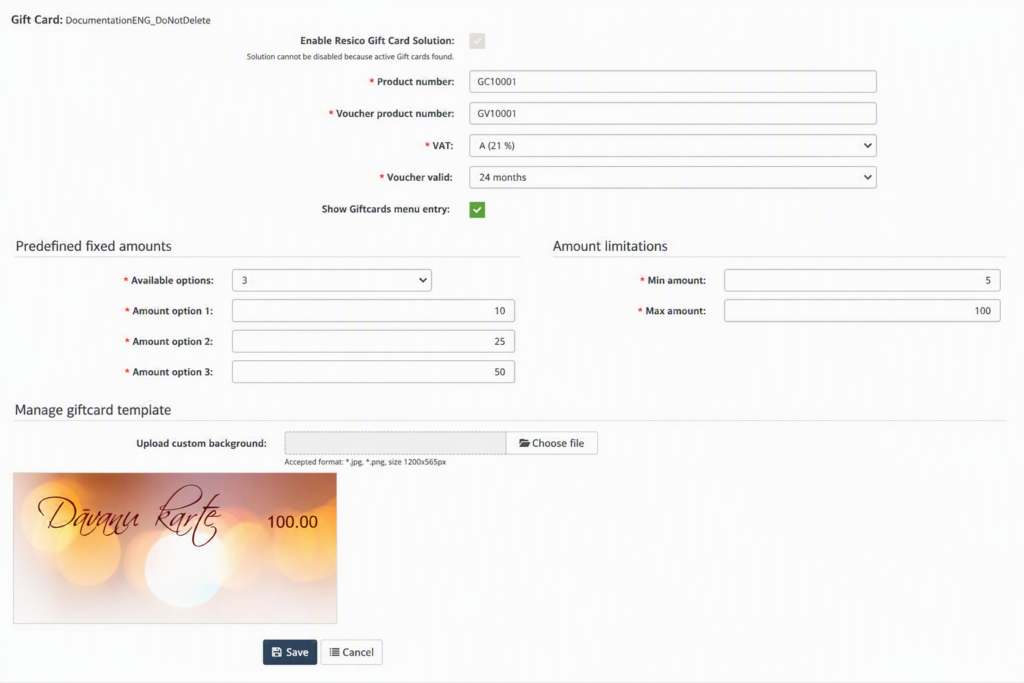
- If a custom gift card template already exists and should be removed, use Delete template.
- Use Cancel to leave the page without saving.
Required fields
- Enable solution must be turned on when the client uses gift cards.
- Product number
- Voucher product number
- VAT
- Voucher months
- Available options
- Each visible fixed amount option value
- Min amount
- Max amount
Validation rules
- Product number and Voucher product number are mandatory when the product section is active.
- VAT must be selected from configured VAT groups.
- Voucher months must be selected from the validity period list.
- Available options controls how many amount fields are visible and expected.
- Min amount and Max amount must be numeric values.
- The uploaded background must follow the accepted format shown on the page: .jpg or .png, size 1200×565 px.
- If active gift cards already exist, the system can disable the option to switch off the solution.
- If a gift card amount range is already in use, some amount fields such as Min amount can become locked.
Exceptions
- If active gift cards already exist, the page shows that the solution cannot be disabled.
- Some setup fields, such as product number, voucher product number and VAT, can become locked after the underlying gift card items already exist.
- The visual template section is shown only when the gift card solution is enabled.
- The template preview stores layout settings for a custom background and text elements, so visual output depends on both the uploaded image and the configured element positions.
Common errors
- Entering a wrong Product number or Voucher product number causes the gift card flow to point to the wrong items.
- Using incorrect VAT leads to wrong tax treatment of gift card-related products.
- Setting inconsistent fixed amounts or amount limits confuses users at sale time.
- Uploading a background image in the wrong size or format causes the custom template to look wrong or fail to upload.
- Users try to disable the gift card solution even though active gift cards already exist.
Troubleshooting
- If the solution cannot be disabled, check whether the page shows the warning that active gift cards already exist.
- If product number fields are not editable, verify whether the gift card item and voucher item have already been created by the system.
- If the custom background looks incorrect, re-upload the file in the required 1200×565 px size and supported image format.
- If the card preview does not show the expected number format, review the element Type setting and test Number, Barcode or QRcode as needed.
- After any major setup change, test one real gift card issue and one print or preview output before rolling out the configuration.
Questions / Gaps
- The page clearly shows the template preview controls, but the exact save behavior for every element position should be confirmed in live use with a full preview / print test.
- It should be confirmed whether Show Giftcards affects only visibility in the ERP interface or also changes output in POS or printed documents.
- The exact business logic behind locked amount fields marked as already used should be confirmed in production workflows.